
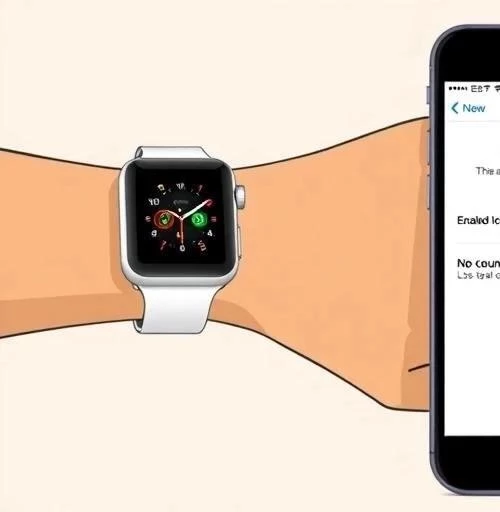
Apple Watch SE does not have a separate pedometer switch or a built-in screen that continuously displays a step total. In normal use, it counts steps automatically using its motion sensors while you wear it. You do not need to start a workout. If steps are not being recorded, check that fitness tracking is enabled and that the watch is set up and worn correctly.
Enable fitness tracking
- On your paired iPhone, open Settings.
- Tap Privacy & Security, then Motion & Fitness.
- Turn on Fitness Tracking. If the option appears, also allow it for the Watch or Fitness app.
You can also check the Watch app: open it on the iPhone, tap My Watch, choose Privacy, and make sure Fitness Tracking is on. Menu names can differ slightly with the iOS or watchOS version. If you cannot find a setting, use Settings search.
Find your step count
The Activity app on Apple Watch is designed around the Move, Exercise, and Stand rings, so it may not show a step total on its main screen. To see the number of steps recorded by your watch, use the iPhone:
- Open the Health app.
- Tap Browse, then Activity.
- Choose Steps to view the total and its history.
In Health, you can add Steps to Favorites so the information is easier to reach from the Summary screen. The Fitness app may also show step information in its activity details, depending on your software version and layout. Data can take a short time to sync between devices.
Show steps on the watch face
Apple’s standard watch faces and Activity complication do not generally provide a live step-count complication. You can still check steps in Health on the iPhone. If you want a number on the watch face, you may use a reputable third-party pedometer app that offers an Apple Watch complication.
- Choose an app from the App Store and check that it supports Apple Watch and complications.
- Install its Watch app, then open the Watch app on your iPhone.
- In My Watch, install or enable the app if needed.
- Touch and hold the watch face, tap Edit, select a complication position, and choose the pedometer app’s complication.
Complications may refresh periodically rather than update with every step. Some apps require permissions, a subscription, or the iPhone to be nearby for certain features. Review the app’s privacy information before granting access to Health data.
If the count is missing or inaccurate
- Wear the watch securely. It should sit comfortably above the wrist bone and maintain contact with your skin. A loose fit can affect motion readings.
- Check Health access. In the Health app, open Steps, scroll to Data Sources & Access, and confirm that Apple Watch is listed as a source. If multiple devices record steps, Health may combine their data.
- Check date and pairing. Keep the watch paired with the iPhone, connected when possible, and signed in to the same Apple Account. Confirm that date and time are set automatically.
- Restart and update. Restart both devices, then install available iOS and watchOS updates.
- Allow time for calibration. Walk outdoors on level ground with good GPS reception and your iPhone, carrying it normally. Regular use helps the watch estimate movement and distance more reliably.
Does the workout app need to be running?
No. Everyday steps are counted automatically when the watch is worn and fitness tracking is enabled. Starting an Outdoor Walk workout is optional; it can record workout details such as duration and route, but it is not required for ordinary step counting;
In short
There is no dedicated “turn on pedometer” control on Apple Watch SE. Enable Fitness Tracking, wear the watch properly, and check Health > Browse > Activity > Steps on your iPhone. For a step total on the watch face, use a compatible third-party complication.

2 Comments. Оставить новый
The article clearly explains how Apple Watch SE tracks steps, where to find the count, and what settings to check if tracking is not working. It also distinguishes the watch’s built-in features from third-party complications.
The instructions are organized by task and include useful notes about software-version differences and syncing. The article could be easier to follow if the final section were complete.