
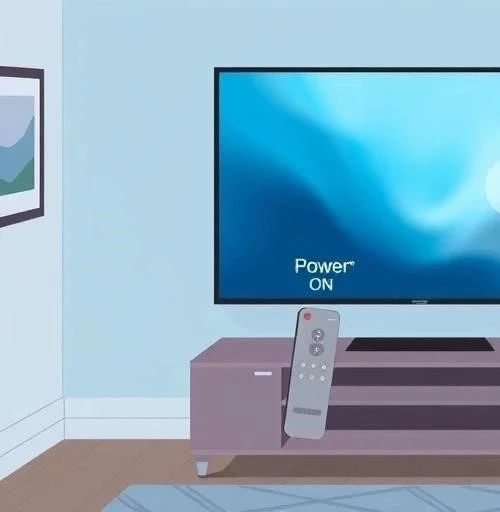
Your Xiaomi Mi TV P1 50 is a 50-inch window into films‚ games and streaming apps․ But before it can open that window‚ it needs power—and sometimes a little encouragement․ Here is a clear‚ safe guide to switching it on for the first time‚ waking it from standby‚ and figuring out what to do if the screen stays dark․
First‚ give the TV a safe place to start
- Check the setup․ Make sure the TV is standing securely on its feet or correctly mounted․ Keep the vents clear and do not place it where it can be knocked over․
- Connect the power cable․ Push the cable firmly into the TV’s power socket‚ then plug the other end into a working wall outlet․ If you use a power strip‚ check that its switch is on․
- Allow a moment․ The standby indicator may glow when the set is receiving power․ A TV in standby is not fully off; it is waiting for a wake-up signal․
For the first start‚ a direct wall connection is a useful test: it rules out a switched-off or faulty extension lead․ Avoid repeatedly pulling the plug to turn the TV on and off․ The power button is the proper doorway; yanking the cable is more like climbing through a window․
Turn it on with the remote
Point the supplied remote toward the TV and press the Power button once․ Give the display several seconds to wake․ If the TV was fully shut down‚ it may take a little longer to show the Xiaomi or Android TV startup screen than it does to return from standby․
If nothing happens‚ start with the simple checks: make sure the batteries are fitted in the correct direction‚ replace them if they are weak‚ and try again from close to the TV․ If the remote has a power button that uses infrared‚ aim it at the front of the television rather than at a wall or the ceiling․
Use the button on the television
A remote is convenient‚ but it is not the only way in․ Look underneath the TV’s lower edge‚ around the centre area‚ for its physical control button․ Depending on the exact regional version or production revision‚ the button’s position and design can differ․ Feel gently rather than pressing blindly: it may be a small button or a compact joystick․
Press it once to wake or switch on the set․ If a small control menu appears‚ use the same control to move through the options and choose Power‚ then confirm․ Do not force the control‚ and avoid pushing on the screen itself․ The screen is a display‚ not a large button․
First-time setup: the TV is on‚ now what?
When the welcome screen appears‚ choose your language and region‚ connect to Wi-Fi or plug in an Ethernet cable‚ then follow the on-screen instructions․ You may be offered setup through a Google account or a phone; These steps configure the smart features; they are not required merely to make the television light up․
If the remote does not respond during setup‚ check the screen for pairing instructions․ On some Xiaomi Bluetooth remotes‚ pairing is started by holding two specified buttons—often Home and Menu—near the TV․ Remote layouts and instructions can vary‚ so follow the prompt shown on your screen or the manual for your supplied remote․ Do not hold a random combination for a long time: it may open a different function․
After setup‚ press Home to reach the main screen․ To watch a connected device‚ select the correct HDMI input using the remote’s input/source control or the on-screen menu․
If the screen remains black
- No indicator and no response: Check both ends of the power cable and test the outlet with another device․ Confirm that a wall switch or power strip has not been turned off․
- Indicator is on‚ but the remote does nothing: Replace the batteries‚ move closer‚ and try the TV’s physical button․ This helps tell a remote problem from a power problem․
- The TV seems on‚ but the picture is black: Press Home‚ then check whether the selected input is the one you need․ A sleeping console or unplugged HDMI device can make the screen look empty even though the TV itself is working․
- It is stuck during startup: Switch the TV off normally if possible‚ unplug it for about a minute‚ reconnect it‚ and try once more․ Do not interrupt an update by repeatedly cutting power․
If you hear sound but see no image‚ or the indicator repeatedly flashes without starting‚ stop troubleshooting and consult Xiaomi support or a qualified service technician․ Do not open the casing: internal components can retain dangerous voltage‚ and opening the set may affect warranty coverage․
Quick answer
Plug in the Xiaomi Mi TV P1 50‚ then press Power on its remote․ If the remote is unavailable‚ gently locate and press the physical control under the TV’s lower edge․ For a new television‚ continue through the welcome and network setup․ If neither control works‚ check the outlet‚ cable and remote batteries before seeking service․
A good first start is wonderfully ordinary: steady power‚ one deliberate press‚ and a few patient seconds for the screen to wake․

7 Comments. Оставить новый
The “doorway, not a window” comparison made me smile—and made the advice stick. A useful guide that treats a dark screen like a small mystery, not a reason to panic.
This has the reassuring rhythm of someone beside you saying, “Let’s check the obvious things first.” Clear, practical, and refreshingly free of tech-support theatrics.
A calm little field guide for the moment when the screen refuses to greet you. The reminder to wait a few seconds is simple, but it can save a lot of unnecessary button-mashing.
I liked the distinction between standby and fully off. That tiny bit of context makes the TV feel less like a stubborn black rectangle and more like a device waiting for the right signal.
A helpful guide with a touch of personality. The advice is easy to follow, and the warning against pulling the plug repeatedly is the kind of sensible note people often learn only after making the mistake.
The direct-wall-outlet test is a smart detail. It turns a vague “TV won’t start” problem into a tidy process of elimination—without turning the living room into a repair shop.
I appreciate how this starts with the unglamorous essentials: a steady stand, clear vents, and a properly connected cable. Good troubleshooting begins before the button is pressed.