
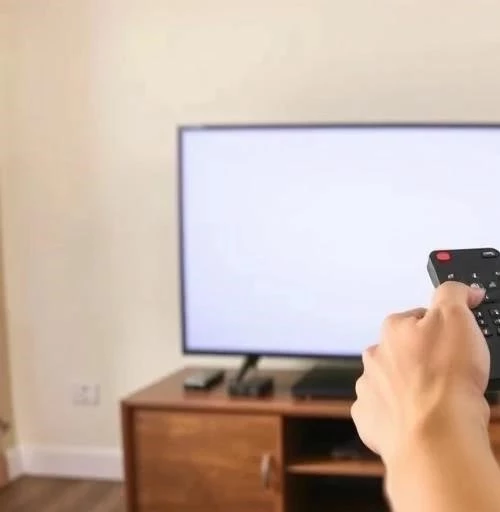
If your Xiaomi TV P1 32 is new, has been unplugged, or does not respond to the remote, you can usually turn it on in a few simple steps. Start with the power supply and the TV’s physical button, then check the remote if needed. This guide explains how to switch the television on, what to do when it stays in standby, and how to complete the first setup.
Check the power connection
- Make sure the TV’s power cable is firmly connected to the power socket on the back of the television.
- Plug the other end into a working wall outlet. If you are using a power strip, check that its switch is on and that it is receiving power.
- Check the outlet by plugging in another device, such as a lamp. If the outlet does not work, try a different one.
- Look over the cable for visible damage. Do not use a damaged cable; contact an authorized service provider for advice.
Once connected, the TV may show a small standby indicator. The indicator’s location and behavior can vary with the regional version and software, so its absence does not always mean the television is faulty. Allow the set a few seconds after connecting power before trying to switch it on.
Turn it on with the remote
For everyday use, point the Xiaomi remote toward the television and press the Power button once. It is usually marked with the familiar circle-and-line symbol. You do not normally need to hold the button down. Wait several seconds for the screen and Android TV interface to appear; startup can take a little longer after the TV has been unplugged or restarted.
If the remote does not work
- Check that the batteries are inserted in the correct direction. Replace both batteries with fresh ones if you are unsure how much charge remains.
- Make sure there is nothing blocking the front of the TV or the remote’s signal path. Stand close to the set and try again.
- Press the power button once, then wait briefly. Repeated rapid presses can make it harder to tell whether the TV is starting;
- If the remote has been paired with the TV before, try a fresh set of batteries and restart the television using the steps below.
The supplied remote may use infrared for basic commands and Bluetooth for voice or other functions, depending on the version. If basic power control works but voice control does not, the remote may need to be paired again through the TV’s settings after the screen is on. Follow the on-screen instructions for your software version.
Use the TV’s physical power button
If the remote is missing or has flat batteries, use the control built into the television. On the Xiaomi TV P1 32, the physical control is on the TV itself, around the lower edge or underside of the chassis. Its exact position can be difficult to see from the front. Carefully feel along the lower edge near the center and check the quick-start guide supplied with your particular regional model if you cannot locate it;
- Make sure the TV is plugged into a working outlet.
- Press the physical control once. On versions with a single multi-function button or joystick, press it inward rather than pushing it in a direction.
- Wait for the TV to start. If a menu appears instead, use the control as indicated on the screen to select the power option.
Do not force a button or insert an object into gaps in the casing. If you cannot identify the control, use the model’s printed manual or Xiaomi support rather than pressing unidentified parts of the TV.
First-time startup and setup
When the TV is switched on for the first time, it may take you through a welcome and setup process. Choose your language and region, connect to Wi-Fi or a wired network if available, and sign in to a Google account if you want to use Google TV or Android TV features. The exact screens depend on the software version and region. You can often skip optional steps and complete them later in Settings.
To watch a connected device, such as a set-top box or game console, connect it to an HDMI port and select the matching HDMI input from the TV’s input or source menu. To watch broadcast television, connect an aerial and follow the channel tuning instructions. Turning on the TV does not automatically guarantee that the correct source is selected.
If the TV will not turn on
Work through these checks in order:
- Confirm the outlet works. Try another known-working wall socket, if it is safe to do so. Avoid overloading an extension lead.
- Reseat the power cable. Switch the TV off at the wall, check that the cable is securely connected at both ends, and reconnect it.
- Perform a simple power reset. Unplug the TV from the outlet, wait about one minute, then plug it back in. Allow a few moments for it to respond and press Power once.
- Try the physical button. This helps determine whether the issue is with the remote rather than the television.
- Check for signs of life. Note whether an indicator appears, the screen briefly lights up, or you hear startup sounds. These observations can help support staff diagnose the problem.
If the TV turns on but the screen remains black, check that it is not simply showing an inactive HDMI input. Press the Home button or choose the correct source. Also check that connected devices are powered on and their cables are fully seated. If the screen stays black on the home screen, or the TV repeatedly restarts, stop troubleshooting and contact Xiaomi support or the retailer.
Standby is not the same as unplugged
A TV in standby is still connected to power, even though the display is off. Pressing Power on the remote should wake it. If it does not respond, test the remote batteries and the physical button. When you need to disconnect the TV completely, switch it off at the wall or unplug it only after it has shut down. Avoid pulling the cable by the cord; hold the plug instead.
Safety and service advice
Place the television on a stable stand or install it using a compatible wall mount, following the supplied safety instructions. Keep ventilation openings clear, and keep liquids away from the set and its power connections. Do not open the television or attempt internal repairs. If there is a burning smell, unusual heat, sparking, or a damaged cable, disconnect power if you can do so safely and seek qualified assistance.
Quick answer
To turn on a Xiaomi TV P1 32, connect it to a working power outlet and press the Power button on the remote. If the remote is unavailable, press the physical control on the lower edge or underside of the TV. If neither method works, check the outlet and cable, then unplug the set for about one minute before trying again.

5 Comments. Оставить новый
I like that the guide cautions against using a damaged cable and recommends contacting an authorized service provider.
The remote-control tips are practical and straightforward. Checking the batteries and signal path are good first steps.
A useful, well-organized overview for anyone setting up a Xiaomi TV P1 32 or dealing with a TV that will not turn on.
The troubleshooting steps are clear and easy to follow, especially the reminder to test the wall outlet before assuming the TV is faulty.
Helpful guide for getting started. I appreciate the advice to wait a few seconds after connecting power before trying the remote.