
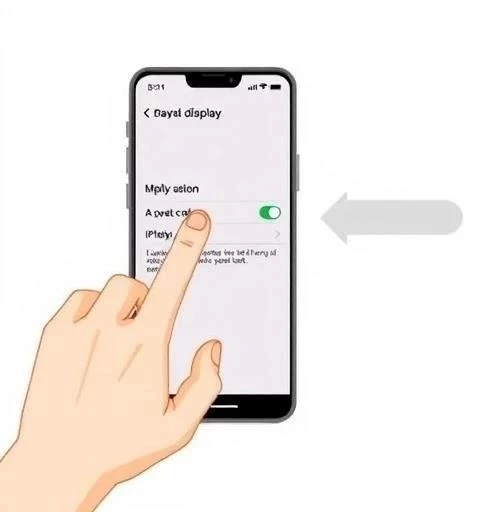
A colour screen can feel like a tiny fireworks show that follows you everywhere. If you want fewer visual distractions, a more readable display, or simply a change of mood, you can turn your Huawei phone’s screen to grayscale. The setting’s location varies between EMUI and HarmonyOS versions, but these routes cover the most common options.
Method 1: Use Accessibility settings
- Open Settings.
- Tap Accessibility features. On some phones, this is called Accessibility or appears under System & updates.
- Choose Accessibility, then look for Color correction, Color adjustment, or a similarly named display option.
- Turn on the feature and select Grayscale or Monochromacy as the correction mode.
Your display should now lose its colour, while apps and photos remain unchanged: the phone is altering how they appear, not editing the files. If you cannot find the setting, open Settings and use the search bar. Try terms such as grayscale, color correction, or monochrome; Huawei’s menu labels differ by model, region, and software version.
Method 2: Schedule grayscale with Digital Balance
Some Huawei phones offer a scheduled monochrome mode through Digital Balance or a similar wellbeing feature. Open Settings → Digital Balance and look for Bedtime, Screen time management, or an option to make the screen grayscale. If available, set a schedule—for example, switch to black and white at night and restore colour in the morning. Not every model includes this control, and menu names may vary.
This is useful if you want grayscale to act like a gentle evening boundary rather than a permanent transformation. It can make colourful apps less tempting, though it does not block notifications or replace a focus setting.
Method 3: Try Developer options
If the accessibility route is missing, some Android-based Huawei versions provide a grayscale simulation in Developer options. First, go to Settings → About phone and tap Build number several times until developer mode is enabled. Enter your PIN if asked. Then open Settings → System & updates → Developer options and search for Simulate color space. Choose Monochromacy.
Developer options contain advanced controls. Change only the setting you need, and avoid experimenting with unfamiliar switches. To undo this method, return to Simulate color space and choose Disabled.
Quick way to turn it off
Use the same menu that enabled grayscale and switch it off or choose the default colour mode. If the display stays monochrome, check both Accessibility and Developer options: one may still be active. Restarting can help after changing settings, but normally is not required.
What grayscale does—and does not do
Black and white mode changes the appearance of the whole interface, including photos, icons, and video. It is not the same as Eye Comfort or a warm-colour filter, which reduces blue light but keeps the screen in colour. Grayscale also cannot guarantee battery savings: the result depends on your phone’s display technology and settings.
One practical tip: take a screenshot after enabling the mode and view it on another device. If the screenshot is colourful there, grayscale is probably only a display effect. If your menus look different, search Settings first, then check your Huawei model’s software version. The right switch may be hiding behind a different label, not missing altogether.


8 Comments. Оставить новый
Clear routes, useful caveats, and no claim that monochrome magically blocks distractions. It presents grayscale as a tool—with the reader still in charge.
The article wisely avoids pretending every Huawei phone has the same menus. That bit of honesty may save readers more time than any secret shortcut.
There’s something poetic about turning a pocket-sized carnival into a newspaper sketch. I’d love to try grayscale for a day and notice what still catches my eye.
I hadn’t considered using black and white as a boundary between bedtime and endless scrolling. It’s a subtle nudge, not another app wagging a finger.
A practical guide with a thoughtful twist: grayscale isn’t only a display effect, it can be a small ritual for telling the day to wind down.
I like the idea of grayscale as a little visual “quiet mode.” The screen doesn’t disappear; it just stops shouting in confetti.
The reminder that this changes the display, not the actual photos, is reassuring. My memories can stay vivid even when my screen takes a monochrome vacation.
Huawei settings sometimes feel like a maze built by several architects. The search-term suggestions are a useful compass when menu names don’t match.