
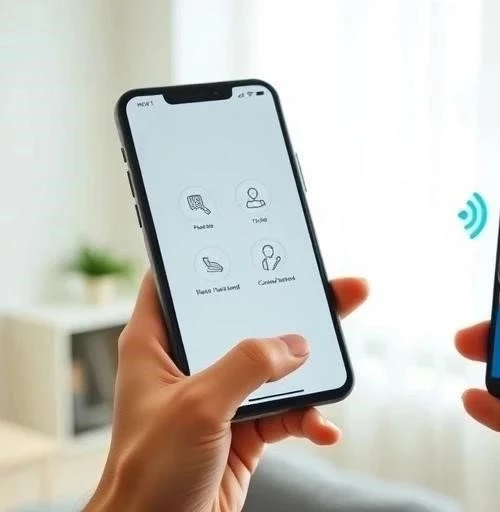
Connecting a fitness band to a Huawei phone is usually straightforward, but the order of the steps matters. Most bands should be paired through the manufacturer’s health app—not directly from the phone’s Bluetooth menu. Using the app lets the phone and band exchange data, manage notifications, and install updates. Pairing only through Bluetooth settings may show the devices as connected while leaving important features unavailable.
Before you begin
- Check compatibility. Find the band’s model and confirm that it supports your Huawei phone’s operating system. The exact app and available features depend on the band and its age.
- Charge the band. A low battery can interrupt pairing or cause the device to turn off during setup.
- Turn on Bluetooth. On the phone, open Settings > Bluetooth and switch Bluetooth on. Keep the band close to the phone.
- Install the correct app. Huawei bands commonly use Huawei Health; other brands may require their own companion app. Use the app named in the band’s manual or on its official support page.
- Prepare the band. If it has been paired before, disconnect it from the previous phone. If necessary, restore the band to its factory settings, following the instructions for that model.
Download the companion app from an official source, such as Huawei AppGallery or the band maker’s official website. App availability can vary by phone, region, and software version. Avoid unofficial download sites: an imitation app or altered installation file can put your account and personal data at risk.
Pairing through Huawei Health
- Open Huawei Health and sign in or create an account if the app asks you to. If it requests permissions, review and allow those needed for setup and the features you plan to use.
- Open Devices and tap Add, the plus sign, or the option to add a device. The wording may differ slightly between app versions.
- Select the band’s category or model. If the app offers nearby-device scanning, keep the band beside the phone and wait for its name to appear. You can also choose the model manually.
- Tap the correct device. Compare its name with the one shown on the band, if available. This is especially useful in a crowded area where several bands may be advertising over Bluetooth.
- Confirm the pairing request on both screens. A code may appear on the phone, the band, or both. Make sure the codes match, then approve the request on the band when prompted.
- Follow any remaining instructions in Huawei Health. The app may ask you to allow notifications, contacts, location access for certain functions, or background activity. You can adjust many permissions later in the phone’s settings.
When setup is complete, the band should appear in the app’s device list and show a connected status. Allow time for the first synchronization. Keep Bluetooth enabled and the app open during this initial setup; closing it or moving out of range may interrupt the transfer. Once paired, the band should reconnect automatically when it is nearby.
Choose settings that fit your needs
Explore the device page in Huawei Health to configure notifications, alarms, activity tracking, watch faces, and health measurements supported by your model. Enable only the alerts you want: allowing every app to send notifications can drain the band’s battery and make important messages harder to notice. Some measurements and features depend on the device, app version, region, and permissions, so do not assume every option is available on every band.
If data does not appear immediately, open the app and start a manual synchronization if that option is available. Check that the band is connected and that the phone has internet access when an account or cloud sync is required. A successful Bluetooth connection does not necessarily mean that every item has already uploaded.
If the band does not connect
- Check distance and battery. Put the charged band beside the phone. Temporarily move away from other Bluetooth devices if the device list is crowded.
- Restart both devices. Turn Bluetooth off and on, restart the phone, and restart the band using its own menu. Then try adding it again in the companion app.
- Remove an old pairing. If the band is listed under the phone’s Bluetooth devices, select it and choose Forget or Unpair. Also remove it from the old phone or account if possible, then restart setup from the app.
- Review app access. In Settings > Apps, find Huawei Health or the relevant companion app. Check that Bluetooth and nearby-device permissions are allowed. Depending on the phone’s software and the app, location permission may also be needed for discovery.
- Check background restrictions. Battery-saving settings can stop a health app from running or reconnecting in the background. If synchronization or notifications stop when the screen is off, allow the app to run in the background, where your phone provides that option.
- Update carefully. Install available updates for the app and phone, and follow the app’s instructions for band firmware. Keep the band charged and nearby during an update; do not interrupt it.
If the band still fails to appear, check the maker’s instructions for its exact model and confirm that it is not locked to, or still connected with, another phone. A factory reset can clear a stubborn old pairing, but it may erase settings or data stored on the band, so use it only after checking the model-specific guidance. If the app reports incompatibility, repeated resets will not fix that limitation.
Why app-based pairing is the better method
Bluetooth settings are useful for checking whether Bluetooth is on, removing stale pairings, or diagnosing a connection. They are not usually the best place to begin. The companion app identifies the model, completes the device setup, and provides access to synchronization and supported features. Starting in the app therefore reduces the chance of a partial connection and gives you one place to check the band’s status.
In short, install the official companion app, add the band from its device menu, approve the matching request on both screens, and allow the permissions needed for your chosen features. If connection fails, remove old pairings, restart the devices, review permissions, and retry through the app. These steps solve most setup problems without unnecessary resets or risky downloads.


5 Comments. Оставить новый
The clear sequence—from preparing the band to opening the companion app—makes the instructions easy to follow. It would be even more helpful if the remaining steps included troubleshooting advice for cases where the band does not appear during scanning.
The warning about unofficial app downloads is useful because setup instructions often overlook security risks. Directing readers to official sources is a sensible way to protect their accounts and personal data.
The preparation checklist is practical and well reasoned. Checking compatibility, charging the band, and disconnecting it from an old phone can prevent common setup problems before they occur.
The article appropriately notes that app menus and available features can vary by model, region, and software version. That qualification makes the guidance more realistic for people using different Huawei phones and bands.
The article makes an important distinction between pairing through the companion app and simply connecting through Bluetooth settings. Explaining why the app matters helps readers avoid a connection that appears successful but lacks key features.