
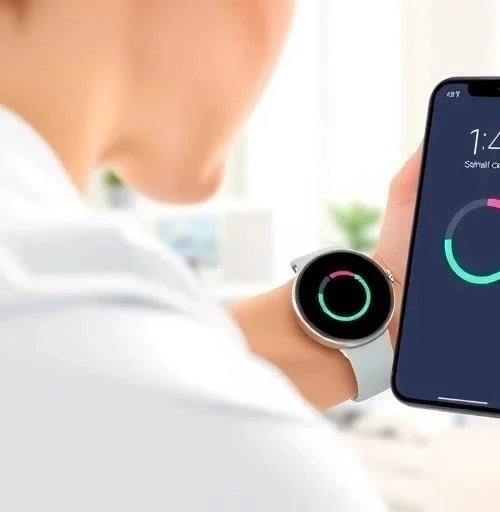
In brief: You cannot install a watchOS update completely offline: the update must first be downloaded from Apple. However, you may not need a home broadband network. A mobile hotspot or another reliable internet connection can provide the Wi-Fi connection required by the standard update process.
What you need to know
Apple Watch cellular service is not the same as Wi-Fi for updating watchOS. Even if your watch can make calls or use data over cellular, do not assume it can download a system update that way. Apple’s usual update instructions require the watch to be on its charger, connected to Wi-Fi, and within range of its paired iPhone. Updating from the Watch itself also requires a Wi-Fi connection.
So, “without Wi-Fi” can mean two different things. If you mean without your home router, a hotspot may work. If you mean with no internet connection or Wi-Fi network at all, there is no supported way to download and install the update.
Option 1: Use another phone’s hotspot
- Ask someone with a phone plan that supports Personal Hotspot to turn on its hotspot. Keep that phone nearby and make sure it has a strong mobile signal and enough battery.
- Connect your paired iPhone to that hotspot through Settings > Wi-Fi. Enter the hotspot password if prompted.
- Place the Apple Watch on its charger, with at least 50% battery, and keep it near the iPhone;
- On the iPhone, open the Watch app and select General > Software Update. Follow the prompts and leave both devices powered on and close together while the update downloads and installs.
A hotspot is still a Wi-Fi network: it simply gets its internet connection from mobile data rather than a router. Availability, speed, and data charges depend on the hotspot phone and carrier. A large update may use substantial data, so check your plan first.
Option 2: Use a trusted Wi-Fi network
If a hotspot is unavailable, use a trusted network at a friend’s home or another location where you are permitted to connect. Avoid public networks that require a browser sign-in, since the Watch may not be able to complete that login. Never share your Apple Account password with a public Wi-Fi provider.
If the update will not start
- Check that the iPhone has internet access through the hotspot and that the Watch is near it.
- Keep the Watch on its charger and ensure it has at least 50% charge.
- Restart both devices, reconnect the iPhone to the hotspot, and try again.
- Free up storage if the Watch app reports that there is not enough space.
Do not erase the Watch, install unofficial software, or interrupt an update in progress to get around a connection requirement. If no hotspot or trusted Wi-Fi is available, wait until you can connect to one; that is safer than attempting an unsupported offline installation.
Bottom line
You can update without your own Wi-Fi router by using a compatible mobile hotspot, but you still need an internet connection and a Wi-Fi link for Apple’s normal process. Cellular service on the Watch alone is not a dependable replacement.

7 Comments. Оставить новый
This is practical guidance, especially the reminder to check data limits before using a hotspot. A watchOS update can be large, so that detail could help readers avoid unexpected charges.
I appreciate that the guidance avoids promising that every hotspot will work. Connection quality and carrier restrictions can vary, so setting expectations this way makes the advice more reliable.
The answer is concise while covering the key requirements: an internet connection, a compatible Wi-Fi path, power, and proximity to the paired iPhone. It gives readers a realistic answer rather than suggesting an unsupported offline method.
The explanation is helpful for readers who are away from home but still have access to another internet connection. It would also be useful to emphasize that public networks should be trusted before connecting devices.
The distinction between having no home Wi-Fi and having no internet connection is useful. It helps readers understand that a mobile hotspot may solve the first problem, but not the second.
The step-by-step instructions make the hotspot option easier to follow. Keeping the watch on its charger and near the paired iPhone is also sensible advice for reducing interruptions during installation.
The article clearly explains why cellular service on an Apple Watch does not necessarily mean it can update over cellular. That distinction is easy to miss and is central to answering the question.