
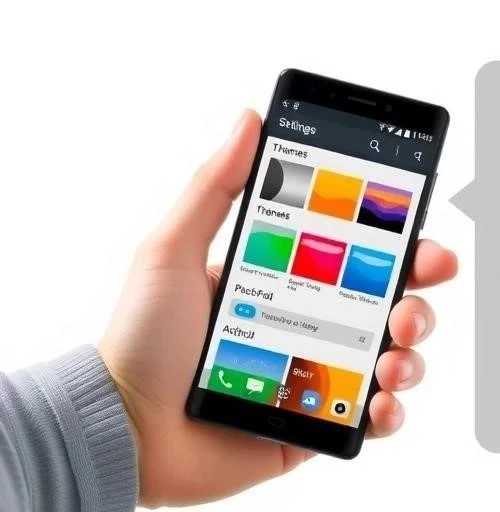
Xiaomi phones and tablets—including Redmi and POCO models—usually include the Themes app for changing the appearance of the interface. Depending on the device and software version, the app may be labelled Themes or Theme Store. It lets you browse designs and apply combinations of wallpapers, icons, fonts, lock screens, and other visual elements. The exact menus and available features can differ between MIUI, HyperOS, regions, and device models.
Find and open the Themes app
- Unlock your device and look for Themes on the Home screen or in the app drawer.
- If you cannot find it, swipe up to open the app drawer and search for “Themes.” You can also use the search field in Settings, if available.
- Open the app. If prompted, accept the terms and sign in to a Xiaomi account where required. Some content may be available without signing in, while downloading or synchronising certain items may require an account.
The app is normally part of Xiaomi’s software, but its availability can depend on the installed system image and region. If it is missing, first check whether it is disabled: open Settings > Apps > Manage apps, search for Themes, and look for an option to enable it. Menu names may vary. Do not download an app package from an unfamiliar website simply because the store is not visible.
Browse and apply a theme
- In Themes, browse the featured sections or use search to find a design. Open a theme’s page to review its preview, description, compatibility, and whether it is free or paid.
- Tap Download or the equivalent button and wait for the download to finish. A stable Wi-Fi connection can help with larger files.
- Tap Apply. If the theme offers separate components, choose which ones to use, such as the lock screen, icons, wallpaper, or system interface.
- Wait while the phone applies the changes. Some elements may update immediately; others may require returning to the Home screen or locking and unlocking the device.
To use only one part of a design, open the relevant category in Themes—such as wallpapers, icons, or fonts—and apply that item separately. The available categories and customisation controls vary by software version. A theme preview is useful, but it may not show every screen or app exactly as it will appear on your device.
Change or restore the current appearance
Open Themes > Profile or the account-shaped icon, then look for Customise theme, My themes, or a similarly named section. From there, you can select another downloaded design or set individual components. To return to the original look, choose the default theme supplied for the phone and apply it. If the Home screen layout has also changed, check Settings > Home screen for layout and icon options.
If Themes is unavailable or does not work
- Check the region. The Themes service and its catalogue may be limited in some countries. Open Settings and review Additional settings > Region, if that option is available. Changing the region can affect other services and content, so use the setting that matches your circumstances and restore it if needed.
- Check the connection and storage. Confirm that the phone is online, has sufficient free space, and can download content. Restart the device and try again if a download stalls.
- Update the software and app. Install updates offered through the phone’s official system updater or GetApps. The names and locations of update controls vary by device.
- Clear temporary app data. In Settings, open the Themes app’s information page and, if necessary, clear its cache. Clearing app data may remove local settings or downloads, so try less disruptive steps first.
- Check compatibility. A theme designed for a different MIUI or HyperOS version, screen size, or region may fail to apply completely. Choose content listed as compatible with your device.
Using a downloaded MTZ file
Some users install themes from .mtz files obtained outside the Themes catalogue. This is different from applying an official store theme: support for importing local files varies by software version and region, and the relevant option may not be present. Files from untrusted sources can contain unwanted or modified content. If you choose to use one, verify the source, scan the file where possible, and avoid granting unrelated permissions. Do not install system components or modified applications when you cannot assess their origin. Using the built-in catalogue is generally the simpler option.
What themes can and cannot change
A theme can alter supported visual elements, but it does not necessarily change every app or screen. Some third-party apps retain their own appearance, and certain system screens may use the default design. Themes also do not remove system features such as lock-screen content or notifications. If a specific feature, such as a wallpaper carousel, is unwanted, look for its separate control in Settings rather than assuming that changing the theme will disable it.
In short, open the built-in Themes app, select a compatible design, download it, and apply it. If the app or an item is unavailable, check the device’s region, software version, storage, and compatibility before trying other sources. These steps apply broadly to Xiaomi, Redmi, and POCO devices, but individual menu labels can differ.
7 Comments. Оставить новый
The instructions give a clear overview of how to find and use the Themes app on Xiaomi devices.
It is useful that the article notes that menus and features can vary by device, software version, and region.
The advice to check whether the app is disabled may help readers who cannot find Themes on their phone.
The article explains that themes can include separate elements, such as icons, wallpapers, and lock screens.
The note about using trusted sources when troubleshooting the missing app is a sensible precaution.
This is a straightforward guide for users who want to customise the appearance of a Xiaomi device.
The steps for browsing, downloading, and applying a theme are presented in a practical order.