
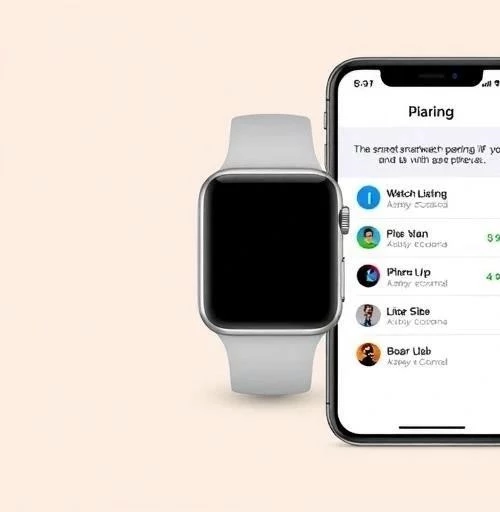
That tiny circled i can feel like a secret door on Apple Watch: it appears when you need a little more information, but it is easy to miss if you are hunting in the wrong place. The key is to know which screen you are looking at. The icon may be on the watch during setup, or beside your watch’s name in the Watch app on your iPhone.
First: what does the “i” mean?
The “i” stands for information. It is not an app, and it does not normally sit on the watch face. Depending on the task and software version, tapping it can show a device name or other details, or help you begin manual pairing. If you are trying to connect a watch, the icon is most likely part of the setup screens.
Find it on the Apple Watch during setup
- Turn on your Apple Watch. If it has already been set up, open the Settings app, tap General, then Reset and erase the watch only if you are ready to set it up again. Erasing removes its content and settings.
- Bring the watch near your unlocked iPhone and wait for the pairing prompt. If the prompt does not appear, open the Watch app on the iPhone and choose All Watches or Start Pairing, depending on what you see.
- When the animated pairing screen appears on the watch, look near its lower-right corner for a small circled i. It may be subtle, so tilt the display toward the light and check the whole screen.
- Tap the icon if you need the watch’s name or want to use manual pairing. On the iPhone, choose Pair Apple Watch Manually when that option is shown, then follow the prompts and select the matching watch.
In some setup flows, tapping the information button reveals a name or identifier rather than a code. Follow the instruction on the iPhone screen: Apple can change the exact prompts between watchOS and iOS versions.
Find the “i” in the iPhone Watch app
If your watch is already paired, the quickest route is usually on your iPhone:
- Open the Watch app.
- Tap My Watch, if that tab is not already selected.
- Tap All Watches at the top of the screen.
- Find your watch in the list. A small circled i appears beside its name; tap it to open the watch’s information and management options.
This is the “i” people often mean when they want to rename a watch, check its details, or unpair it. Read the screen before confirming an action: unpairing is different from simply opening information, and it can remove the pairing and start a backup process.
The icon is missing. Now what?
- You are looking at the watch face. The information button is not a permanent complication. Return to the pairing screen or use the Watch app on iPhone.
- The watch is already paired. Look in Watch app → All Watches, rather than searching the watch’s menus for a setup icon.
- The screen is showing the pairing animation. The iPhone can scan that animation automatically. If scanning fails, choose manual pairing on the phone and look for the watch’s information button.
- The display is hard to read. Wake the screen, increase brightness if needed, and check the bottom-right area. Avoid pressing side buttons at random; they may open other controls.
- You cannot reach setup. Charge the watch, keep Bluetooth and Wi-Fi enabled on the iPhone, and restart both devices. If the watch belongs to someone else or is locked to an Apple Account, the owner may need to remove Activation Lock; the “i” icon cannot bypass it.
A quick way to remember
Pairing problem? Look for the “i” on the Apple Watch’s setup screen. Managing a watch that is already connected? Open the iPhone’s Watch app and tap the “i” beside the watch under All Watches. Same small symbol, two different settings—and one much easier search once you know which screen is the map.
Tip: Menu wording and icon placement can vary slightly by software version, region, and setup state. If the directions on your screen differ, follow the current on-screen instructions rather than resetting the watch just to make the icon appear.
2 Comments. Оставить новый
This article treats a tiny icon like a trail marker—and that is exactly the right spirit. The warning about erasing a watch adds welcome care to the instructions; one clear sentence can save someone from wiping a device just to chase a symbol.
A good guide to a very small mystery. I especially like the reminder that the “i” belongs to a particular setup moment, not some hidden corner of the watch face. It turns troubleshooting from a frantic scavenger hunt into a calm little act of looking.