
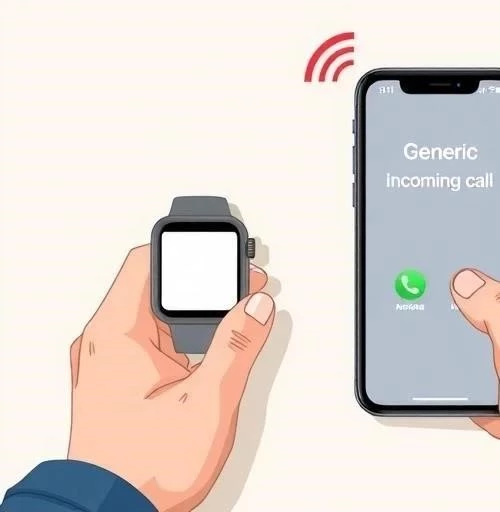
If incoming calls are missing from your Apple Watch, the cause is often a connection, notification, or settings issue. The watch does not always behave like a second phone: whether it alerts can depend on the iPhone’s state, the watch’s connection, and how notifications are configured.
Check the iPhone and watch connection
For calls relayed from an iPhone, the devices generally need to be connected. Keep them near each other and make sure Bluetooth and Wi-Fi are enabled on the iPhone. If the watch has cellular service, it may be able to receive calls away from the iPhone, provided its plan and connection are active. A disconnected, powered-off, or out-of-range iPhone can prevent calls from reaching the watch when cellular service is unavailable.
Review call notification settings
On the paired iPhone, open the Watch app and select My Watch > Notifications > Phone. Check that notifications are allowed and choose whether the watch mirrors the iPhone or uses custom settings. On the watch, also check that silent mode, low volume, or a disabled haptic alert is not making a call difficult to notice. These settings may affect alerts even when calls are arriving.
Look at Focus and device state
Do Not Disturb, Sleep, Work, and other Focus settings can silence or limit call alerts. Review Focus settings on both devices, including whether Focus is shared between them and whether the caller is allowed. Also check that the watch is unlocked and being worn. Wrist Detection and a passcode can affect how the watch handles notifications.
How the iPhone is being used can matter, too. If it is unlocked and active, a call may appear on the iPhone rather than alerting on the watch in the usual way. Lock the iPhone and test with another call to see whether the watch then receives the alert.
Check the type of call
Regular mobile calls and calls made through apps may use different notification controls. If only calls from one app are missing, check that app’s notification permissions on the iPhone and its settings in the Watch app. Confirm that the app is available on the watch and that its alerts are enabled. Some app calls may not be handled exactly like standard Phone calls.
Try basic troubleshooting
- Check that Airplane Mode is off and that both devices have power and a working connection.
- Restart the iPhone and Apple Watch, then test again.
- Install available iOS and watchOS updates, and recheck the Phone notification settings.
- If the issue continues, unpair and pair the watch again only after making sure your data is backed up.
If none of these steps helps, contact Apple Support for device-specific guidance; Describe whether the problem affects every call or only calls from a particular app; that distinction can help identify the cause.


3 Comments. Оставить новый
The guidance covers several relevant settings, including Focus, haptics, and the connection between devices. The troubleshooting steps are easy to follow.
This is a useful overview of possible causes. The distinction between regular mobile calls and calls through apps helps readers narrow down where to check.
The article is clearly organized and offers practical checks for common notification problems. Distinguishing between iPhone-relayed calls and cellular calls is especially useful.