
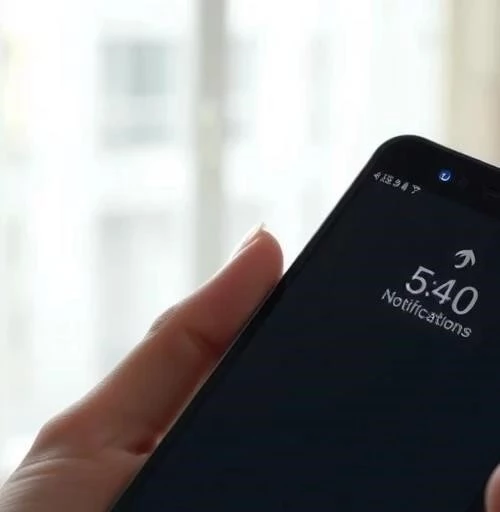
A tiny blinking light can feel like a message from a very small lighthouse: your Xiaomi is trying to tell you something, but what? The reassuring answer is that a flashing indicator is often normal․ It may signal a new notification, a charging state, or a feature you switched on․ The exact meaning depends on the phone model: some Xiaomi, Redmi, and POCO devices have a notification LED, while many newer models do not․ So first identify which light is blinking and when it appears․
Start with the location and the timing
Look closely at the light without covering the top edge of the phone․ A small dot near the earpiece or front camera may be a notification LED․ A flash on the back is usually the camera flash, which can be set to alert you․ A glow that appears only while charging may indicate charging status․ Meanwhile, a dark screen briefly lighting near the top during a call is more likely the proximity sensor doing its job than an indicator blinking․
Timing is a clue, not a verdict․ Does the light pulse when a message arrives? Does it start as soon as you connect the charger? Does it blink only when the screen is off, or during calls? Note the pattern and check whether it stops after unlocking, reading a notification, unplugging the cable, or ending a call․ These simple observations narrow the mystery faster than changing every setting at once․
Common reasons for a blinking light
- Notifications: On models with a notification LED, a pulse may mean that an app has something unread․ Messaging, email, missed calls, alarms, or system alerts can all be responsible․ Some versions of MIUI or HyperOS let you choose which apps can use notification lights․
- Charging: The indicator may turn on or blink while the battery is charging, or when the phone is nearly empty․ The color and behavior are not universal, so do not assume that one color means the same thing on every Xiaomi model․
- Flash alerts: Accessibility settings can make the rear camera flash blink when a call or notification arrives․ If the light is bright and comes from the back, look for an option such as “Flash notifications” or “Camera flash for alerts․” Menu names vary by software version․
- Calls and sensors: During a call, the screen may turn off when the proximity sensor detects your face․ This is normal and prevents accidental taps․ A sensor itself is generally not a notification lamp, though reflections or a nearby LED can make the top of the phone look as if it is flashing․
- Charging or system trouble: Repeated blinking accompanied by a charging warning, unusual heat, or a battery that will not charge may point to a cable, adapter, port, or battery issue rather than a harmless alert․
How to find what is triggering it
- Check notifications․ Unlock the phone and open the notification shade․ Clear unread alerts, then see whether the light stops․ If it returns, note which app sent the newest notification․
- Inspect display and notification settings․ Search Settings for “notification light,” “LED,” “flash notifications,” or “flash alerts․” Depending on the model and HyperOS or MIUI version, controls may sit under Notifications, Additional settings, Accessibility, or Display․ If a particular app is responsible, adjust that app’s notification permissions rather than silencing everything․
- Test charging safely․ Unplug the phone․ Check the cable and adapter for damage and inspect the charging port for lint, without poking it with metal․ Try a known-good compatible charger and a different wall outlet․ If the light blinks only with one cable or adapter, stop using that accessory․
- Restart and update․ A restart can clear a temporary software glitch․ Install official system updates when available, then observe the phone before reinstalling or changing multiple apps․
- Consider a recently installed app․ If blinking began after adding an app, review its notification and accessibility permissions․ You can test in Safe mode if you know how to enter it on your model; if the behavior disappears there, a downloaded app may be involved․
When blinking is not just a message
Stop charging the phone and seek help if it becomes unusually hot, smells odd, shows a swollen back or screen, or repeatedly disconnects and reconnects to power․ Do not open the handset or scrape its port․ If the light keeps blinking with no visible notification, after a restart, and with more than one safe charger, check your exact model’s manual or contact Xiaomi support or an authorized repair service; A model-specific explanation is better than guessing from another phone’s color code․
Can you turn the indicator off?
Often, yes—if the phone provides a setting for that feature․ You might disable the notification LED, switch off camera-flash alerts, or change which apps can notify you․ But an LED that reports charging or low battery may not have an independent off switch․ Avoid disabling all notifications just to silence one blink; you could miss calls, security alerts, or reminders․ Change one setting, test it, and keep the useful signals․
The quick rule: a light that follows a message is probably an alert; one that follows the charger is probably related to power; a rear flash usually points to an alert feature; and a screen that goes dark near your face is usually the proximity sensor․ Xiaomi’s product range is broad, and indicator behavior differs between models, so the phone’s own settings and manual are the final guide․ That little blink is usually not a secret malfunction—it is a clue․ Watch when it appears, find the setting or accessory connected to that moment, and let the phone explain itself․
7 Comments. Оставить новый
The “timing is a clue, not a verdict” idea is spot-on. It gives readers a simple way to troubleshoot without wandering through every setting like they’ve misplaced a map.
A useful guide for anyone who has stared at a blinking phone and wondered whether it was sending a secret signal. The advice to change one thing at a time is especially smart.
I appreciated the distinction between a notification light, a camera-flash alert, and the proximity sensor. They can look mysterious at first, but the article gives each one a sensible place in the puzzle.
I like how this turns a tiny blink into a little investigation rather than a reason to panic. Checking where the light appears and what the phone is doing is a wonderfully practical first step.
Clear, reassuring, and nicely grounded in everyday checks. The best takeaway is that the light’s location and timing often tell you more than its color alone.
Helpful reminder that Xiaomi, Redmi, and POCO phones don’t all share the same indicator behavior. That small detail could save someone from chasing a feature their model never had.
This makes phone troubleshooting feel refreshingly calm: observe the light, notice the pattern, then narrow down the cause. A tiny blinking dot gets treated like a clue, not an emergency.