
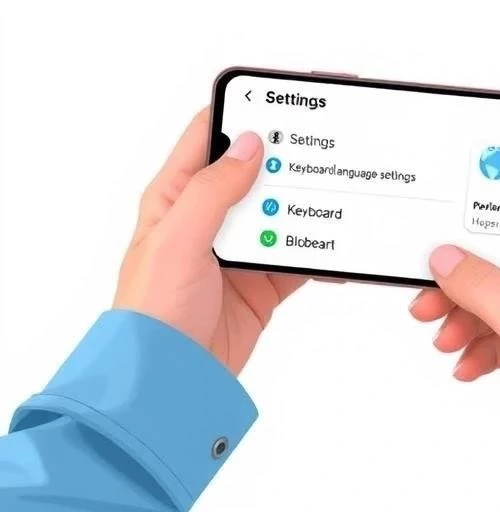
Your Xiaomi keyboard can be a multilingual travel companion: add another language, and it can suggest words, recognize spelling, and switch layouts without making you dive into Settings every time you want to write “hello” in a different alphabet. The exact labels vary slightly between MIUI, HyperOS, and keyboard apps, but the steps below cover the common setup.
First, identify your keyboard
Most recent Xiaomi phones use Gboard, Google’s keyboard. Some models or regions may have another keyboard installed. Open any app where you can type, such as Messages or Notes, and look at the keyboard. If you see a Google “G” or a gear icon, you are probably using Gboard. If the menus below do not match, check the keyboard’s name under Settings → Additional settings → Languages & input → Current keyboard. Menu names can differ by software version.
Add a language in Gboard
- Open a text field so the keyboard appears.
- Tap the gear icon on the keyboard. If it is not visible, tap the four-square or menu icon, or open Settings → Additional settings → Languages & input → Manage keyboards → Gboard.
- Choose Languages, then tap Add keyboard.
- Find the language you want. Use the search box if scrolling feels like an expedition.
- Tap the language and select a layout, if Gboard offers more than one. Tap Done or the check mark to save.
The new language is now available in the keyboard; you do not usually need to change your phone’s system language. For languages with multiple scripts or regional layouts, choose the version you actually use—for example, the appropriate regional variant rather than a merely familiar name.
If your phone uses Xiaomi’s keyboard or another app
Open Settings → Additional settings → Languages & input, then look for the current keyboard’s name or its settings button. You can also open the keyboard in a text field and tap its gear icon. In the keyboard’s own settings, find a section called Languages, Input languages, or Layouts, then download or enable the language. Some keyboards offer a separate download step, so stay connected to Wi-Fi until it finishes.
If there is no language option, check the keyboard app’s page in the Play Store for an update, or install a keyboard that supports the language you need. After installing one, select it under Languages & input → Current keyboard. Only download keyboards from trusted sources: a keyboard can process everything you type.
Switch languages while typing
In Gboard, press the globe key to cycle through enabled languages. If there is no globe, press and hold the space bar and choose a language from the list. You can also swipe across the space bar on some versions. The small label on the space bar usually shows which language is active. The globe may be hidden when only one layout is enabled; adding a second language normally makes it appear.
Want to switch with a long press instead? Open Gboard Settings → Preferences and look for Show language switch key. If that option is unavailable, disable the emoji key or check the keyboard’s layout preferences. The exact controls depend on the app version.
Choose a layout that fits
A language can have more than one keyboard layout. In the language settings, tap the language you added to review the available options. For example, you may find a standard layout and a phonetic one, where you type using familiar letters and get suggestions in another script. Try each briefly: the right choice depends on your habits and whether you need the native alphabet, transliteration, or both.
Gboard can keep several languages enabled at once. Its multilingual typing feature may recognize the language you are using and suggest words accordingly, but it does not always guess correctly—especially in short messages or when two languages share similar words. If suggestions become confusing, open Gboard → Languages and temporarily disable languages you rarely use.
Remove a language or fix a missing option
To remove a layout, return to Gboard → Languages, select it, and tap the delete or edit control. This removes it from the keyboard, not from your Xiaomi phone’s system language list; If the new language does not show up, confirm it was saved, close and reopen the typing app, and check that you are editing the keyboard currently selected as the default.
- No gear icon? Tap the keyboard’s menu button, or open Gboard through Settings.
- Language unavailable? Check for a keyboard update and look for regional variants or downloadable layouts.
- Wrong keyboard opens? Set the preferred app under Languages & input → Current keyboard.
- Letters look different? Reopen the language’s layout choices and select the intended script or variant.
One final distinction
Adding a keyboard language changes how you type; it does not translate the phone’s menus or change the language of every app. For that, adjust the system language separately in Xiaomi’s language settings. Once your layout is set, test it in a message: switch with the globe or space bar, type a few words, and let your keyboard’s new alphabet take its place in the conversation.


6 Comments. Оставить новый
A practical little map for anyone who writes across alphabets. I appreciate that it separates keyboard language from the phone’s system language—small distinction, big relief.
I like the idea that a keyboard can be a tiny passport. The reminder to choose the right regional layout is especially useful—one language can have several ways of feeling at home.
This turns a settings chore into an invitation to make the phone more personal. Now I’m tempted to add a language just to see what new words the suggestions bring.
The troubleshooting clues feel like breadcrumbs: check the keyboard name, find its gear, then follow the language settings. Much kinder than wandering through menus at random.
The “expedition” through settings made me smile. This guide keeps the route clear without pretending every Xiaomi phone has identical menus.
Clear, calm, and refreshingly honest about version differences. The advice to search rather than scroll is a tiny time-saver with the energy of a well-hidden shortcut.