
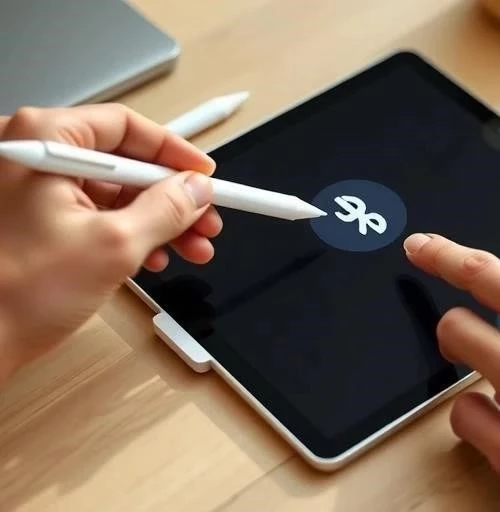
A Xiaomi Smart Pen doesn’t usually need a maze of menus or a secret Bluetooth code. On a compatible Xiaomi Pad, the simplest connection is a small piece of stagecraft: turn on Bluetooth, place the pen on the tablet’s magnetic charging area, and let the two devices introduce themselves. A pairing prompt should appear; tap Connect, and the pen is ready to write.
There is one important detail before the grand entrance: not every stylus works with every tablet. Xiaomi Smart Pen generations and tablet models have different compatibility lists. Check the exact name of your tablet and pen in their manuals or Xiaomi’s official product information. A pen that fits magnetically is not necessarily compatible electronically.
Connect your Xiaomi Smart Pen
- Check compatibility. Confirm that your tablet supports your particular Smart Pen generation. For example, support can differ between Pad 5, Pad 5 Pro, Pad 6, and their accessories. Don’t rely on appearance alone.
- Give the pen some power. If it has been unused for a long time, attach it to the tablet’s magnetic charging strip and allow it to charge. A nearly empty pen may not pair reliably.
- Enable Bluetooth. On the tablet, open Settings → Bluetooth and switch Bluetooth on. Keep the tablet unlocked and nearby.
- Find the magnetic sweet spot. Place the pen against the designated magnetic connector on the tablet’s edge. Follow the illustration in the tablet’s manual; on supported models, the pen attaches in a particular orientation. The magnet should hold it in place rather than leave it perched like a very small, nervous bird.
- Accept the invitation. Wait for the pairing window and tap Connect or Pair. A pen or battery icon may appear when the connection succeeds. Menus and prompts vary slightly by model and software version.
- Test it. Open a notes or drawing app and write a few strokes. Try the pen buttons or shortcuts only after checking that your tablet and app support them.
If no pairing window appears
First, reseat the pen on the magnetic area and leave it there briefly. Make sure the tablet’s Bluetooth is on, the pen is charged, and the contact area is clean. A case or accessory can sometimes get in the way of the magnetic connection, so remove it temporarily and try again.
If the pen was previously paired with another device, disconnect it there if possible. On the tablet, open Bluetooth settings and look for an old entry for the pen. If available, choose Forget or Unpair, restart the tablet, and repeat the magnetic pairing steps. Keep the pen close to the tablet while doing this.
Still no handshake? Install available system updates, then restart and try once more. Check the product instructions for any model-specific reset procedure rather than guessing at button combinations. If the tablet never detects a known-compatible, charged pen, contact Xiaomi support or the retailer; the pen, magnetic connector, or tablet may need inspection.
Pairing, charging, and writing are different things
The magnetic strip can help with both charging and pairing, but a visible Bluetooth connection does not guarantee that every pen feature works in every app. Pressure sensitivity, side-button actions, shortcuts, and battery displays depend on the pen generation, tablet software, and application. Look in the tablet’s stylus or additional-settings menu for options, and use an app that supports the feature you want.
A quick pre-flight checklist
- Your tablet and Smart Pen are listed as compatible.
- Bluetooth is on, and the tablet is awake.
- The pen has charge and sits correctly on the magnetic connector.
- You accepted the pairing prompt and tested the pen in an app.
That’s the whole ritual: verify the match, wake Bluetooth, dock the pen, and accept the prompt. Once paired, the Smart Pen turns the tablet’s glass into a notebook, sketchbook, or quick place to catch an idea before it escapes. If the first attempt fails, work through the checklist calmly—usually the missing ingredient is compatibility, charge, or a slightly misplaced magnetic handshake.
1 Comment. Оставить новый
The image of a stylus as a nervous little bird makes troubleshooting feel far less like wrestling with settings and more like coaxing a clever creature home. A charmingly practical guide—with the crucial reminder that magnetic attraction isn’t the same as compatibility.