
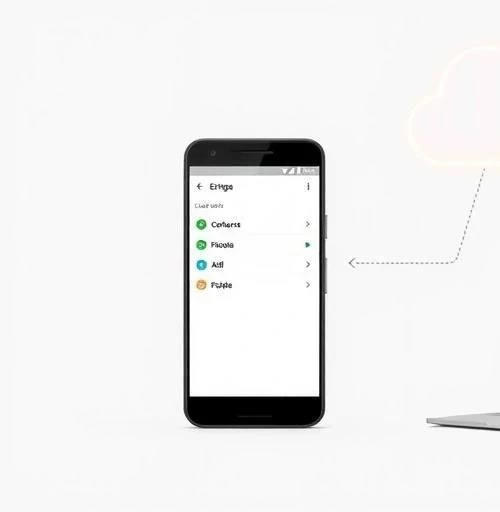
Your Xiaomi holds more than photos and messages: it is a pocket archive of conversations, plans, passwords, and small everyday moments. A backup is a second copy of that archive, stored somewhere your phone cannot lose along with itself. Make one before a factory reset, a repair, a new phone, or that mysterious update that asks you to start fresh.
There is no single button that saves absolutely everything. The safest approach is a small backup “constellation”: use your Google account for Android settings and supported app data, Xiaomi Cloud for selected Xiaomi services, and a computer or external drive for your own files. Menu names differ slightly between MIUI and HyperOS versions, but the routes below are similar.
Back up with your Google account
Google backup is the easiest starting point and is useful when moving to another Android phone. Depending on your device, it can include contacts, call history, SMS, device settings, Wi-Fi information, and data from supported apps. It does not guarantee a complete copy of every app, file, or game state.
- Connect to Wi-Fi and charge your phone. Open Settings.
- Choose Google, then Backup. On some versions, look under Settings > About phone > Back up and restore, or search Settings for “backup.”
- Turn on Google backup, confirm the Google account, and tap Back up now if that option is shown.
- Wait for the latest backup time to update. Keep the phone online; a large first backup may take a while.
Check Google Photos separately: open the app, tap your profile picture, and review Photos settings > Backup. Photo backup is a separate setting, and the selected quality and available Google storage matter. Also check Google Contacts and Calendar sync if those records are important. A sync is helpful, but it is not a substitute for an independent copy of irreplaceable files.
Use Xiaomi Cloud for Xiaomi data
Xiaomi Cloud can sync supported items such as contacts, messages, notes, and selected gallery data, depending on region, account, and software version. Open Settings > Xiaomi Account > Xiaomi Cloud, sign in, and review the switches for the categories you want. Start a sync or backup and confirm that it completes.
Cloud features and storage allowances change. Check what your account actually offers, and do not assume every photo or app is included. If Gallery sync is unavailable or storage is full, copy photos to a computer or use another trusted photo service. A cloud copy is convenient, but an offline copy gives you another route back if an account becomes inaccessible.
Make a local backup on the phone
Many Xiaomi builds offer a local backup in Settings. Look under Settings > About phone > Back up and restore, or search for Local backup. Select the available categories, such as system settings, accounts, or apps, then start the backup. The phone may create a dated folder in internal storage, often within a MIUI or backup folder.
Exact categories vary. Some app data is protected and cannot be copied this way; a local package should not be treated as a perfect image of the entire phone. After it finishes, open the file manager and check that the backup folder exists and has a plausible size. Then copy it off the phone. A backup kept only on the device will disappear if that device is lost or erased.
Copy files to a computer by USB
This is the dependable, wonderfully unglamorous method for photos, videos, documents, downloads, and exported backup folders.
- Unlock the Xiaomi and connect it to a computer with a USB cable that supports data transfer.
- Pull down the notification shade, tap the USB connection notification, and select File transfer (sometimes called MTP).
- On the computer, open the phone’s storage. Copy folders such as DCIM, Pictures, Movies, Music, Documents, and Download to a clearly named folder.
- If you made a local Xiaomi backup, locate its folder and copy that too. Eject the phone safely when the transfer is finished.
Open a few copied files on the computer before declaring victory. If the phone does not appear, unlock it again, try another cable or USB port, and check that File transfer—not charging only—is selected. Avoid moving files until you have verified the copy; copying leaves the originals in place.
Mi PC Suite and other transfer tools
Xiaomi’s PC software has varied by region, Windows version, and phone generation; Mi PC Suite may not support every modern model. If you choose it, download software only from an official Xiaomi source, confirm that it recognizes your exact device, and follow its backup instructions. Do not install a random “driver” or backup utility from an unfamiliar download site. For many phones, USB file transfer is simpler and more reliable for personal files.
Third-party backup apps can help with particular jobs, but they may request broad access, require payment, or fail to capture protected app data. Review permissions and the developer before using one. For messaging apps, use that app’s own backup or export feature; for example, check WhatsApp’s in-app chat backup settings rather than assuming a general phone backup includes every conversation and attachment.
Restore without surprises
During setup of a new or reset Android phone, sign in to the same Google account and choose the offered backup. Restore options depend on Android version, device compatibility, and what was saved. Reinstall apps and let photos or files finish syncing before judging what is missing. Xiaomi Cloud items can usually be synced again after signing in to the Xiaomi account. A local backup may be restored through the same Xiaomi backup menu; copy its folder back to the phone first if needed.
Before resetting your old phone, verify your copies from another device: check the cloud backup date, open several computer files, and confirm that important chats have their own backup. Keep at least one copy somewhere separate from the phone. For especially precious photos, keep two copies—for instance, cloud storage and an external drive.
A quick pre-reset checklist
- Google backup completed under the right account.
- Contacts, calendar, and photo sync checked separately.
- Xiaomi Cloud categories reviewed and synced where available.
- DCIM, documents, downloads, and local backup folder copied to a computer.
- Important app-specific data backed up, and copies opened to verify them.
Think of backup as a fire drill for your digital life: do it while everything is calm, and test the exits before smoke appears. A few minutes today can turn a lost phone from a catastrophe into an inconvenience.
6 Comments. Оставить новый
Practical without sounding alarmist, and the advice to keep an extra copy outside the phone is the quiet hero here. One tiny improvement would be a sample schedule for repeating backups, so protection becomes a habit rather than a last-minute ritual.
A useful guide that resists the tempting myth of a magical “save everything” button. The distinction between syncing and keeping an independent copy is a small detail with enormous real-world value.
The article treats phone data like an archive rather than a pile of files, which makes the advice feel surprisingly human. I would happily see a follow-up about restoring each kind of backup after a phone is lost.
This reads like a sensible pre-flight checklist for your digital life: charge up, connect to Wi-Fi, confirm the destination, and verify the landing. The version caveat is welcome for Xiaomi’s ever-shifting menus.
I like the “backup constellation” idea: one safety net can have holes, but several independent copies make a much sturdier sky. The reminder to check the backup timestamp is especially practical.
Clear, calm, and refreshingly honest about what Google backup may not capture. The separate nudge to check Photos, Contacts, and Calendar could prevent the kind of “I thought it was saved” surprise nobody wants.