
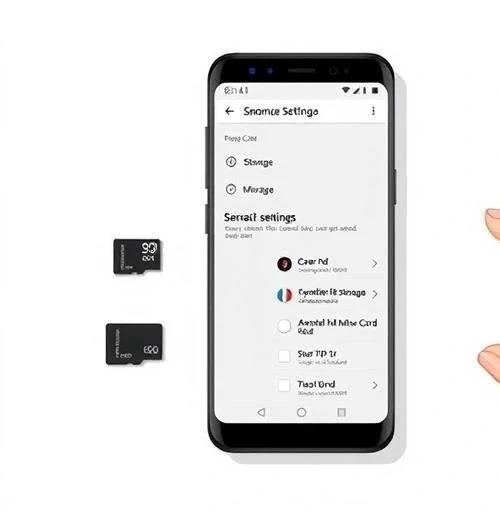
Formatting a microSD card on a Xiaomi phone can prepare it for use‚ resolve some file-system errors‚ or clear it before you give it away. The process is usually straightforward‚ but it permanently removes the files stored on the card. Back up anything you want to keep before you begin. Menu names differ between Xiaomi models and software versions‚ so the instructions below cover the most common MIUI and HyperOS layouts as well as alternatives.
Before you format
- Check that your phone supports a memory card. Many Xiaomi‚ Redmi‚ and POCO models have no microSD slot. Check the specifications for your exact model or look for a card tray with a clearly marked microSD position. Do not mistake a second-SIM position for a memory-card slot.
- Copy your files somewhere safe. Formatting erases photos‚ videos‚ downloads‚ documents‚ and other data on the card. Copy them to the phone‚ a computer‚ or a cloud service. Open a few copied files to confirm the backup worked.
- Keep the phone charged. Avoid formatting when the battery is nearly empty. Do not remove the card or switch off the phone while formatting is in progress.
- Close apps that may be using the card; Camera‚ music‚ gallery‚ or file-transfer apps can prevent the phone from unmounting or formatting it.
- Use a reliable card and adapter. A damaged‚ counterfeit‚ or failing card may produce errors even after formatting. If possible‚ make a backup before troubleshooting it.
If the card is already in the phone‚ do not pull it out while the phone is reading or writing files. Use the phone’s eject or unmount control first‚ if available. If you need to remove or reinsert it‚ follow the device’s instructions and handle the card by its edges.
Method 1: Format the card in Settings
This is the preferred method when the phone recognizes the card. Menu wording varies by model and software release. Try these steps:
- Open Settings.
- Tap About phone‚ then look for Storage. On some phones‚ you can open Storage directly from the main Settings screen. You may need to tap More‚ Additional settings‚ or Storage settings.
- Find the SD card in the storage list. Tap its name or the card section to open its details.
- Choose Format‚ Format SD card‚ or a similarly named option. It may be under a three-dot menu.
- Read the warning. Confirm only after you have backed up the card and are certain you selected the SD card‚ not internal storage.
- Wait until the phone reports that formatting is complete. Keep the card inserted and leave the Settings screen open while the process runs.
- If prompted‚ choose whether to use the card as portable storage or‚ where the option is available‚ as internal storage. Read the explanation below before deciding.
Some versions show an Erase and format button‚ while others use a confirmation dialog. The exact labels can change with MIUI or HyperOS updates. If you cannot find an SD-card section‚ first check that the card is seated correctly and that your phone model supports microSD. Restarting the phone may also help it detect the card.
Method 2: Use File Manager
On some Xiaomi phones‚ the card can be managed from the built-in File Manager app. Open File Manager and look for SD card‚ Storage‚ or a menu for storage locations. If the card’s page has a three-dot menu‚ check for Format or Storage settings. Not every version of the app offers formatting. If you cannot find the option‚ use Settings instead; do not install an unfamiliar app just to format the card.
Portable storage or internal storage?
Portable storage
Portable storage is the usual choice. The card remains removable and can generally be read by other phones‚ cameras‚ card readers‚ and computers‚ provided they support its file system. It is a good option for moving photos‚ videos‚ and documents between devices. Apps normally continue to install in the phone’s internal storage unless an app or system feature specifically supports saving data to the card.
Internal or adopted storage
If your software offers Use as internal storage‚ the phone may encrypt or configure the card for use as part of that device’s storage. The card may then be difficult or impossible to read in another phone or computer. Removing it can cause apps or files stored on it to stop working. This option is not available on every Xiaomi model or Android version. Choose it only if you understand the limits‚ have a backup‚ and plan to keep the card in that phone. Follow the on-screen instructions‚ because the phone may test the card or move data after formatting.
Do not assume that formatting as internal storage will make every app movable or make a slow card behave like built-in memory. A low-quality or slow card can make some operations less responsive; For most people who want removable space for media‚ portable storage is the simpler and more flexible choice.
Choosing a file system
When formatting on the phone‚ you may not be asked to choose a file system: Android selects one it supports. If you are formatting with a computer‚ use a file system compatible with both the phone and the devices that will use the card. FAT32 is widely supported‚ but it cannot store a single file larger than 4 GB. exFAT supports larger files and is commonly used for higher-capacity cards‚ though compatibility depends on the phone and other devices. Do not select a file system simply because it is available; check the card’s and device’s documentation if you are unsure.
If the phone does not detect the card
- Turn the phone off before reseating the card if your device’s instructions recommend doing so. Check that it is in the correct tray position and facing the direction shown on the tray. Reinsert the tray gently; never force it.
- Restart the phone‚ then check Settings > Storage again. Look for an option to mount the card if it appears as unmounted.
- Check whether the card works in another compatible device or a computer with a card reader. If other devices cannot read it either‚ the card or its file system may be damaged.
- If a computer asks to repair or format the card‚ do not accept the prompt before recovering or copying important files. Formatting is not a substitute for data recovery.
- Try a different compatible card in the Xiaomi phone‚ if available. This helps determine whether the issue is the card or the phone’s slot.
If formatting fails or the card shows an error
First restart the phone and try again after closing apps that use the card. Confirm that the phone has enough battery and that the card is not being accessed. If Settings reports that the card is read-only‚ damaged‚ or unsupported‚ back up any accessible files and test the card in a computer or another compatible device. A physical lock switch on a full-size SD adapter can also make a card appear read-only; microSD cards themselves do not usually have that switch.
If the card is readable on a computer‚ copy its contents before attempting repairs. You can then format it using the computer’s built-in disk utility‚ selecting a compatible file system and the correct card. Double-check the selected drive: formatting the wrong disk can erase your computer’s data. Afterward‚ safely eject the card and put it back in the phone. If the phone still cannot format or use it‚ the card may be incompatible‚ damaged‚ or counterfeit. Replace it with a reputable card that meets your phone’s specifications.
What to do after formatting
Wait for the phone to finish preparing the card‚ then open Settings > Storage to confirm that it appears with available space. If you formatted it as portable storage‚ open the Camera settings and choose the SD card as the save location if your model offers that setting. You can also use File Manager to create folders and test the card by copying a nonessential file to it‚ opening the file‚ and deleting it again. Keep a separate backup of important files; an SD card is convenient extra storage‚ not a dependable backup by itself.
Important safety reminders
- Formatting deletes the card’s contents. Back up first and confirm the correct storage device before approving the operation.
- Formatting is different from safely ejecting: format erases data‚ while eject or unmount prepares the card for removal.
- Do not interrupt the process‚ remove the card during use‚ or format a card that contains the only copy of important files.
- If you plan to use the card in several devices‚ portable storage is usually more appropriate than adopted internal storage.
- If repeated errors occur‚ do not trust the card with important information‚ even if it appears to work after formatting.
Quick summary
Back up the card‚ open Settings‚ find Storage or About phone > Storage‚ select the SD card‚ and choose Format. Confirm the warning and wait for completion. Use portable storage for a removable card; choose internal storage only if your phone offers it and you accept that the card may be tied to that device. If the card is missing or formatting fails‚ reseat it carefully‚ test it in another device‚ and protect your files before trying computer-based repairs.



3 Comments. Оставить новый
The reminder to back up files before formatting is especially helpful. It’s also good to point out that not every Xiaomi model has a microSD slot.
Clear, practical advice. Mentioning that menu names vary across MIUI and HyperOS should save readers time when they can’t find the exact setting.
Useful precautions, especially about safely unmounting the card and not removing it while the phone is accessing files.