
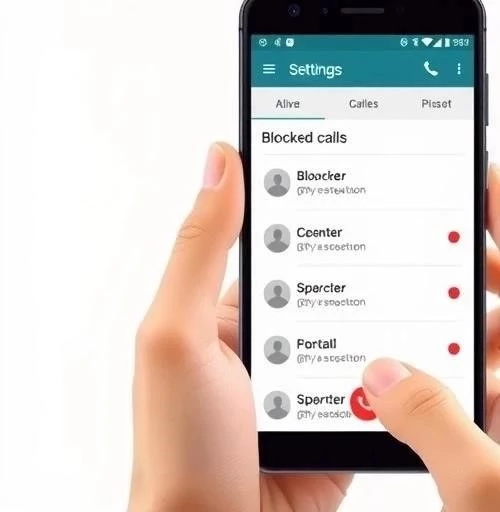
A Xiaomi phone can be a very polite gatekeeper: it can let your friends through while quietly turning away persistent sales calls‚ spam‚ or one number you simply do not want to hear from. The exact menu names vary between MIUI‚ HyperOS‚ regions‚ and dialer apps‚ but the methods below cover the usual routes on Xiaomi‚ Redmi‚ and POCO devices.
Method 1: Block a number from your call history
- Open the Phone app and go to Recents or your call history.
- Tap the unwanted call. Depending on the dialer‚ you may need to tap the small information icon‚ the contact name‚ or the three-dot menu.
- Choose Block‚ Block number‚ or Report spam. Confirm if the phone asks.
That is usually the fastest option: no need to copy the number or hunt through settings. If the caller is saved as a contact‚ open the contact card instead and look for More or the three-dot menu‚ then choose Block numbers. The wording can differ‚ but the action should be easy to recognize.
Method 2: Add a number manually
To block someone who has not called yet‚ open Phone and tap the three-dot menu. Look for Settings‚ then a section called Blocked numbers‚ Blocklist‚ or Caller ID & spam. Tap Add a number or the plus sign‚ enter the full phone number‚ and confirm.
On some Xiaomi software versions‚ filtering is managed in a separate Security app. Open Security‚ find Blocklist or Anti-spam‚ and add the number there. You may also see a path like Phone → Settings → Anti-spam → Blocklist. If none of these labels appears‚ use Settings search for “blocked numbers” or “blocklist”; this is often quicker than exploring every menu.
MIUI‚ HyperOS‚ and Google Phone: why the menu may move
Xiaomi phones do not all use the same calling app. Some versions have Xiaomi’s own Phone app and anti-spam tools; many newer or region-specific models use Google Phone. In Google Phone‚ open Recents‚ select the call‚ and tap Block or Report spam. To review the list later‚ open the app’s three-dot menu and go to Settings → Blocked numbers. On another build‚ the setting may be under Settings → Privacy or a similarly named call-protection section.
Think of the app as the front door and the blocklist as its lock: the door’s design changes‚ but the lock performs the same job. If instructions from an older MIUI version do not match your screen‚ check which Phone app is installed and follow its own settings. A system update can also rename or relocate a menu without removing the feature.
Block hidden or unknown callers
If the problem is not one person but repeated calls with no visible caller ID‚ look in the Phone app’s blocking settings for options such as Unknown‚ Private numbers‚ or Block calls from unidentified callers. Turn on only the option that matches what you want to silence. “Unknown” may mean a hidden caller ID on one phone and any number not saved in contacts on another‚ so read the description carefully. Blocking all unsaved numbers can also stop legitimate calls from couriers‚ clinics‚ or new clients.
What happens after you block a number?
Depending on the app‚ phone‚ and carrier‚ blocked calls may be declined‚ silenced‚ or sent to voicemail; messages may be filtered or hidden. A block does not necessarily prevent the person from contacting you through messaging apps or from using a different number. If unwanted contact becomes threatening‚ keep relevant records and use your carrier’s reporting options or local support services rather than relying only on the phone filter.
How to check the list or unblock someone
Open the same Blocked numbers‚ Blocklist‚ or Anti-spam screen. Review the entries‚ then tap the remove icon‚ choose Unblock‚ or open the number’s menu. If a legitimate caller suddenly cannot get through‚ check this list first; it is surprisingly easy to block a number with one hurried tap.
Quick troubleshooting
- No Block button? Open the call’s details or the contact’s menu‚ and check that you are using the Phone app rather than a third-party dialer.
- The number keeps calling from new lines? Turn on the built-in spam filter‚ if available‚ and report spam calls. Blocking one number only blocks that entry.
- Menus do not match? Search Settings for “block‚” update the Phone app‚ or check the dialer’s settings directly.
In short: block a recent caller from the call log‚ add a new number through the Phone app’s blocking settings‚ and use Anti-spam or Blocklist if your Xiaomi build provides it. One small setting can give your phone a quieter front door—and give you back a little peace.


9 Comments. Оставить новый
A useful reminder that “Xiaomi phone” covers several software personalities. The guide leaves room for those differences instead of offering brittle instructions.
A helpful pocket map for escaping unwanted calls. The software-version caveat is thoughtful—and likely to save readers a few laps around Settings.
A practical guide with a nice bit of realism: phone menus move around like furniture in a dark room. The call-history method sounds refreshingly quick.
This has the pleasing efficiency of a well-labeled toolbox: clear routes for calls you’ve already received and numbers you want to block before they ring.
The Settings search suggestion deserves a tiny trophy. It turns a scavenger hunt through menus into one quick search.
I appreciate the calm, no-drama approach. Blocking a persistent caller should take fewer steps than explaining why you do not want to talk.
I like that this guide treats the settings menu like a shifting maze rather than pretending every Xiaomi phone is identical. The search-tip is the little compass I’ll remember.
The distinction between Xiaomi’s tools and Google Phone is useful. Same goal, different doors—and this article helps you find the right one without rattling every handle.
The article makes a small everyday annoyance feel manageable. I especially like that it points readers toward the Blocklist even when the menu labels differ.