
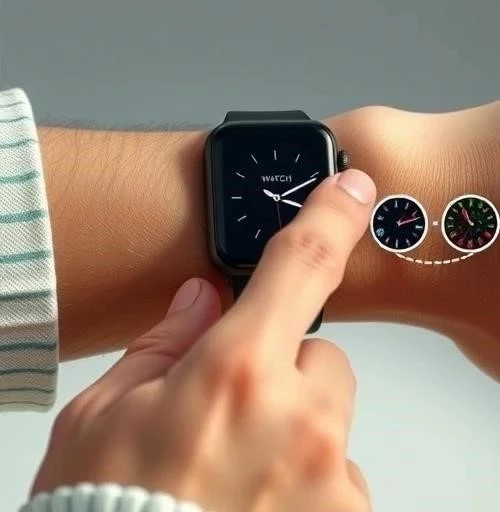
Apple Watch Series 3 lets you choose from a selection of watch faces and adjust details such as colors, styles, and complications. You can make a change directly on the watch or use the Watch app on your paired iPhone. The names and options available can vary with the installed watchOS version.
Change the face on the watch
- Wake the display by raising your wrist or tapping the screen.
- Touch and hold the current watch face until it becomes smaller and the face selector appears.
- Swipe left or right to browse faces already saved on the watch.
- Tap the face you want to use. It will become the active face.
On supported software, you can also swipe horizontally from the edge of the active face to move between saved faces. If this gesture does not work, use the touch-and-hold method instead. Make sure you are swiping across the face itself, not opening an app or a notification.
Add a face with the iPhone
- Keep the iPhone and watch close together, then open the Watch app on the iPhone.
- Tap Face Gallery at the bottom of the screen.
- Browse the available designs and select one to see its options.
- Choose a color, style, and any available complications. Scroll through the settings, since some faces have several sections to configure.
- Tap Add. The face is added to the watch and usually becomes active.
You can also edit faces already on the watch from the iPhone. In the Watch app, open the My Watch tab and look under My Faces. Select a face to change its settings, rearrange the saved faces, or remove one. The wording and layout may differ slightly between iOS versions.
Customize a saved face
On the watch, touch and hold the face, then tap Edit if that option appears. Swipe through the available customization screens. Turn the Digital Crown to change a highlighted color, style, or other setting. Swipe to the complications screen to select a position, tap that position, and choose from the apps listed. Press the Digital Crown when finished, then tap the face to use it.
A complication is a small item of information displayed on a face, such as the date, activity, weather, or a timer shortcut. Not every face supports complications, and each design offers its own positions and choices. If an app does not appear in a list, check that it is installed and available for the watch.
Tips and troubleshooting
- Face Gallery looks different: Series 3 supports an older range of watchOS features than newer Apple Watch models. Some current face designs and options may therefore be unavailable.
- A change does not appear: Keep the devices nearby, check their Bluetooth and Wi-Fi connections, and reopen the Watch app. Restarting both devices can help if syncing remains stuck.
- You cannot find a particular face: Check the installed watchOS version and the model’s compatibility. Updating is possible only to a version supported by Series 3; newer watchOS releases may require a newer watch.
- You want a simpler display: Choose a face with fewer complications. This can make the time easier to read at a glance.
Changing a face does not erase apps or health data. You can keep several designs saved and switch between them whenever you want. If your menus differ from these steps, consult Apple Support for instructions matching the software installed on your devices.
9 Comments. Оставить новый
The reminder to keep the iPhone and watch close together provides helpful context for using the Watch app.
The article gives readers a concise overview of managing saved faces, including editing and removing them.
The guidance is specific to Apple Watch Series 3 and appropriately notes that available options depend on the installed software.
The article covers both the watch and iPhone methods for adding and changing faces.
The note about differences between software versions is useful for readers whose menus may look different.
The explanation distinguishes browsing saved faces from adding a new design through the Face Gallery.
The instructions clearly explain how to select a saved watch face directly on the Apple Watch.
The steps for customizing colors, styles, and complications are presented in a practical order.
The alternative method for switching faces is accompanied by a useful note about what to try if the gesture does not work.