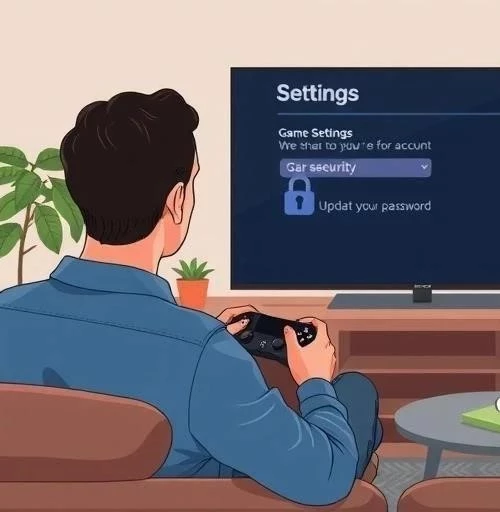
Your PlayStation Network (PSN) password protects your account, purchases, personal information, and access to online services. You can change it from a PS4 if you know your current password, or reset it through PlayStation’s account recovery process if you have forgotten it. The exact wording of menu options may vary slightly depending on your system software and region.
Before you begin
Make sure you can access the email address associated with your PSN sign-in ID. PlayStation may use that address to verify your identity or send a password-reset link. If you use a passkey or another sign-in method, the available security options may differ from those for an account that uses a password.
Choose a new password that you do not use for other websites or services. A long, unique combination of words, numbers, and symbols is generally harder to guess than a short or familiar password. Do not share it with anyone, and avoid saving it where other people can access it.
Change a password on your PS4 when you know the current one
- Turn on the PS4 and sign in to the PSN account whose password you want to change. If several users are set up on the console, check that you have selected the correct user.
- From the home screen, open Settings.
- Select Account Management, then choose Account Information. If prompted, sign in again.
- Open Security and select Password.
- Enter your current password, then enter the new password. Follow the on-screen instructions to confirm and save the change.
- When the console confirms that the password has been updated, return to the home screen. If prompted, sign in again using the new password.
The password belongs to your PSN account, not just to one console. Changing it can affect sign-in on other PlayStation consoles, the PlayStation App, and websites where you use the same account. You may need to enter the new password again on those devices.
If you have forgotten your password
You cannot use the normal change-password steps without providing the current password. Instead, start the password-reset process from the PlayStation sign-in screen or from the official PlayStation account website:
- Choose the option for trouble signing in or for resetting a forgotten password.
- Enter the email address used as your PSN sign-in ID and follow the instructions.
- Check your inbox for a message from PlayStation. Also check spam, junk, or filtered folders if it does not appear.
- Open the reset link and complete the steps on the official PlayStation page. Create a new password, then try signing in on your PS4.
Reset links can expire, so request a new one if the link no longer works. Use only a message and web page you can verify are from PlayStation. Do not send your password or verification codes to someone who contacts you, and do not enter account details on a page reached through a suspicious message.
Troubleshooting
- The Security menu is unavailable: Confirm that you are signed in to the correct PSN account and that the console is connected to the internet. Restart the console and check for a system software update if the option is still missing.
- The reset email has not arrived: Check that you entered the correct sign-in email address, look in filtered folders, and allow a little time for delivery. If needed, request another reset message.
- You no longer have access to the email account: Try to recover access through your email provider first. If you cannot, contact official PlayStation Support and follow its account-recovery process. Be prepared to provide information that helps verify account ownership.
- Your new password is rejected: Review the instructions shown on the screen. Make sure the password meets the current requirements, is entered consistently, and does not contain an accidental space.
- You suspect someone else has access: Change the password as soon as possible, secure the email account linked to PSN, and review account security settings. If you cannot sign in or notice activity you do not recognize, contact PlayStation Support.
Protect your account after changing the password
Use a different password for your email and other online accounts. Where available, enable two-step verification or another supported security feature and keep recovery details current. Never share verification codes, even with someone claiming to be a support representative. If you use a console that other people can access, sign out when appropriate and avoid saving payment information unless you need it.
Changing your password does not necessarily cancel every active sign-in session. If you are changing it because of suspected unauthorized access, review PlayStation’s current security options for signing out of devices and follow the instructions on the official account site. Check recent purchases and account details for changes you did not make.
In brief
When you know your existing password, use Settings > Account Management > Account Information > Security > Password on the PS4 and follow the prompts. If you have forgotten it, use PlayStation’s official reset process and the email linked to your sign-in ID. Keep the new password private and unique, and contact official support if you cannot verify or recover the account yourself.