
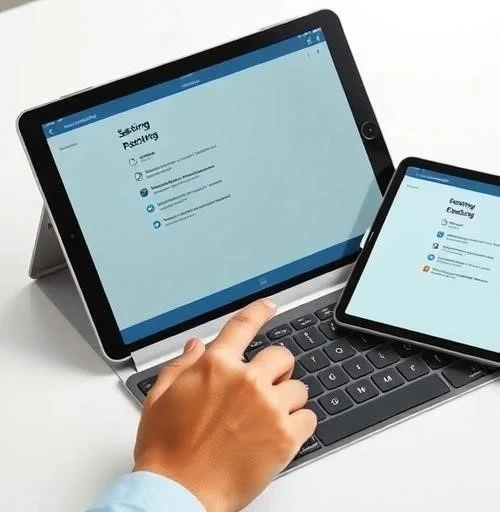
A magnetic keyboard can make a Huawei tablet feel like a tiny writing desk—but it doesn’t always come with a language key. The good news: the keyboard’s language is usually controlled by your tablet’s input settings‚ not by the magnetic cover itself. Set up the languages once‚ then switch between them with a shortcut or from the on-screen keyboard.
Add the languages you want to type in
- Open Settings on your Huawei tablet.
- Look for System & updates‚ then tap Language & input. On some versions‚ the section may simply be called System or Languages & input.
- Open the active keyboard’s settings. It may be named Huawei Celia Keyboard‚ Microsoft SwiftKey‚ or Gboard.
- Choose Languages and add each language and layout you need—for example‚ English (US) and Russian.
- If prompted‚ download the language pack and select the keyboard layout you prefer. Tap Done or Save.
Adding a language to the tablet’s menus is not always the same as adding it to the keyboard. If you only change the system language‚ your physical keyboard may continue typing in the old layout. Make sure the language is enabled in the keyboard app itself.
Connect the magnetic keyboard and find its settings
Attach the keyboard securely to the tablet’s connector‚ or pair it if your particular model uses Bluetooth. Open a text field—such as a note or search box—and type a few characters to check that the keyboard is active.
Then return to Settings and search for Physical keyboard. Depending on the tablet’s software‚ this option may appear under Language & input‚ Keyboard & input method‚ or a similarly named menu. Select the Huawei keyboard if it appears. If you see a layout option‚ choose the layout that matches the language you plan to use.
Switch languages while typing
Try Ctrl + Space first; many Android tablets use it to cycle through enabled physical-keyboard languages. On some Huawei setups‚ Shift + Space works instead. Shortcuts can vary with the tablet‚ software version‚ and keyboard app‚ so test both combinations in a text field.
Watch the language indicator on the screen‚ if one appears. It may show a code such as EN or RU. If a shortcut changes the on-screen keyboard but not your physical typing‚ check the Physical keyboard settings again: the tablet may have separate input choices for virtual and external keyboards.
You can also tap a language or globe icon on the on-screen keyboard to switch input languages. This is handy if the shortcut is unknown or the keyboard has no dedicated language key. The icon may only appear after you have added more than one keyboard language.
If the layout still won’t change
- Confirm both languages are enabled. Open the active keyboard’s language list and make sure the languages are selected‚ not merely downloaded.
- Check the active input method. A tablet can have several keyboards installed. In Language & input‚ verify which one is currently selected‚ then open that keyboard’s own settings.
- Reconnect the keyboard. Remove and reattach the magnetic keyboard. For a Bluetooth model‚ disconnect it and pair it again.
- Try another text field. A particular app may handle external keyboards differently. Test in Notes or another basic text editor.
- Restart the tablet. This can help the system recognize a newly added language or a reconnected keyboard.
- Check the printed key labels. The screen layout can change while the letters printed on the keys stay the same. If the keys appear to type the “wrong” characters‚ the selected software layout may not match the keyboard’s physical markings.
One important distinction
The language of Huawei’s menus controls what you see on screen; the input language controls what you type. You can keep the tablet menus in English while writing in another language‚ or switch between several typing languages without changing the interface.
Quick recipe: add the desired languages in your active keyboard’s settings‚ connect the magnetic keyboard‚ then test Ctrl + Space and Shift + Space. If neither works‚ use the on-screen language icon and inspect the tablet’s Physical keyboard settings. Once the right layouts are enabled‚ changing languages should feel less like hunting for a hidden key—and more like turning a page.


8 Comments. Оставить новый
A neat guide for making a tablet feel less like a stubborn gadget and more like a flexible workspace. The distinction between Bluetooth pairing and a connector is a thoughtful touch.
A helpful little troubleshooting compass for anyone switching between languages. It turns a seemingly mysterious keyboard problem into a sequence of manageable checks.
The reminder that menu language and typing language are separate is the real gem here. It explains one of those tech quirks that can make you feel as if your tablet is quietly ignoring you.
A tiny shortcut can save a surprising amount of frustration. I like that this guide treats the keyboard and tablet as two parts of one setup puzzle rather than blaming the magnetic cover.
I appreciate the realistic note that shortcuts vary by device. Tech instructions often promise one magic key combination; this guide leaves room for the tablet to have its own personality.
The advice is refreshingly grounded: check the keyboard app, check the physical layout, then test the result. No dramatic fixes, just the right clues in the right order.
Clear, practical, and mercifully free of jargon. The little suggestion to test the keyboard in a text field is especially useful—sometimes the simplest diagnostic is the best one.
This feels like a friendly map through settings menus that keep changing their names. The alternate paths make the advice much more useful than a one-size-fits-all checklist.