
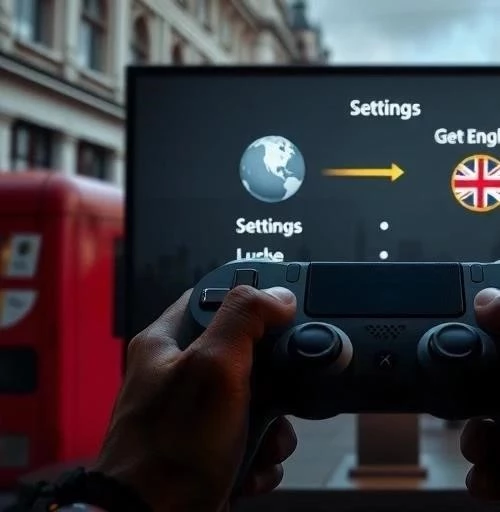
London is full of secrets: a locked door here, a suspicious drone there, and—if your copy of Watch Dogs: Legion has launched in the wrong language—a menu you can barely read. Fortunately, switching to English is usually straightforward. The exact route depends on where you play and which edition you own, so start with the platform-specific steps below.
First, check the game’s language settings
Before changing your whole device, open the game and look through Options or Settings for language controls. Depending on your version, language choices may be divided into spoken dialogue, interface text, and subtitles. Set the relevant options to English, apply the changes, and return to the main menu if prompted.
If English is missing, or the menus themselves are in a language you cannot navigate, the game may need an English language pack—or your platform may be choosing the language automatically. Close the game before following the steps for your launcher or console.
PC: Ubisoft Connect
- Open Ubisoft Connect and select Games.
- Choose Watch Dogs: Legion, then open its Properties or game settings.
- Find the General section and look for the game-language option.
- Select English. If Ubisoft Connect offers to download additional files, allow the download to finish.
- Launch the game and check its audio, interface, and subtitle settings.
The launcher’s exact labels can vary between versions. If you do not see a language selector, check the game’s installation or download settings, then restart Ubisoft Connect. Some editions manage language files through the store where you bought the game, even if Ubisoft Connect is also installed.
PC: Steam
- Open your Steam Library and right-click Watch Dogs: Legion.
- Select Properties, then open Language.
- Choose English from the available list.
- Let Steam download any required files before starting the game.
If English is already selected, let Steam verify the installation: open Properties, choose Installed Files, and select Verify integrity of game files. This can replace missing or damaged language data. After verification, restart Steam and check the in-game options again.
PC: Epic Games Store
Epic Games Store editions may use Ubisoft Connect to launch or manage the game. First check the game’s options in Ubisoft Connect, following the steps above. If you installed it directly through Epic, open the game’s library menu and look for Manage or installation options. Language controls are not always displayed in the same place, so if there is no English selector in Epic, check Ubisoft Connect rather than repeatedly reinstalling the game.
PlayStation and Xbox
On a console, the game may follow the system language or the language supported by your regional edition. Close Watch Dogs: Legion, change the console’s system language to English, and restart the console before launching the game again.
- PlayStation: Open the console’s system settings and change its language to English. On some versions, language or add-on content can also be checked from the game’s options on the home screen. Look for Manage Game Content or a similar menu if available.
- Xbox: Open Settings, go to the system language and location settings, choose English, and restart when asked. Then launch the game and inspect its language options.
Console menus and available content depend on the model, system software, and game edition. If the language does not change, check whether the disc or digital copy is a regional version that includes English. Changing the console language cannot add a language that is not included in that edition.
English subtitles, but not English voices?
Text and spoken dialogue may be controlled separately. Open the game’s audio or language settings and check each option rather than changing only subtitles. If English voices are unavailable, return to the launcher or console’s game-content menu and see whether an English audio pack can be downloaded. Restart the game after installing it.
If English still refuses to appear
- Fully close the game and restart its launcher or console.
- Check that the download has finished and the game is updated.
- Use the platform’s file-verification or repair feature on PC.
- Check the edition and region shown in your store or on your disc packaging.
- As a last resort, reinstall using English selected in the launcher or system settings first.
Before reinstalling, confirm that your save data is backed up or synced. A language change should not normally require deleting a save, and removing saved data is not a language fix.
The quick route
PC: choose English in Steam or Ubisoft Connect, download any language files, then check the game’s own settings. Console: set the system language to English, restart, and check for downloadable game content. If the option is absent everywhere, the likely culprit is the edition or region—not a hidden button waiting to be hacked.
Once the words are finally familiar, London’s digital fog lifts. You can get back to recruiting your unlikely resistance, reading the mission briefings, and deciding whether that unattended drone is a tool, a taxi, or a very loud mistake.

2 Comments. Оставить новый
A useful little map through the language maze. I especially like the reminder that the game, launcher, and store can each have their own ideas about what “English” means—three gatekeepers, one very confused player.
Clear, calm, and practical: this guide treats an unreadable menu like a solvable puzzle rather than a disaster. The platform-by-platform approach is its best feature, though a brief note on console settings would make the map feel more complete.