
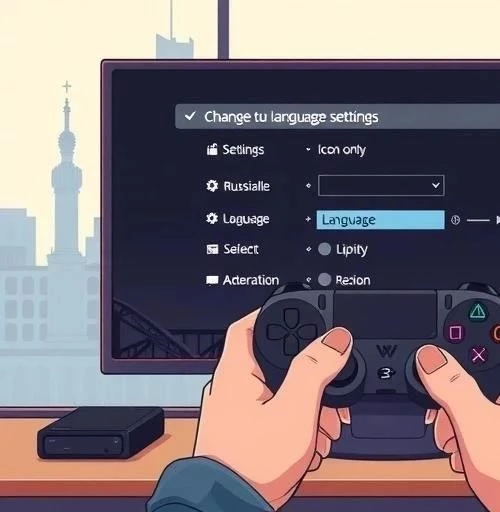
If Watch Dogs: Legion starts in English or another language‚ Russian may still be available through the game’s language settings‚ your platform’s launcher‚ or your console’s system settings․ The exact method depends on where you own the game and which languages are included in your edition․ Follow the steps for your platform below‚ then restart the game so the changes can take effect․
First‚ check the in-game options
- Start the game and open the main menu․ If you are already playing‚ pause the game․
- Select Options or Settings‚ then look through the Language‚ Audio‚ and Subtitles sections․
- If Russian is listed‚ choose it for the options you want․ You may be able to set spoken dialogue and subtitles separately․
- Apply the changes‚ return to the main menu‚ and restart the game if prompted․
Not every edition provides a separate in-game menu-language selector․ If you cannot find Russian in the menus‚ use the platform instructions below․ Changing the spoken language may also require a language pack to be installed․
Ubisoft Connect on PC
- Close the game and open Ubisoft Connect․
- Go to Games and select Watch Dogs: Legion․
- Open the game’s properties or management options․ Look for a Language or Game language setting․
- Select Russian and confirm․ If the launcher offers to download additional files‚ allow the download to finish․
- Launch the game again and check its audio and subtitle options․
The exact labels can vary with the Ubisoft Connect version․ If there is no language selector‚ check the game’s files or installation options in the launcher‚ update Ubisoft Connect‚ and verify that your account’s edition supports Russian․ Avoid deleting game files or changing configuration files unless official support instructs you to do so․
Steam on PC
- In your Steam Library‚ right-click Watch Dogs: Legion and choose Properties․
- Open the Language tab or language menu․
- Choose Russian․ Steam may download or update the required files; wait until it finishes․
- Start the game and check Options for separate audio and subtitle choices․
If Russian is not offered in Steam‚ the language may not be available for your particular edition or region․ Check the store listing and the game’s installed-language options before reinstalling; A full reinstall is usually unnecessary when the launcher can download a language pack directly․
Epic Games Store and other PC editions
Open the launcher’s Library‚ select the game’s menu‚ and check Manage‚ Installation options‚ or the game’s properties for a language choice․ The available controls depend on the launcher and edition․ If the launcher does not show a Russian option‚ check its general language settings and the game’s store listing․ Changing the launcher’s display language alone may change the launcher interface without changing the game․
PlayStation and Xbox
On consoles‚ first check the game’s own options․ If Russian is not listed‚ close the game and set the console’s system language to Russian in the system settings․ Restart the console‚ then launch the game again․ Some versions select their interface language from the system language‚ while others use the language choices included with the installed game․
If the game remains in another language‚ check for an update and review the game’s add-ons or installation options for language content․ Availability can depend on the disc‚ store region‚ and edition․ A disc bought in one region may not include the same language set as a digital copy from another region․
Choosing Russian voices and subtitles
“Russian language” can mean different things: menus and on-screen text‚ spoken dialogue‚ or subtitles․ Check each option separately in the game’s settings․ If Russian subtitles are available but Russian voices are not‚ keep the original audio and enable Russian subtitles․ If a voice option is visible but unavailable‚ install the offered language files and restart the game․
If Russian still does not appear
- Update the game and its launcher‚ then restart the PC or console․
- Confirm that the correct account‚ edition‚ and installation are selected․
- Check the platform store page or official support information for languages supported by your specific version․
- On PC‚ use the launcher’s file verification option if language files appear to be missing․
- Do not download unofficial language packs from unknown sites; they can be unsafe or incompatible with updates․
In short‚ try the in-game language options first․ On PC‚ use the launcher’s game-language setting; on consoles‚ check the game settings and system language․ Russian can only be selected if it is supported by your edition‚ and a restart or additional download may be required․


5 Comments. Оставить новый
The platform-by-platform instructions make it easy to know where to look for the Russian language setting.
A clear troubleshooting guide for players who cannot find Russian in the in-game settings.
The Steam and Ubisoft Connect guidance is practical, especially the note that additional language files might need to download.
I appreciate the advice to check whether the edition supports Russian before changing game files.
Helpful reminder that spoken language and subtitles may have separate options, and that a restart may be needed.