
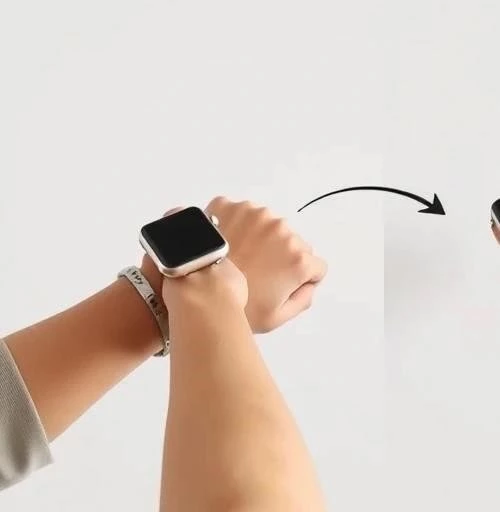
If you mean turning the watch so it sits differently on your wrist, you usually do not need to physically flip the screen. Apple Watch lets you choose which wrist you wear it on and which side the Digital Crown faces. Setting these options correctly keeps the display upright and makes the buttons comfortable to reach.
Change the wrist and Crown position
- Open the Settings app on your Apple Watch.
- Tap General, then Orientation.
- Under “Wrist,” select your left or right wrist.
- Under “Digital Crown,” choose the side where you want the Crown to sit.
You can also make the change on your iPhone: open the Watch app, tap My Watch, then General > Watch Orientation. The available choices are the same. After you select them, the display and controls adjust to match.
What “flipping” can mean
Some people turn the watch around so the Digital Crown is closer to the elbow, reducing accidental presses when the wrist bends. If you try this, change the Crown-side setting as well; otherwise, the screen may appear upside down or the controls may feel reversed. The orientation setting changes the interface, not the physical watch or its band.
If you simply turn the watch face toward your palm, the screen does not automatically rotate like a phone screen. Use the orientation settings instead. For easier access to the display, you can also adjust wrist-detection and wake options in the Watch settings, but these do not replace choosing the correct wrist and Crown position.
Check the fit and test it
Once the display is oriented correctly, fasten the band snugly but comfortably, with the watch sensor in contact with your skin. Raise your wrist and press the Digital Crown to confirm that the screen, buttons, and controls behave as expected. If the picture is still inverted, return to Orientation and check both selections. A restart may help if the setting does not update immediately;
Most Apple Watch bands can be detached and reattached to suit your preferred arrangement. Press the band-release button before sliding a band out; never force it. Make sure each band clicks securely into place before wearing the watch.
In short: To “flip” an Apple Watch for the other wrist or a reversed Crown, change Watch Orientation. This is safer and more reliable than trying to rotate the display by turning the device over.

2 Comments. Оставить новый
The article clearly distinguishes changing the watch’s orientation settings from physically turning the watch on the wrist. The step-by-step instructions for both the Watch and iPhone make the advice practical, and the fit check is a useful addition. One small improvement would be to clarify that menu labels can vary slightly depending on the watchOS version.
This is a helpful explanation because it addresses several meanings of “flipping” rather than assuming the reader means only one thing. The advice to change the Digital Crown position along with the wrist setting is especially relevant for avoiding an inverted display. The final note about bands is useful, though it could mention that some band designs have a preferred orientation.