
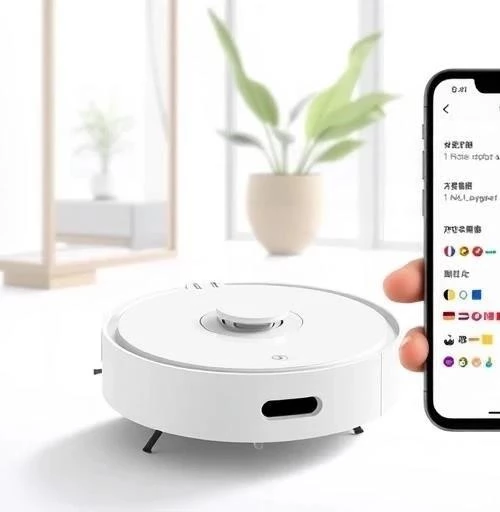
The Xiaomi Robot Vacuum S20’s spoken prompts are usually changed in the Xiaomi Home app, not with a button on the robot. The exact menu wording can vary by app version, country, and firmware, but the process is generally straightforward: open the S20’s settings, find its voice or language options, and download a different voice pack.
Before you start
- Make sure the robot is added to your Xiaomi Home account and appears online in the app.
- Connect your phone to the internet. The selected voice pack may need to be downloaded.
- If possible, leave the vacuum on its charging dock while changing the setting. Avoid switching it off during a download or installation.
Change the voice language in Xiaomi Home
- Open Xiaomi Home. Sign in to the account linked to your robot, then tap the Xiaomi Robot Vacuum S20 on the home screen.
- Open the device settings. Tap the three-dot icon, usually in the upper-right corner. Depending on your app version, the relevant option may be called Voice settings, Voice pack, Voice prompts, or something similar.
- Choose a language or voice pack. Browse the available options and tap the language you want. Some versions offer more than one voice in a language.
- Download and apply it. Confirm the selection and let the download or installation finish. Keep the app open if it shows progress, and do not disconnect the robot from power.
- Check the result. When the app indicates that the pack is installed, use a robot control in the app or wait for a spoken status prompt to confirm the change.
The labels and menu layout are not identical in every release of Xiaomi Home. If you do not see a voice option on the device’s main settings page, check any sections named Additional settings, Device settings, or Voice and volume. The robot’s spoken language is separate from the language used by the Xiaomi Home app: changing the app language alone may not change the S20’s voice.
If the language option is missing
First, update Xiaomi Home from your phone’s app store. Then open the S20’s settings and check for a firmware update. After updating, close and reopen the app and look for the voice-pack menu again. You can also restart the robot using the normal controls and check that it reconnects to Wi-Fi.
Voice packs may depend on the robot’s sales region, the region selected in Xiaomi Home, and the installed firmware. If the language you want is not listed, check that the app’s region is appropriate for the market where the S20 was purchased. Region options and available packs differ, so do not assume that every language is supported on every version of the device. Changing the region can affect device availability or app features; note your current setting before trying another one.
If a download stalls, make sure the phone and robot have a reliable internet connection, then try again. If the pack appears to install but the voice does not change, select the desired pack once more and allow the process to complete. You can also sign out and back in to Xiaomi Home, or remove and re-add the device only as a later troubleshooting step. Removing the robot may affect saved settings or maps, so do not do it unless simpler checks have failed.
Can you change it using the robot’s buttons?
The buttons on the S20 are for basic robot functions; the language selection is normally managed through Xiaomi Home; If the robot is not connected to the app, reconnect it first and then look for the voice settings. A factory reset is not a recommended way to change the language: it may erase configuration, and it does not guarantee that additional voice packs will become available.
In brief
Open Xiaomi Home → Robot Vacuum S20 → device settings → Voice settings or Voice pack, choose an available option, and wait for it to download. If the setting is absent, update the app and firmware and check the device’s region. The available languages can vary by market and software version.





4 Comments. Оставить новый
This is a clear, practical guide. I especially appreciate the reminder that changing the app language does not necessarily change the robot’s spoken prompts.
Helpful and easy to follow. The note about regional and firmware differences sets realistic expectations when the options do not match exactly.
A straightforward explanation for anyone trying to change the S20’s voice. It would also be useful to know what to do if the voice pack download fails.
The menu names can vary between app versions, so the suggested alternative settings sections are helpful. Keeping the vacuum docked during installation is a useful tip, too.