
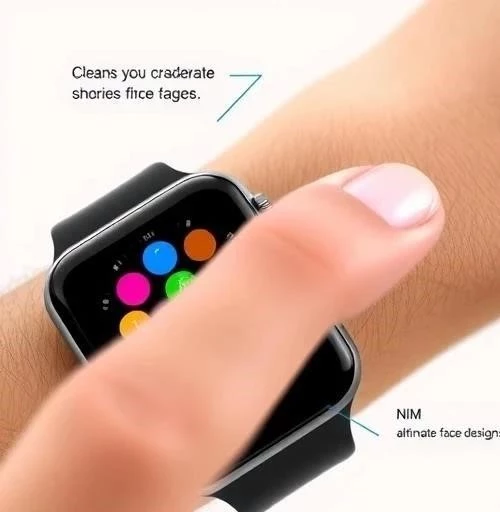
You can change the face directly on your Apple Watch Series 3 or use the Watch app on your paired iPhone. The exact faces and customization options depend on the watchOS version installed: Series 3 supports older watchOS versions‚ so some faces and features shown in newer tutorials may not be available.
Switch between faces already on your watch
- Wake the display by raising your wrist or tapping the screen.
- Swipe left or right across the watch face to move through the faces you have saved.
- Stop when the face you want appears.
If swiping does not change the face‚ press and hold the display first‚ then swipe between the face previews and tap the one you want. On Series 3‚ you can also switch faces from the long-press view without opening the Watch app.
Customize a watch face on Apple Watch
- Press the Digital Crown until the current watch face is displayed.
- Touch and hold the face until it shrinks and the Edit button appears.
- Tap Edit. Swipe left or right to move through the available settings‚ such as color‚ style‚ or complications. The choices vary by face.
- Turn the Digital Crown to change the selected option. If a setting has several choices‚ keep turning to browse them.
- For a complication (a small item such as weather‚ activity‚ or a calendar entry)‚ swipe to its position‚ tap it‚ then turn the Digital Crown to choose an available option.
- When you are finished‚ press the Digital Crown to leave editing‚ then tap the face to select it.
Not every face has complications‚ and not every complication fits every position. If you want a simpler display‚ choose a face with fewer information fields or select a less busy style.
Add a new face on the watch
- Touch and hold the current face.
- Swipe left until you reach the final face‚ then tap the + button.
- Turn the Digital Crown to browse the faces available on your Series 3. Tap one to add it.
- To adjust it‚ press and hold the new face‚ tap Edit‚ and follow the customization steps above.
After adding it‚ swipe to the new face and tap it‚ or keep swiping until it is selected. The list may not include faces available on newer Apple Watch models.
Add or change a face using your iPhone
- Keep your iPhone near the watch and open the Watch app.
- Tap Face Gallery at the bottom of the screen.
- Choose a face that is compatible with Apple Watch Series 3. Set its color‚ style‚ and complications if those options are offered.
- Tap Add. The face will be sent to the watch and appear in your saved faces.
To edit a face already on the watch‚ open the Watch app‚ tap My Watch‚ and select a face under My Faces. Change its available settings and complications there. You can also reorder faces by touching and holding one in the list‚ then dragging it to a new position.
Use a photo as your watch face
In the Watch app‚ open Face Gallery and look for the Photos face. Choose the available photo or album options‚ then tap Add. Depending on your software version‚ you may first need to sync an album through My Watch > Photos. If Photos or another face is missing‚ it may not be supported by the watch’s installed software.
Remove a face or fix a problem
To remove a saved face‚ touch and hold the display‚ swipe to the face you no longer want‚ then swipe up on its preview and tap Remove. You can add it again later. If the face will not appear‚ check that the watch is paired and connected‚ and that you selected a Series 3-compatible face. Restarting the watch and iPhone‚ or updating the watch through the Watch app if an update is offered‚ may also help.
Tip: Apple Watch Series 3 cannot install arbitrary third-party watch-face designs. Some apps provide complications‚ but those are information tiles added to supported Apple faces‚ not replacement faces.


2 Comments. Оставить новый
This is a clear, practical guide, especially the note that available faces and features depend on the Series 3’s watchOS version. The distinction between switching saved faces and adding a new one is helpful.
Helpful step-by-step instructions for customizing a face directly on the watch. I also appreciate the reminder that complication options vary by face, which can save readers time when they cannot find a particular setting.