
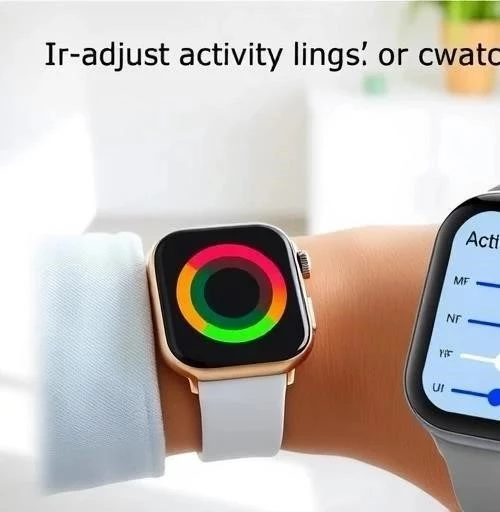
Apple Watch lets you adjust the daily targets shown in your Activity rings․ You can change your Move goal, measured in active calories, your Exercise goal, measured in minutes, and your Stand goal, measured in hours․ The steps below apply to recent versions of watchOS; wording or screen layout may vary slightly on older software․
Change your goals on Apple Watch
- Press the Digital Crown to open your apps, then tap Activity (the app with the three colored rings)․
- On the Activity screen, scroll down using the Digital Crown or swipe up․
- Tap Change Goals․
- Adjust the Move goal with the plus and minus buttons, or turn the Digital Crown․ Tap Next․
- Set your Exercise goal, then tap Next․
- Set your Stand goal and tap OK or Done to save․
Your watch may show a confirmation or return to the Activity screen when the new targets are saved․ You can revisit Change Goals whenever you want to make another adjustment․
What each Activity goal means
- Move: the number of active calories you aim to burn․ This is separate from your resting calories․
- Exercise: the number of minutes of brisk activity you want to complete․ Apple Watch uses movement and heart-rate information to estimate qualifying minutes․
- Stand: the number of hours in which you get up and move for at least a minute․ A Stand reminder is not the same as a full hour of exercise․
The rings measure different things, so changing one target does not automatically change the others․ Choose goals that suit your health, routine, and current activity level․ You do not need to close every ring every day for your watch to remain useful․
Set different goals for different days
On watchOS 11 and later, Activity supports schedules for goals, so you can choose different targets for individual days․ Open Activity, scroll down, tap Change Goals, and look for the schedule or calendar option․ Select a day, set its Move, Exercise, and Stand targets, and repeat for other days as needed․ The available controls can depend on your watchOS version․
A schedule can help when weekdays and weekends look different, or when you have a planned recovery day․ If you do not see scheduling options, check that your watch is updated․ On older versions, you can still change your daily goals, but you may need to adjust them manually rather than assign a separate target to each day․
Pause your rings or take a rest day
Recent watchOS versions also offer options to pause Activity rings, which can be useful during illness, travel, or recovery․ In the Activity app, open the goal controls and check for a pause option․ If available, choose how long to pause․ The feature and its location depend on software version․ Pausing is different from lowering a goal: it gives you a break without requiring you to meet your usual targets during that period․
Can you change goals from your iPhone?
The simplest and most reliable method is to change goals directly on the Apple Watch in the Activity app․ The Fitness app on iPhone is useful for reviewing your rings, workouts, and trends, but its controls may differ by iOS version․ If you cannot find a goal-setting option on your phone, use the watch steps above․
If “Change Goals” is missing
- Open the Activity app on the watch and scroll down; the control is below the ring summaries․
- Restart your watch if the screen is unresponsive, then check again․
- Check for a watchOS update in the Watch app on your iPhone under General > Software Update․
- Remember that some options, including goal schedules, require a newer watchOS version․
Will a new goal change past activity?
No․ Changing a target affects what your rings show going forward; it does not rewrite completed days or change recorded workout data․ If a goal seems too difficult or too easy, adjust it and give the new target a little time․ Your watch will continue tracking activity using its sensors, while the goal simply changes the daily benchmark displayed by the rings․
Quick recap
Open Activity on Apple Watch, scroll down, choose Change Goals, and set Move, Exercise, and Stand․ On newer software, you may also schedule different targets by day or pause your rings․ If the options look different, check your watchOS version and use the controls available on your device․

3 Comments. Оставить новый
Clear, practical instructions for changing all three Activity goals. I especially appreciate the explanation of what each ring measures.
The reminder that goals can be adjusted to suit your routine makes this guide feel useful and approachable, rather than overly demanding.
Helpful overview, including the note that schedules depend on watchOS version. The distinction between a Stand reminder and an hour of exercise is particularly useful.