
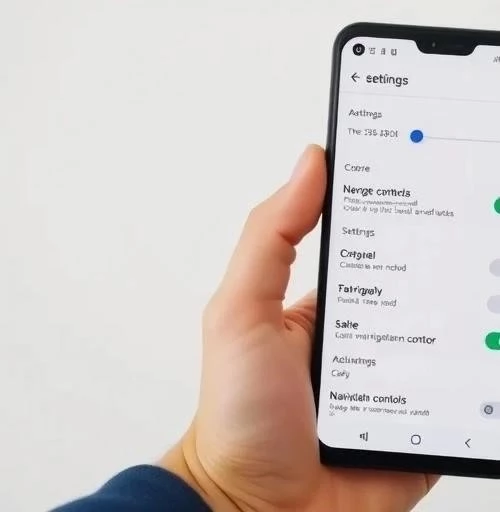
“Disable the buttons” can mean several different things on a Xiaomi phone․ You might want to hide the on-screen navigation buttons, stop the volume keys from changing media volume, prevent accidental presses in a pocket, or make the physical power button harder to activate․ These controls are not all managed in the same place, and Xiaomi does not provide one universal switch that turns off every button․ The available settings depend on your model, Android version, and whether it runs MIUI or HyperOS․
Before changing anything, identify the button or control you mean․ The instructions below cover the most common cases and explain what you can and cannot safely disable․ Menu names may differ slightly between devices; if a path does not match your phone, use the search box at the top of Settings and search for the relevant term, such as Navigation, Accessibility, or Button shortcuts․
Hide the on-screen navigation buttons
If you mean the Back, Home, and Recent apps controls at the bottom of the display, you can usually replace them with full-screen gestures․ This removes the three-button navigation bar from everyday use, although it does not disable the phone’s physical keys․
- Open Settings․
- Choose Home screen, then look for System navigation or Navigation mode․ On some versions, the option is under Additional settings․
- Select Gestures or Full-screen gestures․
- Follow the brief tutorial․ You may also be able to hide the gesture indicator or adjust the gesture sensitivity․
With gestures enabled, swipe up from the bottom to go Home, swipe up and pause to open recent apps, and swipe inward from either side to go Back․ The exact gestures can vary slightly by software version․ If you prefer visible controls, return to the same menu and select Buttons or Classic navigation․ Some versions let you change the order of the Back and Recent apps keys without removing them․
If the navigation bar is missing unexpectedly, check this setting first․ A full-screen app, game, or video player may also hide its controls temporarily; that is different from disabling navigation system-wide․
Turn off or change button shortcuts
Xiaomi phones can assign actions to combinations such as pressing the power key twice, holding a key, or pressing a button while the screen is off․ These shortcuts can launch the camera, open an assistant, take a screenshot, or start another feature․ If a shortcut is the problem, you may be able to switch off that action without disabling the physical button․
- Open Settings and search for Button shortcuts, Shortcuts, or Gestures․
- Review the listed actions, including power-button and volume-button shortcuts․
- Open the shortcut you do not want and choose None, Off, or another action, if offered․
On some devices, shortcut options are grouped under Additional settings or Lock screen․ For example, the camera may open when you double-press the power button․ Disabling that camera shortcut does not turn off the power key: a normal press can still wake or lock the screen, and holding the key may still show the power menu․ Not every model offers a setting for every shortcut․
Can you disable the physical power or volume keys?
In general, standard Xiaomi settings do not let you completely disable the physical power button or volume keys․ Android relies on them for basic functions, including waking the display, controlling sound, restarting the device, and responding when the touchscreen is unavailable․ The power key may also be needed for emergency or recovery procedures․ For safety and reliability, Xiaomi normally does not provide a simple system-wide “turn off this key” option․
You can reduce unwanted actions instead․ Turn off any configurable shortcuts, disable features that are triggered by a particular button combination, and check whether a case is pressing the keys too tightly․ If the buttons activate without being touched, feel stuck, or require unusual force, remove the case and test again․ A damaged or dirty button may need professional repair; a software setting cannot fix a mechanical fault․
Do not try to disable the power key if you rely on it to wake the phone or access emergency functions․ A phone with an unresponsive screen, drained battery, or software problem may need its hardware buttons to recover․ Disabling or remapping essential keys can make such situations harder to resolve․
Stop accidental volume changes
There is usually no built-in setting that makes the volume keys do nothing in every app․ However, you can limit what they control․ When audio is playing, press a volume key and open the expanded volume panel, if available․ Adjust media, ringtone, notification, and alarm levels separately․ Depending on the software version, you may also find options under Sound & vibration to control which sounds use the buttons․
If the keys change the ringtone while you are trying to adjust music, check for an option such as Use volume buttons for media․ Its location and wording vary, and it may not be offered on every Xiaomi model․ Silent mode, Do Not Disturb, and app-specific sound settings can help reduce interruptions, but they do not physically disable the keys․
For accidental presses in a pocket or bag, try a better-fitting case, lock the screen before putting the phone away, and check whether a pocket-mode or accidental-touch protection option is available under Display or Lock screen․ These features can reduce unintended screen touches, but they may not block every hardware-key press․
Disable a floating button or accessibility shortcut
A circular control floating over the screen is often an accessibility feature rather than a hardware button․ It may be the Accessibility button, an assistive menu, or a shortcut for a service you installed․ To remove it, open Settings and go to Accessibility․ Check both the installed services and the shortcut options․ Turn off the service or remove its shortcut if you no longer need it․
Some Xiaomi software versions place accessibility shortcuts under Additional settings․ You can also search Settings for Accessibility button or the name of the feature․ If the floating control belongs to a third-party app, open that app’s settings or uninstall it․ Avoid turning off an accessibility service unless you know what it does: screen readers, switch access, and similar tools may be essential for the person using the phone․
Use third-party button-remapping apps cautiously
Apps that remap hardware keys may offer more control than the built-in settings, but they do not necessarily disable a key completely․ They may need Accessibility access, special permissions, or computer-based setup, and their behaviour can change after a system update․ An app may also fail on the lock screen, in the camera, during a call, or while the phone is starting․ Read the requested permissions and install only software you trust․
Do not grant an unfamiliar app accessibility or device-administrator access simply because it promises to disable a button․ These permissions can allow broad interaction with your screen or device․ If you test a remapping app, note how to reverse the change first, and avoid assigning the power key an action that prevents you from locking or restarting the phone․
If a button is stuck or keeps activating
- Remove the case: A tight or damaged case can hold down a key․ Test the phone without it․
- Restart the phone: A temporary software issue can sometimes cause unexpected behaviour․ Save your work before restarting․
- Check shortcuts: Review button and gesture settings for actions that may explain what you are seeing․
- Inspect the key: Look for visible damage or debris․ Do not pour liquid into the button or insert sharp objects around it․
- Get service if needed: Repeated presses, a key that will not click normally, or a phone that restarts by itself may indicate a hardware fault․
If the phone is under warranty, contact Xiaomi support or an authorised service provider before attempting a repair․ Opening the device yourself can damage it and may affect warranty coverage․ Back up important data when possible, especially if the phone is restarting or the keys are becoming unreliable․
Check the exact menu on your model
MIUI and HyperOS menus change between releases, and even phones on the same version may show different options․ To find a setting quickly, open Settings and use its search field․ Try phrases such as system navigation, full-screen gestures, button shortcuts, volume buttons, or accessibility shortcut․ You can also check your software version under About phone and consult the user guide for your specific model․
If no matching control appears, your device may not support disabling or changing that particular button action․ Avoid instructions intended for another Xiaomi model or an older Android release unless you confirm they apply to your phone․ Hidden menus, unofficial firmware, and root modifications can create security, stability, and update problems․
Quick answer
- To remove the Back, Home, and Recent apps buttons, switch to Gestures in the navigation settings․
- To stop an action launched by a button combination, find Button shortcuts and disable that specific shortcut if your model allows it․
- To prevent accidental presses, check the case, pocket-protection options, and sound settings․
- To remove a floating on-screen control, review Accessibility settings and installed accessibility services․
- To completely disable a physical power or volume key, Xiaomi usually offers no standard safe setting․ If a key behaves incorrectly, investigate the case or seek repair rather than trying to disable an essential control․
In short, Xiaomi lets you hide or replace navigation buttons and adjust some button-triggered shortcuts, but it generally does not allow users to switch off essential physical keys․ Choose the setting that matches the control you want to change, and keep the power and emergency functions available whenever possible․



4 Comments. Оставить новый
I appreciate the reminder that menu names vary across MIUI and HyperOS. Searching Settings is a useful tip when the listed path does not match.
The gesture explanations are straightforward and practical. It is also good to clarify that switching to gestures does not disable the phone’s physical keys.
A clear, well-organized guide that sets realistic expectations about what Xiaomi lets users change. The safety note about identifying the specific button first is especially useful.
Helpful overview. The distinction between hiding on-screen navigation controls and disabling physical buttons makes the instructions much clearer.