
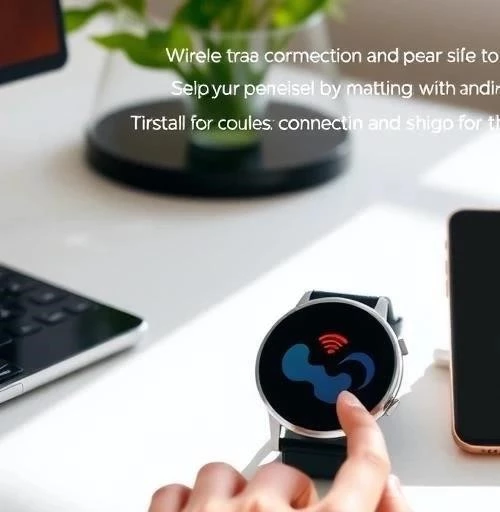
The HONOR MagicWatch 2 pairs with a smartphone through the Huawei Health app, called Health in some regions. Pairing through the app is recommended because it sets up notifications, activity tracking and other watch features. Menu names may vary slightly depending on the phone, app version and region.
Before you begin
- Charge the watch and turn it on by pressing and holding the upper side button. Follow the screen prompts to choose a language.
- Turn on Bluetooth on your phone and keep the phone close to the watch.
- Install Huawei Health from an official source available in your region, such as the App Store, Google Play or the Huawei AppGallery. If it is unavailable in your store, check HONOR or Huawei’s official support resources for the current installation option. Avoid unofficial download sites.
- Allow the app to use Bluetooth and any other permissions it requests for pairing. Depending on the phone and software version, Android may also request location access or nearby-device access.
Pair the watch in Huawei Health
- Open Huawei Health. Sign in to a Huawei account if the app asks you to, or follow the available setup instructions.
- Open Devices and tap Add. Choose the watch category, then select HONOR MagicWatch 2. If the model is not shown, use the search option or check that the app is up to date.
- Keep the watch awake and wait while the app searches. When the MagicWatch 2 appears, select it and tap the pairing option.
- Check the request shown on both screens. Confirm the Bluetooth pairing code or request on the phone and accept the connection on the watch. Do not approve an unfamiliar request.
- Wait for setup and synchronization to finish. Keep Bluetooth enabled and the devices near each other. The app may offer firmware updates; install one only when the phone and watch have sufficient charge and a stable connection.
After pairing, review the device settings in Huawei Health. Choose which apps may send notifications, and enable health or activity options you want to use. Notification access may need to be granted separately in the phone’s settings. On an iPhone, follow the app prompts for Bluetooth and notification permissions. Some features depend on phone compatibility, operating-system version, app availability and region.
If pairing does not work
- Confirm that Bluetooth is on, the watch is powered and both devices are close together. Close and reopen Huawei Health, then try adding the watch again.
- If the watch was previously paired with another phone, disconnect or remove it from that phone first. Also check the phone’s Bluetooth settings and remove an old MagicWatch 2 entry before retrying through Huawei Health.
- Restart the phone and watch. Check that Huawei Health has the permissions it needs and that no other phone is attempting to connect to the watch.
- If the watch still does not appear, use its settings to reset network or pairing settings, if available, and repeat setup in the app. A factory reset can erase data stored on the watch, so use it only as a last resort and follow the on-screen warning.
Bluetooth settings and successful setup
Some instructions describe selecting the watch directly from the phone’s Bluetooth menu. That can confirm a Bluetooth connection, but it may not complete app setup. If you pair directly first and the watch does not appear in Huawei Health, remove the Bluetooth entry and start again from Devices in the app.
To check the result, open the watch’s device page in Huawei Health and confirm that it shows as connected. A successful connection allows the app to synchronize supported data and manage settings. If the watch disconnects later, bring it near the phone, check that Bluetooth remains enabled, and reopen Huawei Health;


6 Comments. Оставить новый
Mentioning that menu names and installation options can vary by region and software version makes the guidance more broadly applicable.
The article sensibly recommends using official sources for the app and avoiding unofficial download sites.
The setup steps are easy to follow, and the reminders to keep the devices nearby and maintain a stable connection are helpful.
The advice to confirm pairing requests on both devices is practical and helps distinguish the expected connection from an unfamiliar request.
The instructions provide a clear sequence for pairing the watch and explain why using Huawei Health is preferable to pairing directly through the phone settings.
The preparation section covers useful basics, including charging the watch, enabling Bluetooth and checking app permissions.