The Xiaomi Watch S1 can make contactless payments only where its payment service, your bank card and the payment terminal are all supported. The watch has NFC hardware, but NFC alone does not guarantee that payments will work: availability depends on the watch’s market version, your country, software and card issuer. Check support before relying on it as your only way to pay.
Check that payment is available
Pair the watch with your phone in the Mi Fitness app and make sure both the app and watch software are up to date. Open the watch’s device settings in Mi Fitness and look for a Wallet, bank-card or Xiaomi Pay option. The exact name and menu location may vary by region and software version.
If no payment option appears, check that the app’s region is set correctly and that your watch is the version sold for your market. Do not change regions at random: doing so may not enable payments and could affect other services. Also confirm with your bank that it supports the relevant Xiaomi payment service and your particular card. Supported cards can differ by country, bank and card network.
Add and verify a card
- In Mi Fitness, open the paired Watch S1’s settings and select the available wallet or payment feature.
- Choose the option to add a bank card. Enter or scan the requested card details, then accept the service terms.
- Complete the bank’s verification process. This may involve a code, a confirmation in your banking app or another method chosen by the issuer.
- Wait for confirmation that the card has been added. If the app asks you to create a watch passcode or enable a screen lock, follow the instructions; payment features may require this security step.
Only add a card through the official Mi Fitness app and follow prompts shown by your bank. Never share a verification code or banking password with someone who claims they can activate payments for you.
Make a contactless payment
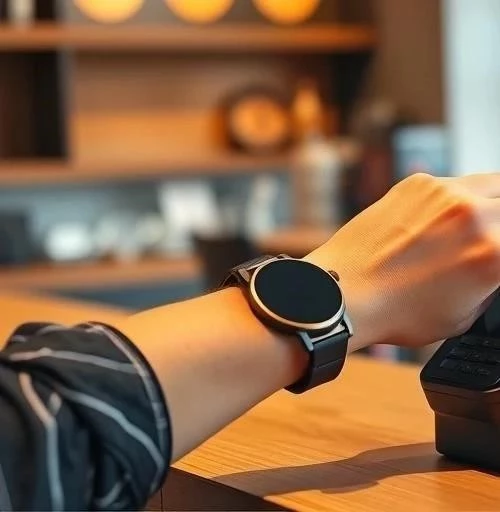
At a checkout, tell the cashier you want to pay by contactless card. On the watch, open the wallet or payment screen and select the card if more than one is stored. Hold the watch close to the terminal’s contactless reader and keep it steady until the terminal confirms the transaction. The reader’s position varies, so you may need to move the watch slightly.
Some terminals may ask for a PIN or another confirmation, especially for larger purchases. Follow the terminal’s instructions. If the payment is declined, try once more after checking that the correct card is selected; otherwise, use your physical card or phone and contact your bank if needed.
If payment does not work
- No wallet option: The service may not be available for your region, watch version or software, or your bank may not participate.
- Card cannot be added: Check the card type and issuer’s eligibility, update Mi Fitness and the watch, and repeat verification.
- Terminal does not respond: Confirm that the payment screen is open, hold the watch near the reader and check whether contactless payments are accepted.
- Payment is declined: Check your bank account, card status and transaction limits. A watch cannot override a bank’s decline.
Important security and availability notes
Payment support can change over time, so consult Xiaomi’s official support information and your bank for current country and card eligibility. An NFC symbol or working NFC connection does not by itself mean that bank-card payments are enabled. Keep your watch protected with its lock, remove a lost watch from your account and contact your bank promptly if you suspect unauthorized use. Most importantly, test the setup with a small purchase before depending on the Watch S1 for everyday payments.