
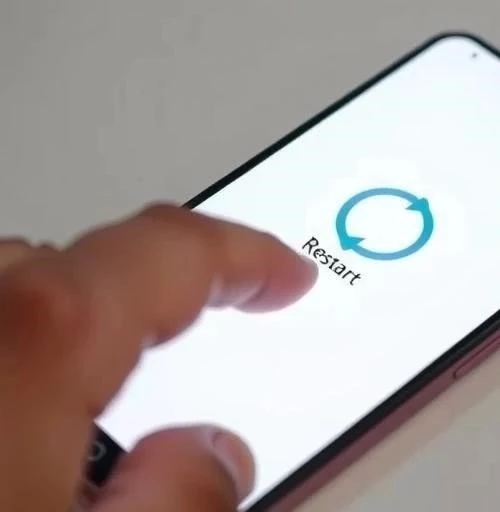
If the power button on your Redmi 5 is broken, you may still be able to restart the phone without pressing it. The right method depends on whether the phone is switched on, responsive, and already set up for computer access. There is no single reliable software trick that works in every situation, especially if the phone is completely powered off.
Use ADB from a computer
Android Debug Bridge (ADB) can send a restart command over USB, but only if USB debugging was enabled beforehand and this computer was already authorized on the phone. Connecting a new computer usually requires approving a prompt on the handset, which may not be possible with a broken button or unresponsive screen.
- Install Google’s Android Platform Tools on a Windows, Mac, or Linux computer.
- Connect the Redmi 5 to the computer with a USB cable.
- Open a terminal or command prompt in the Platform Tools folder and enter
adb devices. - If the device appears as authorized, run
adb reboot.
The phone should restart. If it is listed as “unauthorized,” or does not appear, ADB cannot help until the connection is authorized and debugging is available. Avoid unofficial apps claiming to reboot any phone without setup; many require root access or cannot work around Android’s security restrictions.
Schedule a power-off and power-on cycle
If the touchscreen works, look in Settings for Xiaomi’s scheduled power feature. On some MIUI versions, the path is Settings > Battery & performance > Schedule power on/off; Menu names and availability can vary by software version.
Set a power-off time a few minutes ahead, then set a power-on time shortly afterwards. Keep the phone charged, save your work, and make sure you do not need it during the scheduled interval. This is not an immediate restart, and the phone may not power back on as expected if the feature is unavailable, disabled, or the battery runs out. Check the settings before relying on it.
Check for an on-screen power menu
Some Android versions offer an Accessibility Menu or another on-screen shortcut with power controls. Search Settings for “Accessibility Menu” or check Settings > Additional settings > Accessibility. If the option exists, enable its shortcut and see whether the menu provides a restart command.
This feature depends on the Android and MIUI version. The Redmi 5 commonly runs older software, so it may not offer an on-screen restart option. Xiaomi’s Quick Ball and similar floating shortcuts also do not necessarily include a reboot command. Do not assume a menu has this function unless you can see it on your device.
If the phone is frozen or switched off
If the display is responsive, try the available settings-based options above. If the phone is frozen and neither the screen nor an already-authorized ADB connection works, you may have to wait for the battery to drain. Charging afterwards does not guarantee that the Redmi 5 will start by itself; many phones show a charging screen and still require the power key to boot.
If the phone is already off, there is generally no dependable way to start it without a working power button or a previously configured method. Recovery and bootloader procedures commonly require physical button combinations, so they are not a universal workaround;
What to do next
Do not open the phone, short contacts, or press hard on a damaged button. That can damage the handset or battery. If you need a reliable restart or the phone cannot turn on, have the power-button flex cable or button inspected by a qualified repair technician. Before future problems, enable USB debugging only if you understand its security implications, keep your data backed up, and check whether scheduled power controls are available on your MIUI version.

2 Comments. Оставить новый
This is a practical guide, and the cautions about scheduled power settings and keeping the phone charged are useful. It would be even more helpful to include options for people who cannot use ADB or access the touchscreen.
The advice clearly explains why ADB only works when debugging is enabled and the computer is authorized in advance. The reminder that a completely powered-off phone may need a different solution is especially helpful.