
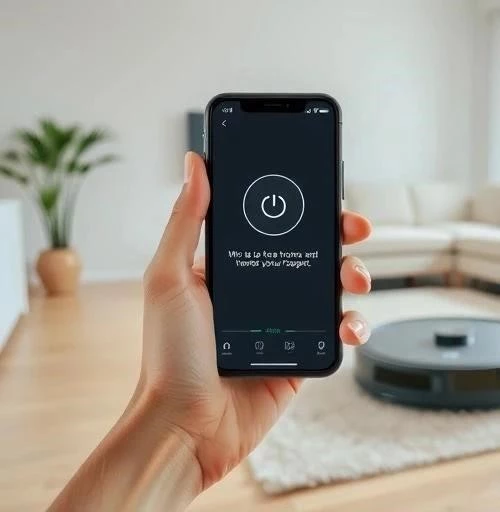
Most Xiaomi robot vacuums connect to a home network through the Xiaomi Home app, also called Mi Home in some regions. The app lets you start cleaning, create schedules, view the map and manage settings. Exact button names and pairing steps can differ by model, so keep the vacuum’s manual nearby;
Before you begin
- Charge the vacuum and place it on its dock. Keep it close to your Wi-Fi router during setup.
- Install Xiaomi Home from Google Play or the Apple App Store. Check the publisher and app name before downloading.
- Connect your phone to your home Wi-Fi and switch on Bluetooth and location services if the app requests them.
- Many models require a 2.4 GHz Wi-Fi network. If your router combines 2.4 GHz and 5 GHz under one network name, consult its settings or manufacturer’s instructions if pairing fails.
- Have the Wi-Fi password ready. The vacuum generally cannot join a network that requires a browser sign-in, such as some hotel or public networks.
Pair the vacuum in Xiaomi Home
- Open Xiaomi Home and sign in, or create an account. Allow the permissions needed to discover and set up nearby devices.
- Choose the correct country or region in the app’s profile or settings. Availability varies by model; select the region recommended in the manual or on the product packaging. A device may not appear if the app is set to a different region.
- Tap the + button, then choose Add device. You can select your vacuum from the list or scan its QR code, if your model provides one. Follow the instructions shown in the app.
- Put the vacuum into Wi-Fi pairing mode when prompted. Many robot models use a reset or Wi-Fi reset button, or a combination of buttons, until a voice message or indicator confirms that network settings have been reset. The button combination is model-specific, so check the manual rather than guessing.
- Select your home Wi-Fi network and enter its password carefully. Keep the phone and vacuum near the router while the app transfers the settings and completes setup.
- Give the vacuum a name and assign it to a room. When setup finishes, open the device screen and try a basic command, such as starting or pausing cleaning.
If the vacuum is not found or will not connect
- Check that the phone is online and using the intended Wi-Fi network. Confirm that the password is correct and that the network supports 2.4 GHz if your model requires it.
- Move the vacuum and phone closer to the router. Restart the router, close and reopen Xiaomi Home, and try adding the device again.
- Reset the vacuum’s Wi-Fi settings using the model’s instructions, then repeat pairing. This is different from a factory reset; avoid a factory reset unless the manual or support team recommends it.
- Check the app’s region and update Xiaomi Home. If the vacuum was previously linked to another account, remove it from that account first, if possible.
- Temporarily disable VPN or other phone network tools if they interfere with local device discovery. You can also try setup with a different phone, while keeping the same home network.
What about a cordless Xiaomi vacuum?
Not every Xiaomi vacuum connects to Wi-Fi. Many cordless stick and handheld models work directly from their controls and do not appear in Xiaomi Home. Check the model number and manual: if the model does not support app control, there is no wireless pairing step to complete.
After setup
Let the robot complete its first mapping or cleaning run according to the app’s guidance. Keep the dock accessible and avoid moving it during mapping. You can then configure schedules, rooms and cleaning preferences in the device screen. If pairing still fails after these checks, consult the model-specific Xiaomi support page or manual; reset procedures and supported network settings vary between devices.

3 Comments. Оставить новый
The step-by-step layout makes the process easy to follow, and the cautions about region settings and public networks could save readers time.
Helpful explanation of common setup requirements, especially the 2.4 GHz Wi-Fi note and the advice to keep the vacuum near the router.
This is a clear, practical guide for getting started. The reminder to check the model-specific manual is especially helpful, since pairing steps can vary.