
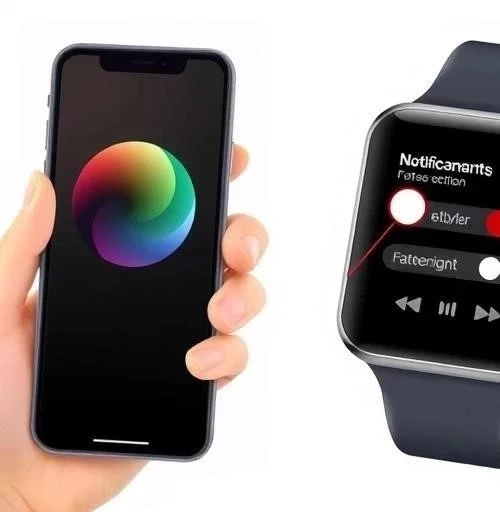
Your Apple Watch Series 3 is a tiny lighthouse for your digital life: it can flash a message across your wrist without asking you to fish your iPhone out of a bag. But a lighthouse that signals every passing boat soon becomes annoying. The trick is to decide which alerts deserve the beam‚ when they should shine‚ and how quietly they should arrive.
Most notification settings are controlled from the paired iPhone‚ using the Watch app. The exact labels can differ a little depending on your iOS and watchOS versions. Series 3 is an older model and cannot run the newest watchOS releases‚ so some newer features or menu names may not be available. The basic notification controls below are still the place to start.
Before you begin
- Make sure the Apple Watch is paired with your iPhone‚ switched on‚ and within connection range.
- Unlock the iPhone and open the Watch app.
- Tap My Watch if that tab is not already selected.
When the watch and phone are connected‚ notifications generally appear on one device at a time—not both. If your iPhone is unlocked‚ an alert usually appears there. If the iPhone is locked or asleep and your watch is unlocked on your wrist‚ the alert can go to the watch. This is normal behavior‚ not a missing-notification mystery.
Choose what reaches your wrist
In the Watch app‚ tap Notifications. You will see Apple apps and‚ farther down‚ options for other apps. Apple apps often offer their own controls. Tap one—such as Messages or Calendar—and choose the available behavior. Depending on the app‚ you may be able to mirror the iPhone‚ customize alerts‚ or turn them off.
For third-party apps‚ look for Mirror iPhone Alerts From. Switch on apps you want to hear from on the watch‚ and switch off the ones that can wait. For example‚ keep messages and calendar reminders‚ but silence a game that celebrates every new badge. This is the useful middle ground: your watch stays informed without becoming a miniature town crier.
Set a sensible alert style
Apple Watch alerts can use a sound‚ a tap on your wrist‚ or both. On the watch‚ open Settings > Sounds & Haptics to adjust the alert volume and haptic strength. You can also open the Watch app on iPhone and look under Sounds & Haptics. Try a distinct‚ noticeable haptic if you work in a quiet room; choose a softer setting if every tap feels like a knock at the door.
To avoid displaying message details where someone might see them‚ visit Notifications in the Watch app and look for Notification Privacy. When enabled‚ the watch can keep the full details hidden until you tap an alert. You can also turn on Notifications Indicator to show a small red dot at the top of the watch face when unread notifications are waiting. The dot is a reminder‚ not a demand: open Notification Center when it suits you.
Use quiet modes deliberately
- Silent Mode: silences notification sounds while allowing haptic alerts‚ if haptics are enabled.
- Do Not Disturb or Focus: limits interruptions according to the mode and options available on your software version. A Focus setting may also be shared with your iPhone.
- Theater Mode: keeps the display dark when you raise your wrist and silences sounds. Tap the screen or press a button to wake it.
Open Control Center on the watch to find these controls. On many Series 3 software versions‚ swipe up from the bottom of the watch face; if that does not work‚ check the watch’s on-screen controls and software instructions. A crossed bell usually indicates Silent Mode‚ while other symbols identify their own modes. Check the icon before assuming alerts have vanished.
For a calmer evening‚ enable a quiet mode before bed rather than turning off every app individually. If you use a scheduled mode‚ confirm its schedule and allowed people or apps on the iPhone. The names and available Focus features depend on your iPhone and watch software.
Fine-tune the apps that matter
Messages‚ Mail‚ and Calendar deserve a quick visit in the Watch app: their settings may let you choose which inboxes or calendars can alert you. For other apps‚ start with mirroring and adjust one app at a time. If an app offers no separate watch setting‚ check its notification permissions in iPhone Settings > Notifications. The iPhone must be allowed to receive an app’s alerts before the watch can mirror them.
A practical setup might send direct messages‚ calls‚ and appointments to your wrist‚ while shopping promotions and social likes stay on the phone. Think of each alert as a guest asking to enter your attention. You are allowed to keep the guest list short.
If notifications do not appear
- Check that the watch is on your wrist‚ unlocked‚ and connected to the iPhone. A red iPhone symbol or a disconnected status can point to a connection issue.
- Check Silent Mode‚ Do Not Disturb‚ Theater Mode‚ and any active Focus. Also check whether the iPhone is unlocked: alerts may be going to its screen instead.
- In the Watch app‚ revisit Notifications and confirm the app is enabled. On iPhone‚ confirm that app notifications are permitted.
- Restart both devices if settings look right but alerts still fail. Install compatible updates if available for your devices.
If only one app is misbehaving‚ test another app before changing everything. That helps separate an app-specific permission problem from a connection or watch setting. Avoid erasing or unpairing the watch as a first fix; that is a much bigger step than checking a switch.
A wrist that knows when to speak
Start with a small selection of important apps‚ choose a sound or haptic that suits your surroundings‚ and use quiet modes when you need uninterrupted time. Then live with the setup for a day. If the watch taps too often‚ remove one noisy app; if you miss something important‚ add it back. The best notification setup is not the one that delivers everything. It is the one that lets the right message find you—and lets the rest pass quietly by.
6 Comments. Оставить новый
A helpful little map through the Watch app. The lighthouse image sticks with you—and makes the goal memorable: not fewer signals at any cost, just better ones.
A calm, useful guide for anyone whose watch has started acting like an overenthusiastic town crier. The reminder that alerts usually appear on just one device clears up a common mystery.
The lighthouse metaphor makes notification overload feel instantly familiar. I especially like the practical advice to keep only the alerts that earn a place on your wrist.
The explanation balances simple steps with the quirks of an older device. It’s refreshing to see the Series 3’s limitations acknowledged instead of pretending every menu is timeless.
This turns notification settings into a small act of attention management: let the important messages through, and give the noisy apps a polite closed door.
Clear instructions, and the examples make the choices feel real rather than buried in menus. I’d gladly trade a few game alerts for a quieter wrist.