
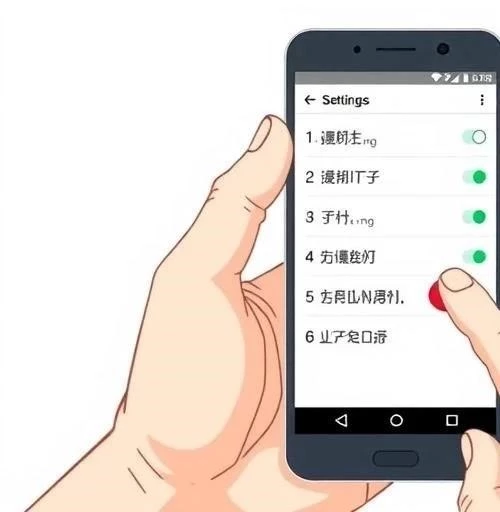
An auto clicker repeatedly taps the screen for you. Xiaomi phones running MIUI or HyperOS generally do not include a universal, built-in feature that repeats taps at a chosen point, so most people use a third-party Android app. The exact menus can differ by phone model and software version. The safest approach is to install a reputable app, grant only the access it needs, configure a slow test, and check that you can stop it immediately.
Before you begin
- Check the app’s compatibility. Choose a version specifically made for Android. A Windows auto-clicker will not work on a Xiaomi phone; several tools in search results, including OP Auto Clicker, are described for Windows.
- Prefer a trusted source. Look for the app in Google Play where available, and review its developer, recent updates, permissions, and user feedback. If you download an APK from a website, verify that the source is the developer’s official site. Avoid modified or “unlocked” APK files.
- Understand the permission. Many auto clickers use Android’s Accessibility service to perform taps. That service can interact with what appears on your screen, so enable it only for an app you trust.
Install and enable the app
- Open Google Play, search for an Android auto-clicker, and install the app you have checked. If you use an APK, download it from a trustworthy source and follow Android’s installation prompts. You may need to allow your browser or file manager to install unknown apps; turn that permission off again afterward.
- Open the auto-clicker and read its setup instructions. Most apps display a control panel or floating button and ask you to enable an accessibility service.
- On Xiaomi, open Settings and search for Accessibility. Depending on your MIUI or HyperOS version, the route may be Additional settings > Accessibility, or Settings > Accessibility. Open the section for downloaded or installed apps/services, select the auto-clicker, and switch on its service.
- Read Android’s warning before confirming. Return to the auto-clicker. If it also requests permission to display over other apps, enable that only if its controls need to float above the screen. The label may be Display over other apps or Pop-up windows in Xiaomi’s settings.
Set up a safe test
In the app, choose single-target mode if you want repeated taps at one location, or multi-target mode if you need a sequence of taps. Move the target marker onto a harmless area of the screen. Set a generous interval, such as one tap per second, and choose a short duration if the app offers a limit. Start the test in an app where an accidental tap will not submit a purchase, delete information, or send a message. Use the floating stop button or the app’s stated stop gesture to end the clicks.
Only after confirming that the target and stop control work should you adjust the interval or add more targets. A very short delay can make a screen difficult to control, drain battery, or trigger protections in an app. Do not leave an auto clicker running unattended.
If it stops working
First check that the accessibility service is still enabled and that the auto-clicker is open. Xiaomi’s battery-saving settings may restrict background apps: if the service repeatedly closes, review the app’s battery or background-activity settings and allow operation only if necessary. Menu names vary by model and software version. Restarting the phone may also disable an accessibility service, so check it again afterward.
If tapping does not land where expected, check the app’s target marker and ensure that display scaling or screen rotation has not changed. Close and reopen the clicker, then test at a slower rate. Do not grant unrelated permissions, such as contacts or SMS access, merely to enable tapping.
Turn it off and protect your phone
Stop the session using the clicker’s stop control. To revoke access, go to Settings > Accessibility, open the installed services list, and switch off the auto-clicker. You can then uninstall it from Settings > Apps. If you enabled installation from unknown sources, disable that permission in the browser or file manager settings.
Important: Auto-clicking may violate a game or service’s rules and can lead to restrictions on your account. Use it only where permitted, and never use it to automate payments, security checks, or actions affecting someone else. Xiaomi’s built-in Accessibility options can assist with interaction, but they are not necessarily a continuous auto-clicker; available features depend on Android and the device.
In brief
Install an Android-compatible app from a source you trust, enable its Accessibility service through Xiaomi’s settings, configure a slow test, and keep the stop control accessible. Revoke the service when you are finished. This is safer and more reliable than assuming that a Windows clicker or a similarly named tool will work on a Xiaomi phone.


4 Comments. Оставить новый
The security advice is an important part of this guide. Accessibility access can be powerful, so recommending trusted sources and caution around modified APKs helps readers make a more informed choice.
I appreciate that the article distinguishes Android apps from Windows auto-clickers. That clarification can save readers time and helps them check compatibility before installing anything.
The suggestion to test slowly and confirm that the tool can be stopped immediately is sensible. It gives readers a straightforward way to reduce the chance of unwanted taps while setting up the app.
The guidance is practical because it explains that Xiaomi menu paths vary across MIUI and HyperOS versions. Searching Settings for Accessibility is a useful fallback when the listed route does not match a particular phone.