
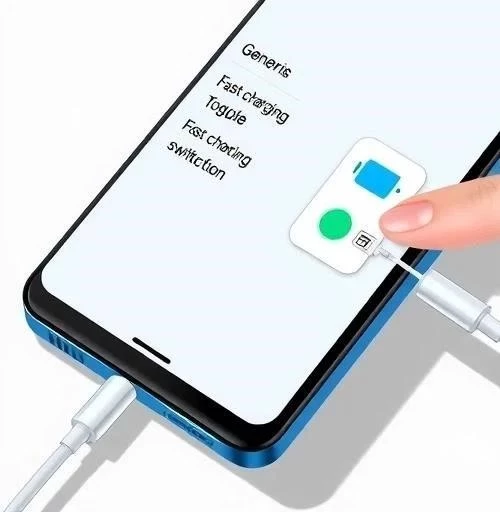
Your Redmi Note 12 can take the express lane when it charges: with a compatible charger, some versions support charging up to 33 W. That is convenient when you are rushing out the door, but you may prefer a gentler pace—perhaps to reduce warmth, charge overnight, or simply use the adapter already on your desk. The catch is that Xiaomi’s menus vary by model and software version, and not every Redmi Note 12 has a dedicated fast-charging switch.
First, check for a built-in setting
- Open Settings on your phone.
- Tap Battery. Depending on your MIUI or HyperOS version, look for Additional features, Charging options, or a similarly named section.
- If you see Boost charging speed, Fast charging, or an equivalent toggle, switch it off.
- Connect the charger again and check whether the charging indication or estimated time changes.
Menu names and availability are not consistent across all Redmi Note 12 versions, regions, or software releases. If you cannot find the option, it does not necessarily mean anything is wrong: your particular device may not offer a software control for charging speed. You can also use the Settings search bar and try terms such as charging, boost, or fast charging. A search result is useful only if it leads to an actual setting you can change; don’t assume that every guide describes your exact build.
The reliable workaround: use a slower charger
If there is no toggle, the simplest way to avoid the phone’s fastest charging mode is to use a reputable, lower-power USB wall adapter. A standard charger rated around 5–10 W will generally charge more slowly than the Xiaomi fast charger. A good-quality 5 V USB adapter is another option. The phone and charger negotiate how much power to deliver, so choosing a modest, compatible adapter is safer than trying to force a setting the phone does not expose.
- Choose a certified charger from a reputable manufacturer.
- Use a sound cable that fits securely and is intended for charging.
- Expect longer charging times, especially if you use the phone while it is plugged in.
- If the phone still charges quickly, try another known-good low-power adapter; some chargers support more than one output mode.
A USB port on a computer may also provide slower charging, though its output varies. It is not a guaranteed speed limit, and charging can be very slow. Avoid damaged, loose, or unbranded adapters and cables: “slower” should mean lower power from a safe charger, not an unreliable power source.
What not to confuse with disabling fast charging
Battery protection and optimized charging are not necessarily fast-charge controls. These features may limit charging to a chosen percentage or adjust charging times to help manage battery wear, but they do not always turn off the phone’s fast-charging protocol. Similarly, changing a battery percentage limit does not by itself make the charger deliver power more slowly.
Be cautious of third-party “slow charging” apps. An ordinary app generally cannot override the phone’s charging controller; it may only display battery information, turn off the screen, or suggest unplugging at a target level. Avoid rooting the phone, editing system files, or installing unofficial firmware just to alter charging speed. Those approaches can cause instability, weaken security, or affect warranty support—and they are unnecessary for this everyday preference.
Does slower charging protect the battery?
Charging speed is only one part of battery aging. Heat, time spent at a very high charge, and repeated heavy use while plugged in also matter. If your phone becomes unusually hot, disconnect it, remove a thick case if appropriate, and charge it in a cool, ventilated place away from direct sunlight. Do not cover the phone with bedding or leave it on a heater. A slower adapter may reduce warmth in some circumstances, but it cannot guarantee longer battery life.
For a routine overnight charge, use a dependable charger and enable any genuine battery-protection or optimized-charging feature your software provides. If the device or adapter becomes excessively hot, smells unusual, or shows physical damage, stop charging and seek qualified service.
Quick answer
Check Settings → Battery for a fast-charging or boost toggle. If your Redmi Note 12 does not show one, use a reputable lower-wattage adapter and suitable cable instead. The exact menu depends on the model and software version; there may be no switch to disable fast charging directly. No secret code is required—just the right setting, if available, or a slower, safe power source.
6 Comments. Оставить новый
A calm little map through Xiaomi’s shifting menu maze. I especially like the advice to trust an actual toggle, not a screenshot from a guide written for another version of the phone.
The article makes charging feel less like a mysterious ritual and more like a choice: check the settings, then use a reputable lower-power adapter if needed. Clear, useful, and refreshingly free of hacks.
Good troubleshooting has a way of lowering the temperature before the phone does. This piece wisely points readers toward compatible equipment instead of risky attempts to force a control that may not exist.
This is the rare tech guide that treats “no setting available” as a useful answer, not a user failure. The slower-charger workaround is practical, and the reminder that menus vary keeps the advice grounded.
A concise guide with a thoughtful distinction between “the option is hidden” and “your version may not have it.” That small note could save a lot of menu-scrolling.
I appreciate the practical tone: no grand promises, just a settings check and a sensible fallback. The advice to expect a longer charge is the honest final note every battery guide needs.