
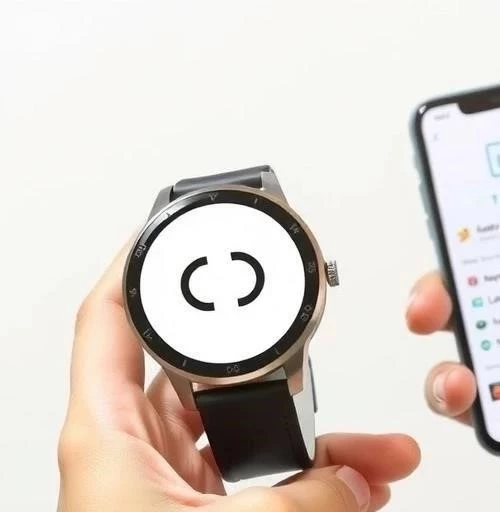
Connecting a Xiaomi watch or Smart Band is usually straightforward, but the order matters. Pairing through the official companion app is more reliable than selecting the watch directly in the phone’s Bluetooth menu: the app completes setup, synchronizes data and provides access to notifications and health settings.
Before you begin
- Charge the watch or band and keep it close to your phone.
- Turn on Bluetooth and connect the phone to the internet. Location permission may also be needed during setup, depending on the Android version.
- Install Mi Fitness from Google Play, RuStore or another trusted official store. The app may appear as Xiaomi Wear in some regions. Older instructions mention Mi Fit; for current devices, use the app specified in the product manual or shown by the official store.
Pair the watch step by step
- Open Mi Fitness, sign in to your Xiaomi Account, or create one if needed. Allow the permissions the app requests for device discovery and the features you want to use.
- Power on the watch. If it has already been set up, open its settings and choose the option to pair with a new phone, or reset it if the app cannot find it.
- In Mi Fitness, tap Device, then Add device. Choose your model from the list, or let the app search for nearby devices. Keep the watch awake and nearby while searching.
- Select the matching device and check that the pairing prompt appears on both screens. Confirm the request on the phone and, when prompted, on the watch. A check mark or success message indicates that pairing is complete.
- Follow the remaining prompts to finish setup. If a firmware update is offered, keep the watch close to the phone and avoid closing the app until it finishes.
Set up useful features
After pairing, use Mi Fitness to choose a watch face and configure call and app notifications. On a Xiaomi phone, allow the app to send notifications and run in the background; battery-saving restrictions can interrupt synchronization. You can also enable activity, sleep, heart-rate and workout tracking. These features may use more battery, so enable only the monitoring you actually need. Check the app periodically to confirm that data has synchronized.
If connection fails
- Make sure Bluetooth is on, the watch is charged and no other phone is currently connected to it.
- Close and reopen Mi Fitness, then restart both devices. Update the app and phone software if updates are available.
- If the watch appears in the phone’s Bluetooth list but will not finish setup, remove or forget that pairing and start again inside Mi Fitness. The app should manage the connection.
- If it was previously paired to another phone, disconnect it there or restore the watch to factory settings. A reset can erase data that has not synchronized, so sync first when possible.
In short: install the correct official app, add the watch inside that app and confirm the request on both devices. This approach is preferable because it establishes the data connection as well as Bluetooth pairing, making notifications and tracking more dependable. Exact menu names can vary by model, app version and region, so follow the prompts shown on your devices.
9 Comments. Оставить новый
The troubleshooting advice about an already-configured watch is practical. Offering the option to pair it with a new phone or reset it addresses a common obstacle without suggesting that every user should reset their device.
The guide is clear and practical, but the supplied text ends mid-sentence after introducing additional features. Completing that section would make the article feel finished and clarify what else users can configure in Mi Fitness.
The preparation checklist is useful because low battery, missing permissions, or an unstable connection can derail pairing. Keeping the watch close and charged are simple tips that may prevent unnecessary troubleshooting.
The article does a good job explaining why permissions matter, especially for device discovery and notifications. It could be even more helpful if a later section explained how to review those permissions when pairing still fails.
The reminder not to close the app during a firmware update is sensible and specific. Including that precaution reduces the risk that readers will interrupt setup just when the device is applying an update.
The background battery-setting advice is relevant because successful initial pairing does not guarantee reliable ongoing synchronization. The article appropriately connects setup choices with the everyday performance of notifications and data syncing.
The guide makes an important distinction between pairing through Mi Fitness and choosing the device in Bluetooth settings. Explaining why the app-based method is more reliable helps readers understand the setup rather than simply follow steps.
The instructions are arranged in a sensible order, from preparing the phone to confirming the pairing request on both screens. That makes the process approachable for someone setting up a Xiaomi wearable for the first time.
Mentioning that app names and setup instructions can vary by region is a valuable detail. Directing readers to the product manual or official store helps avoid confusion when their device does not match older Mi Fit instructions.