
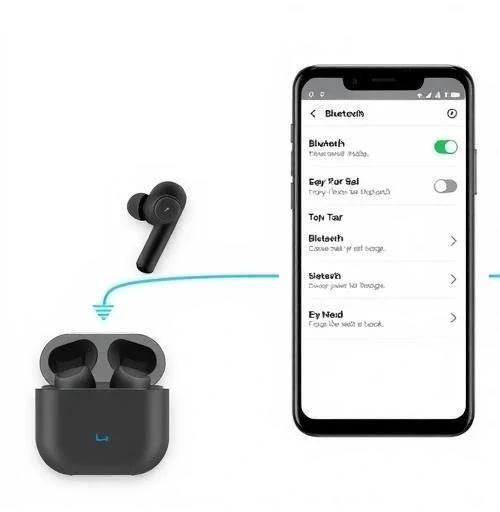
Connecting two pairs of Bluetooth headphones to one Xiaomi phone is possible only when the phone supports simultaneous audio sharing. Pairing two headsets with a phone is not always the same as sending sound to both: many phones can remember several Bluetooth devices but play audio through only one at a time. The exact options depend on the Xiaomi model‚ its Android‚ MIUI or HyperOS version‚ and the headphones.
Use the steps below to check whether your phone can share audio‚ set it up if available‚ and choose a practical alternative if it cannot. Menu names and locations may differ between software versions and regions.
Before you start: check compatibility
- Check the phone’s audio-sharing support. Look in the Bluetooth settings‚ the connected-device settings‚ and the phone’s user guide for terms such as “Audio sharing‚” “Share audio‚” or “Dual audio.” A Bluetooth setting that allows two devices to remain connected does not necessarily mean that music can play through both.
- Check the software version. Open Settings > About phone and note the model and MIUI or HyperOS version. Install available system updates‚ then check the instructions for that specific model. Feature availability can vary even among Xiaomi phones running similar software.
- Prepare both headsets. Charge them and place them in pairing mode according to their manuals. If either headset is currently connected to another phone‚ tablet‚ or computer‚ disconnect it there first.
Some Xiaomi phones offer a dedicated audio-sharing function‚ sometimes relying on supported Bluetooth audio capabilities. Others allow several paired accessories but route media to just one. Do not assume that a phone supports simultaneous playback solely because both headset names appear in its paired-device list.
Method 1: Use Xiaomi’s audio-sharing option
- Pair the first pair of headphones. On the Xiaomi phone‚ open Settings > Bluetooth or Settings > Connected devices. Turn Bluetooth on‚ select the first headset when it appears‚ and approve the pairing request.
- Connect the second pair. Put the second headset into pairing mode and select it from the available-device list. If the phone asks to confirm pairing‚ accept. Make sure both headsets show as connected‚ not merely saved or previously paired.
- Find the sharing control. Return to the Bluetooth page and look for an audio-sharing control in the connected-device panel‚ an overflow menu‚ or additional Bluetooth settings. On some software versions‚ the option may appear in the media output selector or in a notification shown while audio is playing.
- Enable sharing and select both devices. If the phone presents an audio-sharing screen‚ follow its instructions and choose both headsets as output devices. The wording and layout differ by model; if there is no sharing option‚ your phone may not support this feature.
- Test playback. Start a song or video at a low volume. Confirm that sound reaches both headsets‚ then adjust each headset’s volume if the phone or headphones allow separate control.
If an audio-sharing menu is not visible‚ try connecting both headsets first and opening the media output picker while audio is playing. Also check for a system update and consult the model-specific help documentation. A third-party music or video app usually cannot add system-wide Bluetooth audio sharing if the phone’s operating system does not provide it.
Method 2: Check the media output selector
Some Android software displays available audio outputs in the media controls. Start playback‚ swipe down from the top of the screen to open the notification shade‚ and tap the output-device button on the media card‚ if present. Select both headphones only if the interface explicitly allows more than one output. If it lets you choose just one‚ that screen is switching outputs‚ not sharing them.
This method may be useful after both headsets have been paired‚ but its presence and capabilities depend on the Xiaomi model and software. A list containing two connected headsets does not‚ by itself‚ confirm that both will receive the same audio.
If the phone connects to only one headset
- Disconnect both headsets in Bluetooth settings‚ then connect them again one at a time.
- Check whether either headset has automatically reconnected to another device. Temporarily disable Bluetooth on that other device or disconnect the headset from it.
- Restart the phone and the headsets. If necessary‚ remove the headset entries from the phone’s paired-device list and pair them again.
- Test each headset separately. If one does not play audio alone‚ resolve that connection problem before testing simultaneous playback.
- Confirm that the audio-sharing feature is supported by the exact phone model and software version. Resetting network settings may remove saved Wi-Fi and Bluetooth connections‚ so use it only after simpler checks.
If both devices connect but only one produces sound‚ open the audio output selector and check whether sharing is enabled. If there is no option to select two outputs‚ the phone may support multiple Bluetooth connections for different purposes without supporting simultaneous media playback.
Alternatives when Xiaomi does not support sharing
Use a dual-link Bluetooth transmitter
A separate Bluetooth transmitter with support for two simultaneous headphone connections is often the simplest workaround. Choose a model that specifically says it can transmit to two headphones at once; “Bluetooth multipoint” can mean something different. Multipoint commonly lets one headset connect to two source devices‚ rather than letting one phone send audio to two headsets.
Connect the transmitter to a suitable audio output on the phone‚ such as USB-C or a headphone jack if the phone has one. You may need an adapter‚ and not every USB-C adapter supports audio output. Check the transmitter’s compatibility‚ supported audio formats‚ pairing instructions‚ and expected delay before buying. The two listeners may notice a small difference in timing‚ particularly when watching video.
Use a wired splitter
If the phone has a compatible wired audio output‚ a headphone splitter can send sound to two wired headsets. This is not a solution for two Bluetooth headphones unless the splitter is part of a transmitter setup. USB-C audio adapters vary‚ so verify that the adapter supports audio output and works with the phone.
Use another supported source
A tablet‚ laptop‚ television‚ or other phone may offer built-in audio sharing or support a dual-headphone transmitter. This can be more reliable than trying to add a feature that is absent from the Xiaomi phone. For video‚ compare audio and picture synchronization on both headsets.
Common points of confusion
- Pairing is not the same as simultaneous playback. A phone can save many Bluetooth devices while sending media to only one at a time.
- Headphone multipoint is not automatically dual output. It generally concerns a headset switching between two source devices‚ not two headsets receiving audio from one phone.
- Bluetooth versions alone do not guarantee the feature. The phone’s hardware‚ software implementation‚ headset compatibility‚ and audio-sharing support all matter.
- App-based workarounds may be limited. An app cannot reliably replace an operating-system feature for all music‚ videos‚ calls‚ and other phone sounds.
Frequently asked questions
Can I connect two Bluetooth headphones to any Xiaomi phone?
You may be able to pair both‚ but not every Xiaomi phone can send the same media audio to both at once. Check for an explicit audio-sharing feature on your model.
Will both headphones work for phone calls?
Not necessarily. Audio sharing‚ where available‚ is generally intended for media playback. Call audio and microphone input may use different Bluetooth rules‚ so test calls separately and do not assume both headsets will receive the call.
Why is there a delay or unequal volume?
Bluetooth processing can introduce latency‚ and different headset models may not stay perfectly synchronized. Volume controls may be independent or linked‚ depending on the phone and headphones. A transmitter may also add delay.
First pair both headsets‚ then look for an explicit audio-sharing control in the Xiaomi phone’s Bluetooth settings or media output panel. If the phone offers the feature‚ enable it and test both outputs. If it does not‚ pairing alone will not make two headsets play simultaneously; use a dual-link Bluetooth transmitter or a compatible wired solution instead. The decisive factor is support on the exact Xiaomi model and software version.


8 Comments. Оставить новый
The guidance is relevant to users whose settings differ across MIUI, HyperOS, or Android versions.
Checking the phone model and system version before troubleshooting is a practical first step, since menu names and feature availability can vary.
The explanation separates Bluetooth connection support from simultaneous media playback, which is an important point for this setup.
Mentioning the user guide and software updates gives readers sensible ways to check whether their particular Xiaomi phone supports audio sharing.
The distinction between pairing multiple headphones and playing audio through both is useful. The article also appropriately notes that support depends on the specific phone and software version.
The article clearly explains that seeing two devices in the Bluetooth list does not necessarily mean both can receive audio at once.
The preparation steps are straightforward, and checking each headset’s manual for pairing mode is a useful detail.
The reminder to disconnect the headphones from other devices before pairing them may help prevent connection issues.