
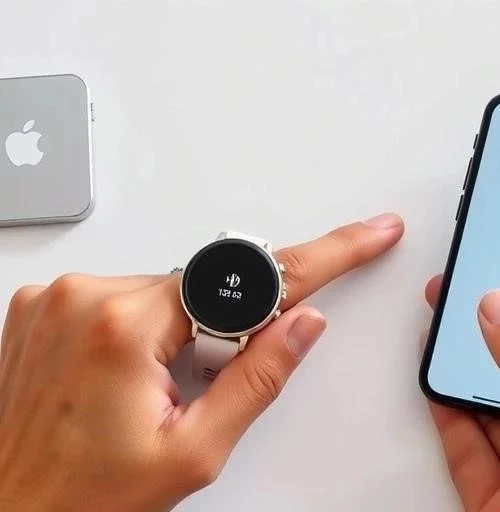
Pairing a GS Fit smartwatch with a phone usually takes only a few minutes. The key is to use the companion app specified for your exact watch model, then pair the watch from inside that app. Connecting it only through the phone’s Bluetooth menu may not enable notifications, health syncing, or other functions.
Before you start
- Charge the watch and keep it close to your phone.
- Turn on Bluetooth and, on Android, allow the app to access nearby devices. Some Android versions also request location permission during Bluetooth scanning.
- Check the watch’s instructions, packaging, or QR code for the correct companion app. App names and features can vary between GS Fit models, so do not assume that an app for another watch will work.
- Connect the phone to the internet so you can download the app and complete any updates.
Pair the watch using the companion app
- Install the recommended app. Scan the QR code in the watch manual or search for the stated app in Google Play or the Apple App Store. Check the developer and description before installing. Avoid unofficial download sites.
- Switch on the watch. If it is new, select your language if prompted. Keep its screen awake while pairing.
- Open the app and grant the required permissions. Bluetooth or nearby-device access is essential for discovery. Allow notifications, contacts, or health permissions only if you want the related features and the app requests them.
- Find the device option. Look for labels such as “Add device,” “Pair device,” “Device,” or “Scan.” Start a search and select the GS Fit watch when its name appears. If several devices are listed, compare the name with the one shown in the watch’s settings.
- Confirm the request. Approve the pairing code or confirmation prompt on both screens, if shown. Wait for the app to report that the watch is connected, then allow a moment for the first data sync.
- Set up optional features. In the app, choose which calls, messages, and other notifications should appear on the watch. Enable background operation or unrestricted battery use if the phone otherwise stops syncing the app.
Calls and Bluetooth audio
Some watches use a separate Bluetooth connection for answering calls or playing audio. If your model supports this, the app may first connect the watch for data and then ask you to pair a second entry in the phone’s Bluetooth settings. Follow the watch’s instructions and accept the request only when the device name matches. Not every GS Fit model has call audio, so the absence of a second connection is not necessarily a fault.
If the watch does not appear
- Make sure Bluetooth is on, the watch is charged, and it is not already connected to another phone. Keep the devices within a few metres of one another.
- Close and reopen the companion app, then scan again. Restarting both devices can clear a temporary connection problem.
- Check app permissions and Bluetooth settings. On Android, confirm that nearby-device access is enabled; older versions may also require location access for scanning.
- If the watch was previously paired, remove it from the old phone or disconnect it in the app. On the new phone, forget an old entry in Bluetooth settings and retry pairing through the app.
- Do not repeatedly pair and unpair the watch from the system Bluetooth screen. If you already did, select “Forget” for that entry, restart Bluetooth, and begin again in the companion app.
- As a last resort, use the watch’s factory-reset option, then pair it again. A reset may erase unsynced data and settings, so sync first when possible.
Connected, but not syncing?
Open the app and check whether the device status says “Connected.” Refresh or sync manually, then verify that the phone’s date and time are correct and that the app can run in the background. For notifications, enable access in the app and in the phone’s notification settings; also check that Do Not Disturb is off. iPhone and Android menus differ, so follow the prompts for your operating system.
Changing phones
Before moving the watch, sync any data you want to keep. Disconnect or unbind it in the companion app on the old phone, and remove its Bluetooth entry if necessary. Install the same app on the new phone and repeat the pairing steps. If the watch remains linked to the old account, sign in with that account or use the model’s documented reset and unlink procedure.
Tip: The exact app, menu names, and available features depend on the GS Fit model and phone. The QR code and manual supplied with your watch are the best guide. If pairing still fails, note the model number, phone model, operating-system version, and any error message before contacting the seller or manufacturer’s support.


8 Comments. Оставить новый
The setup steps are easy to follow, and checking the watch’s manual for the correct app is a helpful detail.
This breaks the process into manageable steps and explains why permissions may be needed on Android.
I like that the instructions explain how to confirm the pairing on both devices and wait for the first sync.
A straightforward overview with useful reminders to charge the watch, keep it nearby, and check its exact model instructions.
Helpful for first-time setup, particularly the note that app names and features can differ between watch models.
A useful guide for anyone setting up a GS Fit watch. The permission tips make the process less confusing.
Concise and helpful. The advice to avoid unofficial app download sites is especially sensible.
Clear and practical advice. I especially appreciate the reminder to pair through the companion app rather than only through the phone’s Bluetooth settings.