
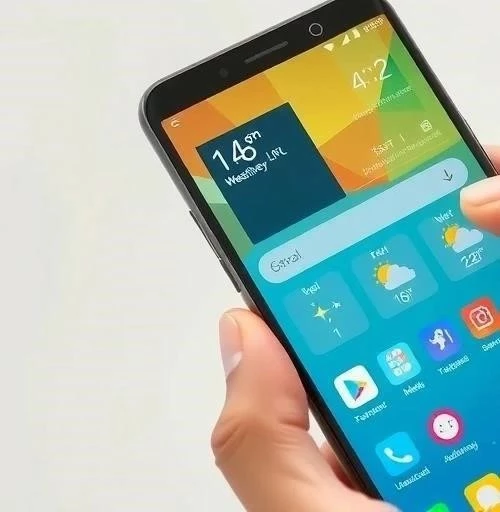
Widgets put useful information and shortcuts directly on your home screen․ Depending on the Huawei model and software version‚ you can use them to check the weather‚ view your calendar‚ control music‚ or open an app feature without first launching the app․ The steps below work on many Huawei phones running EMUI or HarmonyOS‚ although menu names and available widgets may differ slightly․
Add a widget from the home screen
- Unlock your phone and go to the home-screen page where you want the widget to appear․
- Touch and hold an empty area of the screen for a moment․ On some models‚ you can instead pinch two fingers together on the home screen․
- When the home-screen editing menu appears‚ tap Widgets․ If you do not see that option‚ look for a widget panel or a Service widgets section․
- Browse the available widgets․ Swipe through the list or tap an app name to see its widget choices․ Some apps offer several designs or sizes․
- Touch and hold the widget you want‚ then drag it to an empty space on the home screen․ On certain versions‚ tapping a widget adds it automatically; you can then move it․
- Release the widget when it is positioned where you want it․ If prompted‚ choose a size‚ location‚ or other setup option․
Allow enough room before adding a large widget․ If the selected page does not have sufficient space‚ the phone may not place it‚ or it may move other icons․ Try another home-screen page‚ remove an item you no longer need‚ or select a smaller widget․ You can usually move between pages by dragging the widget toward the left or right edge of the screen․
Resize‚ move‚ or remove it
To reposition a widget‚ touch and hold it until it lifts or the screen enters editing mode‚ then drag it to a new location․ If resize handles or a border appear‚ drag an edge to adjust its dimensions․ Not every widget supports resizing‚ and the available sizes depend on the app and your phone’s layout settings․
To remove a widget‚ touch and hold it and select Remove‚ the remove icon‚ or the option shown on screen․ On some versions‚ you can drag it to Remove at the top of the display․ This removes only the home-screen shortcut; it does not uninstall the app or erase its data․ Check the label carefully‚ since Uninstall is a different action․
If the widget option is missing
- Check the screen area․ Make sure you are pressing an empty part of the home screen‚ not an app icon or folder․ Try pinching inward if a long press does not open editing mode․
- Look for a different menu name․ EMUI and HarmonyOS releases do not all use the same labels․ The widget picker may be called Widgets‚ Service widgets‚ or appear inside the home-screen editing panel․
- Update or open the app․ A widget is supplied by its app․ Install or update the app from a trusted source‚ open it once‚ and check again․ Some apps simply do not provide widgets․
- Check the launcher․ If you use a third-party home-screen launcher‚ its editing steps and widget support may differ․ Switch to the Huawei home screen temporarily or consult the launcher’s instructions․
- Restart and check available space․ A restart can refresh the widget list․ Also make sure the page has room and that the phone is not restricting the app’s background activity․
Choose a useful‚ reliable layout
Start with one or two widgets you will actually use․ A compact weather or calendar panel can save taps‚ while several large widgets may crowd the screen and make icons harder to find․ Some widgets need internet access‚ location permission‚ or background updates; grant only permissions that make sense for their function․ If information looks outdated‚ open the associated app‚ check its permissions and network connection‚ and review any battery-saving restrictions․
Huawei’s interface changes over time‚ so the exact wording may vary by model‚ region‚ and software release․ The dependable method is to open home-screen editing‚ find the widget picker‚ and drag a compatible widget onto a page with enough room․ Once placed‚ you can arrange it like other home-screen items without changing the underlying app․
8 Comments. Оставить новый
The steps are easy to follow without assuming that every Huawei phone has exactly the same interface. That balance between specific guidance and acknowledging software differences makes the article broadly useful.
I found the drag-and-drop directions especially useful. Explaining how to move a widget between home-screen pages addresses a common point of confusion for someone setting one up for the first time.
I appreciate that the guide explains both the long-press and pinch gestures for opening home-screen editing. Including both options makes it more useful for people whose devices respond differently.
A helpful guide for customizing a Huawei home screen. The distinction between removing a widget and dealing with its placement is useful, and the clear sequence makes the process seem manageable.
The instructions are clear and practical, especially the reminder that widget menus can differ between EMUI and HarmonyOS. That caveat helps readers avoid assuming their phone is missing a feature when the option simply has a different name.
The advice about leaving enough space is particularly helpful. Widgets often take up more room than expected, and suggesting another page or a smaller size gives readers straightforward ways to solve that problem.
The article focuses on practical actions rather than unnecessary technical detail. Its reminders about available space and model-specific options make the instructions more reliable.
This is a well-organized explanation of adding, moving, resizing, and removing widgets. The note that not every widget can be resized is important because it sets realistic expectations.