
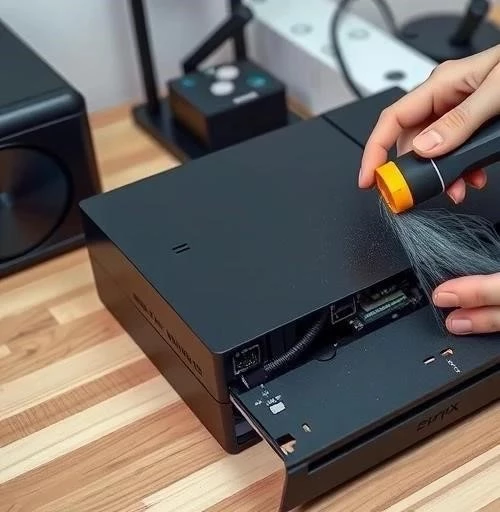
Dust can block a PS4 Pro’s air vents, make its fan run loudly, and contribute to overheating. Regular, careful cleaning helps maintain airflow and keeps the console looking good. The safest routine is to clean the exterior and vents without opening the system. Cleaning the fan and heatsink internally is a more involved repair and may damage the console if done incorrectly.
This guide covers a safe external clean, explains when internal cleaning may be worthwhile, and lists common mistakes to avoid. It applies to the PS4 Pro; the case details can vary slightly by model.
What You’ll Need
- A clean, dry microfiber cloth.
- A soft, clean brush, such as a small electronics or camera brush.
- A can of electronics-safe compressed air, if available.
- A well-lit, dust-free work surface.
- Optional: a small Phillips screwdriver and an appropriate guide, only if you decide to open the console.
Do not use water, household cleaners, paper towels, or a hair dryer. Avoid a household vacuum near the console’s ports and internal components: static electricity and accidental contact can cause damage.
Before You Start
- Shut the PS4 Pro down completely. Do not clean it in Rest Mode. Wait until the power indicator is off.
- Unplug the power cable and all other cables, including HDMI, USB, and Ethernet. Let the console cool for at least 30 minutes if it has recently been used.
- Move it to a clear work area. Place it on a stable surface and keep drinks and other liquids away.
- Wash and dry your hands. If you are doing anything beyond exterior cleaning, take precautions against static electricity and follow a model-specific repair guide.
Never work on a powered console. The power supply can retain hazardous electrical charge even after unplugging. Do not open or attempt to clean the power supply.
Wipe the Exterior
Use a dry microfiber cloth to remove dust, fingerprints, and light smudges from the top, sides, and bottom of the console. Wipe gently rather than pressing dust into the surface. For stubborn marks, slightly dampen one corner of the cloth with water, then wring it out thoroughly. The cloth should feel barely damp, not wet. Keep moisture away from seams, buttons, connectors, and ventilation openings. Wipe the area dry immediately with another part of the cloth.
Clean the controller separately. Do not spray cleaner onto the console or controller, and do not allow liquid to run into the buttons or ports.
Clear the Vents
Dust commonly gathers around the PS4 Pro’s intake and exhaust openings. First, brush loose dust from the outside of the vents using a soft brush. Work gently and do not push the bristles deep inside. You can also use short bursts of electronics-safe compressed air, holding the can upright and following its instructions. Keep the nozzle a little distance from the case; do not insert it into a vent.
Use brief bursts rather than a continuous blast. If you can see the fan through an opening, do not spin it at high speed with compressed air. A rapidly spinning fan can be damaged. Do not force a tool through a grille, and do not blow into the console with your mouth, since breath carries moisture.
Clean the area around the console as well. Dust on a shelf or inside an entertainment cabinet can quickly return to the vents. Leave open space around the system, especially near its exhaust, and avoid enclosing it in a tight cabinet while playing.
Clean the Ports and Surrounding Area
Disconnect the cables before cleaning around the HDMI, USB, Ethernet, and power connections. Brush dust away from the outside of each port. Do not put a metal tool, cotton swab, or cloth inside a connector, and never spray liquid or cleaner into one. If a port looks damaged or contains compacted debris you cannot safely remove, have it inspected by a repair professional.
Should You Open the Console?
If the PS4 Pro remains unusually loud, overheats, or shuts down after the exterior vents and surrounding area have been cleaned, dust may have accumulated on the internal fan or heatsink. Reaching those parts generally requires disassembly. The process varies by model and may involve delicate clips, cables, and screws. Opening the console can also affect warranty or service coverage, so check your coverage before proceeding.
Only attempt internal cleaning if you are comfortable with electronics repair and have a trustworthy, model-specific teardown guide. Take photos as you work, keep screws organized, and never pull on a cable. Use an electronics-safe brush and short bursts of compressed air. Hold the fan still while cleaning so it cannot spin freely. Do not touch the power supply, scrape the heatsink, or use a household vacuum inside the case.
If the console is under warranty, you are unsure about disassembly, or the fan or heatsink is difficult to reach, use an authorized service provider or a reputable console repair shop. A professional can also check for a worn fan, damaged thermal materials, or another cause of overheating. Cleaning alone will not fix every hardware fault.
Reassemble and Test
If you have opened the system, make sure every cable and connector is correctly seated and that no tools or loose screws remain inside. Refit the covers and screws in the order specified by your guide; do not force parts that do not align. If anything seems out of place, stop and check the instructions before powering on;
Reconnect the cables and place the PS4 Pro on a firm, level surface with clear space around its vents. Turn it on and listen for normal operation. A fan may become louder during a demanding game, but persistent extreme noise, a temperature warning, or an unexpected shutdown is a reason to turn the system off and seek help.
Common Cleaning Mistakes
- Cleaning while plugged in: Always shut down and disconnect the console first.
- Using liquid on the case: Apply a tiny amount to a cloth, never directly to the console, and keep it away from openings.
- Blasting air continuously: Short bursts reduce the chance of driving dust deeper or overspinning the fan.
- Using sharp tools in vents: They can damage the fan, grille, or internal components.
- Opening the power supply: Do not do this; it can remain dangerous even when unplugged.
- Blocking airflow after cleaning: A clean console can still overheat if it is crowded against a wall or surrounded by clutter.
How Often Should You Clean It?
There is no single schedule for every home. Check the vents every few weeks and wipe away visible dust when needed. A console in a dusty room, on the floor, or inside a cabinet may need attention more often than one kept on a clean, open shelf. Keep pets’ hair, carpets, and curtains away from the intake, and avoid smoking or cooking near the system.
For routine care, exterior wiping and gentle vent cleaning are usually the right first steps. If noise or overheating continues despite good airflow, stop using the console if it displays a temperature warning and arrange a proper diagnosis rather than repeatedly blasting air or dismantling parts you cannot safely access.

1 Comment. Оставить новый
A clear, practical guide that puts safety first. The reminders to unplug the console, let it cool, and avoid liquids or opening the power supply are especially helpful.