
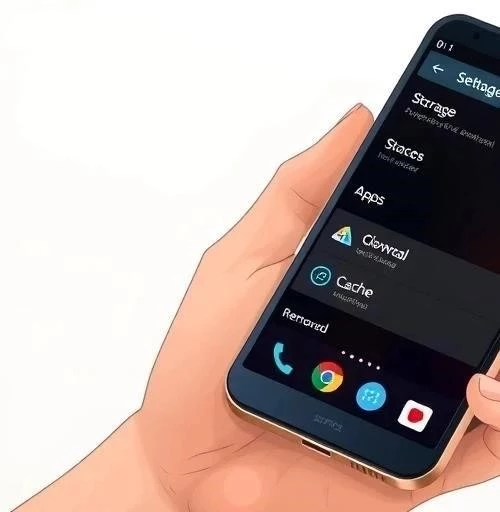
Clearing cached files can help free a little storage space or troubleshoot an app that is slow‚ freezes‚ or displays outdated content. On a Huawei Y6‚ the exact menu names depend on the model‚ Android version‚ and EMUI software installed. The steps below cover common versions and explain how to proceed if your screen looks different.
In most cases‚ the safest approach is to clear the cache for one app at a time through Settings. This removes temporary files‚ not your photos‚ contacts‚ or documents. Be careful not to select options such as Clear data or Reset unless you intend to remove an app’s local information or change its settings.
What an app cache is
An app cache is a collection of temporary files that an app keeps on the phone. These may include image previews‚ recently viewed content‚ or other files that help the app open or load information more quickly. Cached files are usually safe to remove: an app can create them again when needed.
Clearing the cache is not the same as clearing an app’s data. Depending on the app‚ clearing data can remove downloaded content‚ saved preferences‚ or information stored locally‚ and may sign you out. The wording and effects can vary‚ so read the confirmation screen before proceeding.
Method 1: Clear the cache for a specific app
- Open Settings on your Huawei Y6.
- Open Apps‚ Apps & notifications‚ or Applications; The label depends on the EMUI version.
- Tap Apps or App management if another screen appears.
- Find and select the app you want to troubleshoot. You may need to tap the menu icon and choose an option to show all apps or system apps.
- Tap Storage or Storage usage.
- Choose Clear cache‚ then confirm if prompted.
Repeat these steps only for apps whose cache you want to remove. If you cannot find the app in the list‚ use the search field in Settings‚ if available‚ or look under Apps and then App management. Menu wording can differ between Y6 editions‚ so focus on the app’s storage screen rather than expecting every label to match exactly.
If the screen shows “Clear storage” or “Clear data”
Do not tap Clear storage or Clear data when your goal is only to clear temporary files. On some Android versions‚ these options appear alongside Clear cache and have a different effect. If there is no separate cache button‚ the version of the app or software may not provide a manual cache-clearing control. You can close and reopen the app‚ restart the phone‚ or check the app’s own settings instead.
Method 2: Use the phone’s storage or cleanup tools
Some Huawei Y6 phones include a built-in tool called Optimizer‚ Phone Manager‚ or a similar name. It can identify temporary files and other items that may be taking up space. The available functions vary by model and software version.
- Open Optimizer or Phone Manager from the home screen or app list.
- Tap Cleanup‚ Storage cleanup‚ or the closest available option.
- Wait for the phone to scan the storage.
- Review the results and select only the categories you want to remove.
- Confirm the cleanup.
Check the selected items before confirming. A cleanup screen can include more than cache files‚ such as large files‚ downloaded items‚ or app data. Do not select personal files you want to keep. If you are unsure what a category contains‚ open its details or leave it unselected.
Method 3: Clear a browser’s cached files
If only websites are loading incorrectly or showing old content‚ clear the cache inside the browser you use; The steps differ by browser. In many versions of Chrome‚ for example‚ you can open the browser menu‚ choose History‚ tap Clear browsing data‚ and select a time range and the cached-files option.
Review the other choices on that screen. Selecting cookies or site data may sign you out of websites or remove saved site preferences. Clearing browsing history removes the record of visited pages‚ not just cached files. Choose only the categories you mean to remove‚ then confirm.
Can you clear the entire system cache?
Instructions for older Android phones sometimes describe a recovery-menu option called Wipe cache partition. This option is not available on every Huawei Y6 model or software version. Do not assume that a recovery menu will contain it‚ and do not choose Wipe data‚ Factory reset‚ or a similar option as a substitute. Those actions can erase personal information.
If your model’s official documentation specifically describes a cache-partition option‚ follow that documentation for the exact device and software. Otherwise‚ use the app-specific method or the built-in cleanup tool. A factory reset is not a routine way to clear cache and should not be used for this purpose.
What to expect after clearing cache
An app may take slightly longer to open the first time after its cache has been removed because it needs to create temporary files again. Images or pages may also need to download again‚ using mobile data or Wi-Fi. This is normal. Clearing cache does not guarantee a performance improvement‚ especially if the phone is low on memory‚ the app has a bug‚ or storage is nearly full.
Cached files can return as you continue using the app. There is usually no need to clear them on a schedule. Consider doing so when a particular app is malfunctioning‚ displaying outdated content‚ or using an unexpectedly large amount of space. Repeatedly clearing every app’s cache can make some content load more slowly without addressing the underlying issue.
If clearing the cache does not solve the problem
- Restart the phone. A restart can resolve a temporary software issue. Save any work first‚ then use the power menu to restart the device.
- Update the app. Check the app store available on your phone for an update. An outdated app may have a fault that clearing temporary files cannot fix.
- Check the connection. If online content will not load‚ test a reliable Wi-Fi or mobile data connection. A cache clear cannot repair a network problem.
- Check available storage. Open Settings and look for Storage. If space is low‚ review large downloads‚ videos‚ and unused apps before deleting anything.
- Force stop and reopen the app. On many versions‚ open the app’s page in Settings and tap Force stop‚ then launch it again. This does not erase the app’s saved data.
- Reinstall only if appropriate. Before uninstalling‚ confirm that important information is backed up or synced. Removing an app may delete local files or settings‚ depending on the app.
If the problem affects several apps or the phone itself‚ install available system updates through Settings when practical‚ and consult Huawei support or the instructions for your exact Y6 model. Avoid unfamiliar “cleaner” applications that promise large performance gains; they may request unnecessary permissions or remove files you meant to keep.
Before you start
- Identify the app that is causing trouble rather than clearing everything automatically.
- Make sure you know the difference between Clear cache and Clear data.
- Use Wi-Fi if you expect apps or websites to download content again.
- Keep important personal files backed up‚ especially before changing app data or resetting the phone.
- Read each confirmation prompt carefully; the available options vary across Huawei Y6 models.
Frequently asked questions
Will clearing cache delete my photos or contacts?
Clearing an individual app’s cache through its storage settings is intended to remove temporary files‚ not photos or contacts stored elsewhere on the phone. However‚ cleanup tools may offer other categories too‚ and clearing an app’s data can affect information held by that app. Review the option before confirming.
How often should I clear the cache?
There is no required schedule. Clear it when you are troubleshooting a specific app or need to check whether temporary files are contributing to a storage issue. Android apps may rebuild their caches automatically‚ so frequent clearing is generally unnecessary.
Why is there no “Clear cache” button?
The location and availability of the control depend on the Y6 model‚ EMUI version‚ Android version‚ and app. Check the app’s page under Settings and open its storage section. If the button is absent‚ use a built-in cleanup feature if your phone provides one‚ or try restarting the app and phone.
Does clearing cache remove my account?
It normally does not sign you out when you use the specific Clear cache control. Clearing cookies in a browser‚ clearing an app’s data‚ or reinstalling an app may sign you out. If you see a warning about accounts‚ saved information‚ or permanent deletion‚ stop and check that it is the option you intended.
For most Huawei Y6 users‚ the simplest method is to open Settings → Apps or App management‚ select the relevant app‚ open Storage‚ and tap Clear cache. If available‚ Huawei’s Optimizer or Phone Manager can also help review temporary files. Menu names vary by model‚ so confirm the options on your own device and avoid Clear data or factory-reset controls when you only want to remove cached files.



6 Comments. Оставить новый
The step-by-step format is easy to follow, and focusing on one app at a time is a sensible troubleshooting approach.
Including alternatives such as searching Settings or checking app management can help readers when their menus do not match the listed steps.
The article clearly distinguishes clearing an app’s cache from clearing its data, which helps readers understand the possible consequences before taking action.
The explanation of temporary cached files provides useful context for readers who are unsure what clearing a cache does.
The instructions acknowledge that menu names can vary across Huawei Y6 models and EMUI versions, making the guidance practical for different devices.
The article appropriately advises checking confirmation screens, since the effects of clearing app data can differ between apps.