
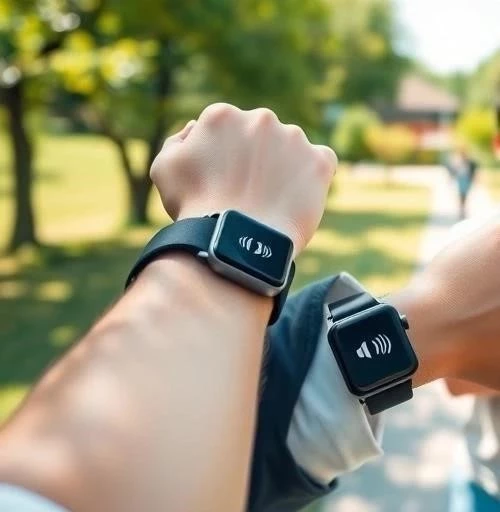
Apple Watch Walkie-Talkie lets you have quick, push-to-talk conversations with another Apple Watch user․ It is useful when a call feels excessive: open the app, hold the talk button, speak, and release․ Both people need a compatible watch, an internet connection, and Walkie-Talkie set up․
Before you start
- Check compatibility․ Walkie-Talkie works on Apple Watch Series 1 or later with a supported version of watchOS․ Update the watch if the app is missing or will not open․
- Check FaceTime․ FaceTime Audio must be available and set up for both people․ On the paired iPhone, make sure FaceTime is enabled and you can be reached using the Apple Account or phone number associated with the contact․
- Get connected․ The watch needs Wi-Fi or a cellular connection․ Bluetooth alone is not enough if the watch cannot reach the internet through its iPhone or network․
- Check availability by region․ Walkie-Talkie and FaceTime are not offered everywhere․ Managed Apple Accounts, some regions, or certain device settings may also restrict the feature․
Add a friend
- Open the yellow Walkie-Talkie app on your Apple Watch․
- Tap Add Friends, choose a contact, and send an invitation․
- Ask the person to accept․ Until they do, their name may appear under invited contacts․ When accepted, the contact appears in your friends list․
If you cannot find someone, check that their contact card has the correct phone number or Apple Account address and that FaceTime is working for both of you․ You can remove a friend from the app’s contact list and invite them again if needed․
Start talking
- Open Walkie-Talkie and tap the friend’s name․ Wait for the connection to be made․
- Touch and hold the on-screen Talk button while speaking․ Keep the watch near your mouth and talk clearly․
- Release the button when you finish․ Your friend hears the message through their watch, and can reply by holding their own Talk button․
Speak only while holding the button; releasing it hands the conversation to the other person․ If the screen says the person is unavailable or the connection is taking a while, they may have turned availability off, lost their connection, or not accepted your invitation․ Walkie-Talkie is not a continuous open microphone: each person controls when they transmit․
Availability and privacy
Open the Walkie-Talkie app to switch your availability on or off․ When you are unavailable, friends cannot start a Walkie-Talkie conversation with you․ Depending on your watchOS version, you may also see a Walkie-Talkie control in Control Center․ A yellow Walkie-Talkie indicator can show that you are available․ Turn availability off when you do not want spontaneous conversations․
Availability is different from muting a single conversation․ If you want to stop hearing or receiving interruptions, switch availability off and review Focus or Do Not Disturb settings․ You can also remove a contact if you no longer want that person in your Walkie-Talkie list․
Troubleshooting
- No app or no contact? Update watchOS, verify FaceTime setup on the paired iPhone, and check that the invitation was accepted․
- “Unavailable” or no response? Ask your friend to turn availability on and check that both watches have an internet connection․ Try again in a moment․
- You cannot hear audio? Check the watch’s volume and sound settings, make sure the speaker is not blocked, and try a regular FaceTime Audio call to test the connection․
- It keeps failing? Close and reopen Walkie-Talkie, restart both watches, and confirm that FaceTime and Walkie-Talkie are permitted by any Screen Time, work, or school restrictions․
Walkie-Talkie is designed for short, live exchanges, not private encrypted notes you can replay later or emergency communication․ For urgent help, use the appropriate local emergency service․ For longer conversations, switch to a regular phone or FaceTime call․
2 Comments. Оставить новый
This is a clear, practical guide to setting up Walkie-Talkie and troubleshooting common connection issues. The compatibility and FaceTime checks are especially helpful.
The step-by-step instructions make the feature easy to understand, even for first-time users. A useful reminder that both people need an internet connection, not just Bluetooth.