
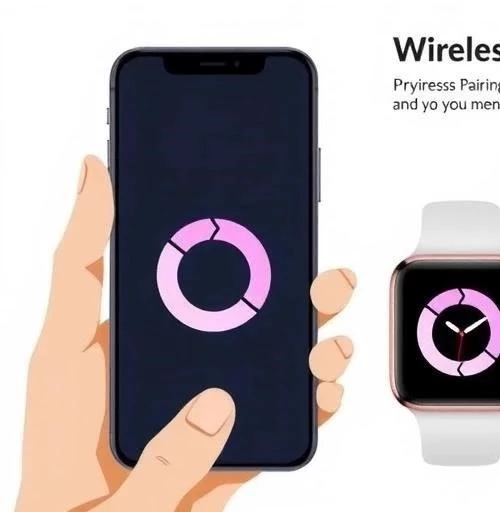
Apple Watch is designed to work with an iPhone. Pairing the devices connects them for setup and lets the watch use supported iPhone features, such as notifications, calls, and app data. The exact screens may differ slightly by watchOS or iOS version, but the basic process is similar across recent models.
Before you begin
Check that your iPhone is compatible with the Apple Watch and has an up-to-date version of iOS. Compatibility requirements vary by watch model and software release, so consult Apple’s current compatibility information if you are unsure. Make sure Bluetooth and Wi-Fi are on, the iPhone is connected to the internet, and both devices have sufficient charge. Keeping the watch on its charger during setup can help prevent interruptions.
Have your Apple Account details available. You may need them for services such as iCloud, Find My, or the App Store. If the watch has been used before, its previous owner may need to unpair it and remove Activation Lock before you can set it up with your account.
Pair the devices
- Turn on the Apple Watch by pressing and holding the side button until the Apple logo appears. Bring it close to the unlocked iPhone.
- When a message appears on the iPhone saying that the Apple Watch can be set up, tap Continue. If no message appears, open the Watch app on the iPhone, tap All Watches, then choose Add Watch.
- Choose Set Up for Myself, unless you are configuring a watch for someone else using a supported family setup option. Follow the prompts on the iPhone.
- When the animation appears on the watch, position it in the viewfinder on the iPhone. Keep both devices close until they confirm that pairing is complete. If the camera cannot scan the animation, tap the option to pair manually and follow the on-screen instructions.
- Choose whether to set up the watch as new or restore it from a backup, if one is offered. A backup can bring back available settings and data, but it does not necessarily restore every app or item.
- Accept the terms and sign in to your Apple Account if asked. Create a watch passcode when prompted. Then review settings for Location Services, Siri, Find My, diagnostics, and other features, choosing what suits you.
- Decide whether to install available apps and whether to configure optional features. If the watch has cellular capability and your carrier supports it, you can set up a cellular plan during setup or later. This step is optional and may require a separate carrier plan.
- Wait for syncing to finish before separating the devices. The progress indicator on the watch or iPhone shows when setup is still in progress.
After setup
Open the Watch app on the iPhone to adjust watch faces, notifications, app settings, accessibility, and other preferences. You can also check for software updates in the app’s settings. Keep Bluetooth enabled for the usual nearby connection, and keep Wi-Fi available when appropriate. Some features depend on the model, region, network, account settings, or the iPhone being reachable.
To check that pairing worked, look for the watch in the Watch app under All Watches. You can also test a basic feature, such as a notification, with both devices nearby. If you use a cellular model, remember that cellular service is configured separately; pairing alone does not activate a carrier plan.
If pairing does not work
- Keep the devices close together, unlock the iPhone, and confirm that Bluetooth and Wi-Fi are enabled. Restart both devices and try again.
- Check that the iPhone has internet access and enough free storage, and install available software updates if possible. If an update is required for compatibility, complete it before retrying.
- If the pairing animation does not appear, open the Watch app and start setup manually. If scanning fails, use the manual pairing option shown on screen.
- If the watch displays a passcode screen or is still linked to another account, erase it only if you are authorized to do so; Erasing does not remove Activation Lock; the linked owner must remove the watch from their account.
If the process repeatedly stops, note the message shown and consult Apple Support for model-specific guidance. Avoid repeatedly erasing the watch unless needed, because this removes its local content and settings.
Using a new iPhone
If you are replacing your iPhone, keep the old phone and watch nearby and make a current backup of the old iPhone. Follow Apple’s transfer instructions, then open the Watch app on the new iPhone and complete any prompts to transfer or reconnect the watch. If it remains paired to the old phone, unpair it through the Watch app on that phone when possible; unpairing creates a watch backup and removes the pairing. Confirm that the watch appears in the new iPhone’s Watch app before removing data from the old device.

2 Comments. Оставить новый
This is a practical overview for someone setting up an Apple Watch for the first time. The instructions distinguish camera pairing from manual pairing and explain the backup option without implying that all data will necessarily return.
The article presents the pairing steps in a clear order and includes useful preparation guidance, particularly about compatibility and Activation Lock. The reminder that screens can vary by software version also helps set appropriate expectations.