
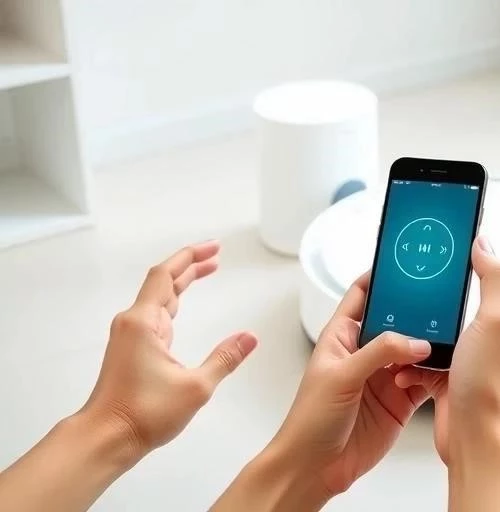
A Xiaomi robot vacuum is a small cartographer with a brush for a compass: connect it to your phone, and it can learn the rooms, start a clean while you are away, and report when its dustbin needs attention. The setup is usually simple, but Wi-Fi bands, app regions, and model-specific buttons can turn the first meeting into a tiny puzzle. Follow this guide to get your robot online—and know what to try if it refuses.
Before you begin
- Charge the robot. Put it on its dock and make sure the dock has power. A low battery can interrupt setup.
- Check your Wi-Fi. Many Xiaomi Vacuum Mop models connect to a 2.4 GHz Wi-Fi network, not 5 GHz. If your router combines both bands under one network name, try temporarily separating them or selecting 2.4 GHz in the router settings.
- Have your network password ready. The robot needs the password for your home Wi-Fi, not your Xiaomi account.
- Use your home network. Avoid guest Wi-Fi or networks that require a browser sign-in; these can block smart devices.
- Turn on Bluetooth and location access on your phone if the app requests them. Permissions help the app discover nearby devices; exact requirements depend on your phone and app version.
Step 1: Install the right app
Open Google Play or the Apple App Store and install Xiaomi Home (it may appear as Mi Home in some regions or on older installations). Check the publisher and app icon before downloading. Sign in to your Xiaomi account, or create one if needed. Allow the app’s requested local-network, Bluetooth, or location permissions while pairing; you can review permissions later in your phone’s settings.
In the app, choose your country or region carefully. The available device list and cloud services can differ by region, and a robot bought in one market may not appear when the app is set to another. If you already use Xiaomi Home for other devices, check the region they use before changing it—switching regions can make those devices disappear from the app view until you switch back.
Step 2: Put the vacuum into pairing mode
Switch the robot on and bring it close to the router and your phone for the first setup. Open the robot’s top cover if its Wi-Fi indicator or reset button is beneath it. On many models, you reset the Wi-Fi connection by holding two buttons—often the power/clean and home/dock buttons—until you hear a voice prompt or the Wi-Fi light starts blinking. Button combinations vary, so check the quick-start card or manual for your exact Vacuum Mop model. A Wi-Fi reset generally clears network pairing, not the robot’s saved cleaning map, but confirm in the manual if preserving a map is important.
Step 3: Add it in Xiaomi Home
- Open Xiaomi Home and tap the + icon, usually near the upper-right corner.
- Let the app scan for nearby devices. If your vacuum appears, tap its name. If it does not, select Add device and search for the model or choose it from the vacuum-cleaner category.
- Follow the on-screen instructions. Select your home’s 2.4 GHz Wi-Fi network and enter its password carefully. Passwords are case-sensitive.
- If prompted, connect your phone temporarily to the Wi-Fi network created by the robot, then return to Xiaomi Home. Keep the app open while it sends your home-network details to the vacuum.
- Wait for the connection to finish. The app should show the robot as online; you can then give it a room or device name and assign it to a home.
Once connected, test the link with a simple command, such as Start cleaning. Keep the phone on the same home network during the first test if possible. A successful connection means the robot can reach the app’s service; it does not mean the phone must stay beside the vacuum for every later clean.
If pairing gets stuck
- The robot is not discovered: move it closer to the router, wake it, and reset its Wi-Fi pairing mode again. Make sure Bluetooth and the requested app permissions are enabled.
- The password is rejected: re-enter it, checking capital letters and symbols. Confirm that you selected the home network, not a similarly named guest network.
- It fails near the end: confirm the router’s 2.4 GHz band is enabled. Some setups with WPA3-only security, captive portals, VPNs, or strict router isolation can prevent onboarding. If you know how, try a compatible WPA2 or mixed security setting, then restore your preferred settings after testing.
- The device is missing from the list: check the app’s region and the exact model label on the robot or box. Restarting the app, phone, and router can clear a temporary discovery problem.
- It connects, then goes offline: check router signal where the dock sits, power-cycle the router, and make sure the network name or password has not changed.
For a clean retry, remove a half-added vacuum from the app if it appears there, reset the robot’s Wi-Fi mode, and begin again. Do not factory-reset the whole robot unless the manual or support team recommends it: that may erase settings or maps. If your router has separate bands, a clearly named 2.4 GHz network can make setup easier.
After the first connection
Let the vacuum complete an initial mapping run with doors open and loose cables, socks, and toys picked up. In the app, explore scheduling, room selection, suction or water settings, and map controls; labels differ between models. Keep the robot’s firmware and the Xiaomi Home app updated, and place the dock where the vacuum can approach it without obstacles.
Quick recap: install Xiaomi Home, choose the appropriate region, reset the robot’s Wi-Fi pairing mode, connect it to a supported 2.4 GHz network, and follow the in-app prompts. If one step fails, check the band, password, permissions, and model-specific instructions before starting over. Soon, the phone will be the mission-control deck—and the little floor rover can get on with its rounds.

5 Comments. Оставить новый
The robot-as-cartographer image gives ordinary setup instructions a spark of personality. It also makes the practical checklist feel like preparing a curious little explorer for its first trip around the house.
Clear, calm, and pleasantly free of tech bravado. The advice about guest networks and browser sign-ins is a particularly useful clue for anyone whose vacuum seems to vanish at the final step.
The opening turns setup into a small adventure without making the practical advice feel less useful. I especially like the reminder that a robot can be ready to clean and still be defeated by a 5 GHz network.
A helpful guide with the welcome honesty of someone who has actually met a stubborn gadget. The “tiny puzzle” framing makes the Wi-Fi and app-region details much easier to remember.
This guide treats setup like troubleshooting a polite houseguest: give it power, the right network, and a way to introduce itself. The regional-app warning is an unusually valuable detail that could save readers a lot of head-scratching.