
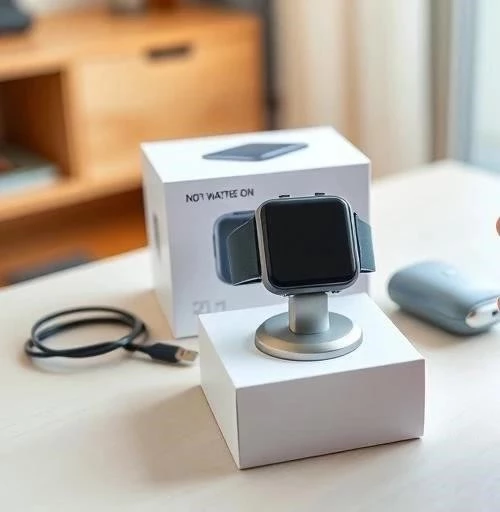
A new Apple Watch that appears completely unresponsive can be concerning‚ but it does not necessarily mean the watch is defective. A depleted battery‚ a charging connection problem‚ a temporary software issue‚ or damage in transit may all produce a blank screen. Work through the checks below before deciding what to do next.
Give the battery time to charge
A watch may arrive with very little charge‚ particularly if it has been stored for a while. Connect it to its magnetic charging cable or charger and leave it in place for at least 30 minutes. If the battery is deeply discharged‚ the screen may remain dark for several minutes before a charging symbol appears. Avoid repeatedly pressing buttons while it charges.
Check that the cable is firmly connected to a working power adapter and that the adapter is plugged into a functioning outlet. If possible‚ try another compatible adapter or outlet. A computer USB port can provide power‚ but a known-good wall adapter is a useful way to rule out a weak or inactive port.
Check the charger and its placement
Place the back of the watch flat against the center of the magnetic charger. The magnets should pull the watch into position. Remove any packaging‚ protective film‚ or debris that could sit between the watch and charger‚ and inspect the cable and charging puck for visible damage. Do not use a cable that is frayed‚ bent‚ or unusually hot.
If the watch has a case or accessory fitted‚ remove it temporarily and try charging again. A poorly fitted accessory can prevent proper contact. If available‚ test the watch with another Apple Watch charging cable that is known to work. A charger that looks connected may still be faulty‚ so changing one component at a time helps identify the cause.
Look for signs of charging
When the watch is connected to power‚ look for a charging symbol on the display. A red or green symbol can indicate that the battery needs charging or is receiving power‚ depending on the screen shown. If there is no response‚ leave the watch connected for a while longer‚ then check that the charger and power source are still working. The display can remain dark when the battery is very low.
Also consider the environment. Very hot or cold conditions can affect charging. Move the watch and charger to a dry place at a moderate room temperature and allow the device to return to normal temperature before trying again. Do not charge a wet watch or attempt to dry it with heat.
Try a force restart
If the watch has had time to charge but remains frozen on a blank screen‚ a force restart may help. Press and hold the side button and the Digital Crown at the same time for about 10 seconds‚ then release them when the Apple logo appears. Keep the watch on its charger during this attempt. A force restart does not erase the watch’s content‚ but it should not be used as a substitute for charging a fully depleted battery.
If the Apple logo appears and the watch starts‚ allow it to finish starting before attempting setup. If the screen stays black‚ or the same problem returns‚ repeat the basic charger checks rather than holding the buttons for long periods.
Consider setup and software issues
A new watch may need to be paired with an iPhone‚ but it should still show signs of power when sufficiently charged. Once it turns on‚ keep the iPhone nearby‚ make sure Bluetooth is enabled‚ and follow the pairing instructions on screen. If setup stops responding‚ restart both devices and try again. A pairing issue is different from a watch that shows no charging response at all.
If the watch displays an Apple logo but does not progress‚ leave it connected to power and allow time for startup. Do not repeatedly interrupt an update or setup process. If it remains stuck‚ contact Apple Support for model-specific guidance before attempting less familiar recovery steps.
When to contact Apple Support
Contact Apple or the retailer if the watch does not respond after charging with a verified power source and compatible cable‚ or if it repeatedly shuts down. Seek help promptly if the device is cracked‚ swollen‚ unusually hot‚ or appears to have been damaged. Stop using it if you notice these signs‚ and do not open the case or try to replace the battery yourself.
Because the watch is new‚ keep the receipt‚ packaging‚ and order details. Ask the seller or Apple about exchange‚ return‚ and warranty options; coverage depends on the purchase and local terms. Apple’s official support site can provide current troubleshooting and service choices: Apple Support.
In brief
Start with a suitable charger‚ a working power source‚ correct magnetic alignment‚ and enough time for a low battery to respond. Then try a force restart. If these steps do not help‚ or there are signs of physical damage or overheating‚ stop troubleshooting and request professional support rather than attempting to repair the watch yourself.

2 Comments. Оставить новый
The article provides a clear sequence of checks for a watch that will not turn on, starting with charging and moving on to the cable, adapter, and charger placement. The practical troubleshooting steps are easy to follow.
The guidance to test one charging component at a time is useful for narrowing down the cause. Including advice to inspect for damage and remove accessories also helps readers troubleshoot safely.