
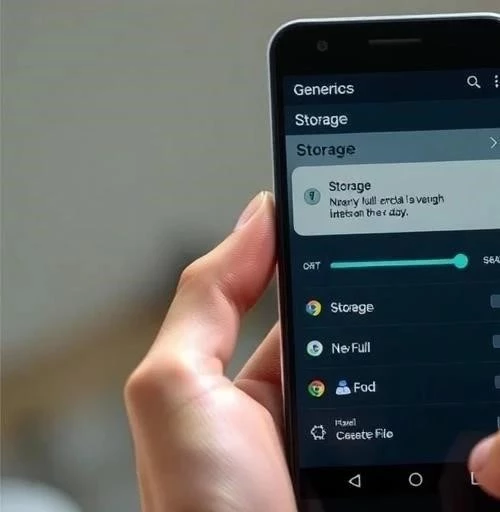
If your Xiaomi Redmi phone says storage is nearly full, apps are slow, or the camera cannot save photos, “clearing memory” may help—but the right steps depend on what you mean by memory. Android uses storage for photos, videos, apps, downloads and other files, and RAM to run apps that are currently in use. Freeing storage can fix a low-space warning; clearing RAM is usually temporary and is rarely necessary. The instructions below apply to many Redmi phones running MIUI or HyperOS. Menu names can differ slightly by model and software version.
Before you start: check what is using space
Open Settings → About phone → Storage, or look for Settings → Storage. You may see categories such as apps, images, videos, audio, documents and system files. On some versions, the built-in Security app also has a Cleaner tool that estimates how much space can be reclaimed.
Check the figures before deleting anything. If apps take up most of the space, manage app downloads and caches. If videos or photos dominate, review your media and make a backup before removing it. System files and “Other” can include data Android needs; do not delete unfamiliar folders just because they look large.
Use Xiaomi’s Cleaner carefully
- Open the Security app. If it is not on your Home screen, search for “Security” in the app drawer or Settings.
- Tap Cleaner and wait for the scan to finish.
- Review the proposed items, such as temporary files, app cache or leftover installation packages.
- Select only items you recognise and tap Clean.
A cleaner can be a convenient first step, but read the list instead of automatically selecting every suggestion. Temporary files and caches are generally safe to remove, though apps may take a little longer to load or recreate cached content afterwards. Avoid deleting files identified as downloads, documents, or media unless you have checked what they are. Cleaner labels and options vary between MIUI and HyperOS releases.
Clear an individual app’s cache
App cache consists of temporary data. Clearing it may free space without signing you out, but an app can rebuild the cache. This is different from clearing the app’s storage/data, which can remove settings, downloaded content, accounts or locally saved progress.
- Go to Settings → Apps → Manage apps. On some phones, the path is Settings → Apps.
- Choose the app that is using a lot of space.
- Tap Storage or Clear data.
- Choose Clear cache only, then confirm.
Do not tap Clear all data unless you intend to reset that app and understand what will be removed. For games, messaging apps, banking apps and work apps, check whether important files or account details are stored only on the phone. If an app is misbehaving, clearing its cache may help; if it does not, restart the phone or update the app before considering a data reset.
Remove apps and downloads you no longer need
Uninstall apps you do not use from Settings → Apps → Manage apps, or press and hold an app icon and choose Uninstall. Some preinstalled apps cannot be removed; where available, you may be able to disable them instead. Do not remove system components you do not recognise, because that can affect phone functions.
Next, open the File Manager app and review Downloads, documents, installation files and large folders. Delete only files you recognise and no longer need. APK installation packages may remain after an app has been installed, but make sure you will not need the package again before removing it. Check the File Manager’s Recently deleted or recycle-bin folder as well: items there may continue to occupy space until permanently removed or until the bin empties automatically.
Reduce photo and video storage safely
Videos and high-resolution photos can fill a phone quickly. In Gallery, sort or review large videos and duplicate or unwanted images, then delete only what you are prepared to lose. Deleted items may remain in Recently deleted for a period; emptying that folder can free space sooner, but it may make recovery impossible.
If you use Google Photos or another cloud service, confirm that the files have finished backing up before removing local copies. In Google Photos, the Free up space option removes backed-up items from the device, not from the backed-up cloud library, when used as intended. Check the account and backup status first. A cloud copy is not a substitute for a backup you have verified, and deleting through a gallery or cloud app can have different effects depending on sync settings.
You can also transfer files to a computer or supported memory card. Open the files on the destination device to confirm the transfer worked before deleting the originals from the Redmi. Some models do not support microSD cards, so check your phone’s specifications rather than assuming one can be added.
Clean up messaging and streaming apps
Messaging apps may store received videos, voice notes and images, while music, video and map apps can keep offline downloads. Open each app’s own storage or downloads settings and remove content you no longer need. For example, look for sections named Storage and data, Manage storage or Downloads. The exact wording depends on the app and its version.
Be cautious with chats and attachments: removing media from a chat may not be reversible, and app backups may not include every item. If you want to keep a file, export or copy it somewhere safe first. Prefer an app’s built-in cleanup controls over deleting random folders in File Manager, since manually removing app files can cause errors or remove items you meant to keep.
If you mean RAM, not storage
RAM is working memory, not a place where your photos are stored. Android manages RAM automatically and may keep recently used apps ready to reopen. Seeing RAM in use does not by itself mean the phone needs cleaning; Closing every app repeatedly can make some apps reload and may use more battery than letting Android manage them.
If the phone is temporarily unresponsive, close an app that has frozen using the Recent apps screen, then restart the phone. A restart can clear temporary glitches, but it does not delete your photos, documents or apps. If one app consistently slows the device, update it, clear its cache, or uninstall and reinstall it after checking that its important data is backed up. Avoid “RAM booster” apps that promise dramatic speed improvements; they may add background activity without solving the cause.
What not to delete
- Do not clear all data for an app unless you are ready for it to reset. Cache and app data are different options.
- Do not delete unfamiliar system folders or files inside Android directories to chase a storage number.
- Do not assume cloud sync is a backup. Verify that files are present in the correct account or on another device.
- Do not install unknown cleaning apps or grant broad access to files, contacts or accessibility features without a clear reason.
- Do not factory-reset as a first step. A reset erases local data and requires setup again.
If the phone is still full
Restart the phone after cleanup and check Settings → Storage again. Storage totals may take a little time to refresh. If “Other” or system storage appears unusually large, update the phone using its official updater, review app downloads, and make sure you have enough free space for updates. Do not attempt to remove operating-system files manually.
As a last resort, back up photos, contacts, messages and any app data you need, verify the backup, and then consider a factory reset through Settings → About phone → Factory reset (the exact path varies). A reset erases the phone’s local data; it is not a routine memory-cleaning tool. Make sure you know the Google and Xiaomi account credentials needed to set the device up again.
A simple maintenance routine
Once a month, check the Storage screen, remove unneeded downloads, review large videos, and delete offline media you have finished using. Clear an individual app’s cache only when it is unusually large or the app is having problems. Keep a separate, verified backup of important files and leave some free space for Android and app updates.
In short: use Xiaomi Cleaner for reviewed temporary files, manage large apps and downloads, remove media only after checking your backup, and distinguish cache from app data. If you were concerned about RAM, a restart or fixing the particular slow app is usually more useful than repeatedly “cleaning” memory.

4 Comments. Оставить новый
I appreciate the reminder to review Cleaner’s suggestions before deleting files. That cautious advice could help prevent someone from removing important downloads or media.
The explanation of app caches is clear and reassuring. It’s good to know that clearing them may only mean an app needs time to rebuild temporary data.
This is a practical guide, and noting that menu names vary between MIUI and HyperOS makes it more useful for different Redmi models.
The distinction between storage and RAM is especially helpful. It clears up a common source of confusion without making the steps feel complicated.