
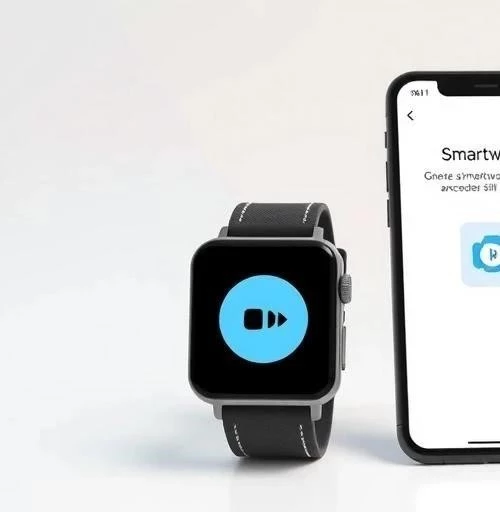
The HUAWEI WATCH FIT 3 connects to a phone through the HUAWEI Health app. The app is used to pair the watch, synchronize activity and health data, manage notifications, and change device settings. The exact screens and available features may vary depending on the phone’s operating system, app version, region, and software updates.
For the most reliable setup, install or update HUAWEI Health before pairing, turn on Bluetooth on the phone, and keep the watch close by. Follow the pairing request in the app rather than trying to set up the connection only through the phone’s Bluetooth menu.
Before you begin
- Charge the watch. Make sure it has enough battery to complete setup and install any available updates.
- Check the phone. The watch can be paired with compatible Android and iOS phones. Check the current device requirements in the HUAWEI Health app listing or Huawei support information for your region.
- Install HUAWEI Health. Use the official app source available for your phone and location. On iPhone, check the Apple App Store. On Android, HUAWEI Health may be provided through HUAWEI AppGallery or Huawei’s official consumer website; availability through other app stores can vary.
- Enable Bluetooth. Keep Bluetooth switched on, and leave the phone’s internet connection available in case the app needs to download resources or a software update.
- Keep the devices nearby. Place the watch and phone within a short distance of each other and do not close the app during initial setup.
Download the app only from a source you trust. If you use an installation package supplied through an official Huawei channel, follow the on-screen instructions and review any installation prompts. Avoid unofficial download sites, which may provide outdated or modified files.
Connect the watch using HUAWEI Health
- Start the watch. If it is new, press and hold the side button until the screen turns on. Select a language if asked. Keep the watch on its setup or pairing screen.
- Open HUAWEI Health. Sign in to a HUAWEI ID if the app requests it, or follow the available setup option. A HUAWEI ID can be used to access account-related features and synchronize information, but the screens shown may differ by region and app version.
- Allow the requested access. The app may request Bluetooth, nearby-device, location, or notification permissions. Permission names and requirements depend on the operating system. Grant the permissions needed for device discovery and the features you intend to use. Some Android versions require location access for Bluetooth discovery; this does not necessarily mean that the watch uses location continuously.
- Open the device page. In HUAWEI Health, go to Devices and choose the option to add a device. The button may be shown as a plus sign or as Add.
- Select the watch. Choose the smartwatch category and select HUAWEI WATCH FIT 3 from the list. If it does not appear, use the app’s scan option if available, or follow the instructions displayed on the watch.
- Confirm pairing. When the phone finds the watch, tap its name. A pairing request may appear on both screens. Check that the confirmation code matches, then approve the request on the phone and watch.
- Finish the setup. Follow the app’s prompts to configure permissions and preferences. Keep the devices close until the app reports that setup is complete. If a firmware update is offered, follow the instructions and keep both devices connected and sufficiently charged.
Some versions of HUAWEI Health also offer pairing by scanning a QR code displayed on the watch. If that option appears, open the scanner from the app’s device-add screen and point the phone camera at the code. Approve the pairing request when prompted. The QR code and menu labels may differ between software versions, so use the instructions shown on your own screens.
Pairing from the phone’s Bluetooth settings
The app should normally initiate the connection. Pairing the watch directly in the phone’s Bluetooth settings may not complete app setup and can sometimes leave the devices in a state that prevents the app from pairing smoothly. If you have already selected the watch in Bluetooth settings, open HUAWEI Health and check whether it can finish the setup. If it cannot, remove or forget the watch from the Bluetooth list, restart Bluetooth, and begin again from Devices in HUAWEI Health.
Depending on the phone and software, a Bluetooth menu may show more than one connection associated with the watch after setup. Do not remove entries at random if the watch is already working. If you need to reset the connection, use the app’s device-management controls where possible, then follow the phone and watch prompts.
Set up notifications and other features
Successful pairing connects the watch to the phone, but it does not automatically enable every feature. In HUAWEI Health, open the watch’s device page and review the available settings. You may be able to choose which apps can send notifications, configure health and activity options, adjust display preferences, or manage watch faces. Names and options can vary by region, phone, and software release.
- Notifications: Enable notification access when the phone requests it, then choose the apps whose alerts should appear on the watch. Also check that notifications for those apps are allowed in the phone’s own settings.
- Calls: If call-related controls are available, follow the app’s prompts and grant the requested Bluetooth or call permissions. Check that the phone is not connected to another audio device if call audio does not behave as expected.
- Background operation: Some Android phones restrict apps that run in the background. If alerts or synchronization stop when the app is closed, review battery optimization and background-activity settings for HUAWEI Health;
- Data synchronization: Open HUAWEI Health and allow it time to sync after pairing. A temporary delay can occur while the app retrieves device information or transfers recent records.
Permission settings are controlled by the phone as well as by the app. If a feature stops working, check both places. For example, selecting an app for watch notifications may not be enough if notification access has been disabled in the phone’s operating-system settings.
If the watch does not appear in the app
Try these steps in order. After each change, return to the device-add screen and search again.
- Confirm that the watch is switched on, is showing its pairing screen, and is close to the phone.
- Make sure Bluetooth is on. If the phone offers a Bluetooth scanning or nearby-devices control, allow it for HUAWEI Health.
- Close and reopen HUAWEI Health. If needed, restart Bluetooth or restart both devices.
- Check that HUAWEI Health is up to date and that the phone’s operating system meets the current compatibility requirements.
- Review app permissions. On Android, location permission may be needed for scanning on some operating-system versions. On iPhone, check Bluetooth access in the phone’s privacy settings.
- If the watch was paired with this or another phone before, disconnect it from the old phone or remove its saved Bluetooth pairing. A watch already linked elsewhere may need to be unpaired before it can be set up again.
- Start pairing again from HUAWEI Health, not from the phone’s Bluetooth list. Approve any confirmation request shown on the watch.
If the app finds the watch but pairing fails, cancel the request on both devices, wait briefly, and try again. Make sure that any code shown on the phone matches the one on the watch. If the watch is still linked to a previous setup, use the available unpair or reset instructions. A factory reset can erase information stored on the watch, so use it only after checking the consequences and, where possible, synchronizing data first.
If the watch connects but will not stay connected
First check whether Bluetooth remains enabled and whether the watch and phone are within range. A connection can drop when the devices are separated, the phone restarts, or Bluetooth is temporarily interrupted. Opening HUAWEI Health and allowing it to reconnect may resolve a short interruption.
On Android, battery-saving features can restrict background activity. If synchronization or notifications stop while the phone is idle, look for settings such as battery optimization, auto-start, or background running and allow HUAWEI Health to operate as needed. The names and locations of these controls vary by manufacturer. On iPhone, make sure Bluetooth access remains enabled for the app and check that system or app notification settings have not changed.
If the issue continues, update HUAWEI Health, restart the phone and watch, and remove an outdated pairing before setting up the connection again. Avoid repeatedly pairing the same watch through several menus, as multiple saved connections can make it harder to identify the active one.
Common questions
Do I need HUAWEI Health to connect the HUAWEI WATCH FIT 3?
For the normal setup and management of the watch, use HUAWEI Health. A basic Bluetooth pairing by itself may not provide access to app-based setup, synchronization, or device settings.
Can I connect the watch to an iPhone?
The watch is designed to work with compatible Android and iOS phones through HUAWEI Health. The exact features available can differ between platforms and regions. Check the current app listing and device requirements before setup.
Why does the app ask for permissions?
Permissions let the app discover and communicate with the watch or provide specific functions, such as displaying phone notifications. Review each request and allow the permissions needed for the features you want to use. You can usually change permissions later in the phone’s settings.
Will my data sync immediately?
Some information may appear only after the first synchronization. Keep the phone and watch nearby, leave Bluetooth on, and open HUAWEI Health. If syncing remains unavailable, check the connection and permissions before removing the pairing.
To connect a HUAWEI WATCH FIT 3, install HUAWEI Health from an official source, turn on Bluetooth, and add the watch from the app’s Devices page. Select the WATCH FIT 3, approve the matching pairing request on both screens, and complete the setup prompts. If discovery or synchronization fails, check permissions, saved pairings, background restrictions, and software updates, then try pairing again through the app.

7 Comments. Оставить новый
The information about official app sources is relevant, especially because Android availability can vary by location.
It is useful that the guide notes feature availability may differ by operating system, region, and software version.
The advice to charge the watch and keep the devices close by is practical for avoiding interruptions during setup.
This overview gives readers a useful checklist before they begin pairing the watch with a phone.
The setup steps are presented in a clear order, from preparing the watch and phone to using the app for pairing.
The reminder to pair through HUAWEI Health rather than relying only on the Bluetooth menu helps clarify the process.
The article appropriately points readers to current compatibility requirements and official support information.