
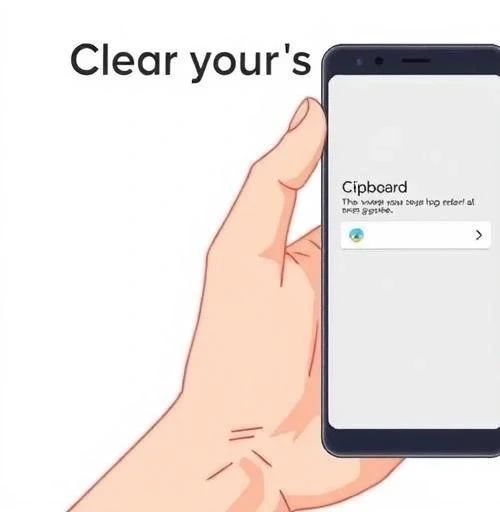
The clipboard temporarily stores text‚ links‚ images‚ or other items that you copy. On Xiaomi phones‚ the steps for clearing it depend mainly on the keyboard app and the version of MIUI or HyperOS. There is not always a single system-wide “Clear clipboard” button. In many cases‚ clipboard history is managed by Gboard or another keyboard.
Clear items using Gboard
- Open an app with a text field‚ such as Messages or Notes. Tap the field to display the keyboard.
- Tap the clipboard icon on the keyboard. If it is not visible‚ tap the four-square menu or the arrow at the top of the keyboard and look for Clipboard.
- Review the saved items. To remove one‚ press and hold it‚ then tap the delete or trash icon. On some versions‚ you can tap the pencil or edit icon‚ select several items‚ and delete them together.
- If an option such as Delete all appears‚ use it to remove the remaining clipboard entries; Confirm if prompted.
Keyboard layouts and labels can change after an update. If you cannot find the clipboard control‚ open the keyboard’s menu‚ or check which keyboard is active under Settings > Additional settings > Languages & input. The wording and location of these menus vary by device and software version.
If your Xiaomi uses a different keyboard
Some phones use Xiaomi’s system keyboard‚ while others use Gboard or a keyboard installed by the user. Open the keyboard’s toolbar and look for a clipboard symbol or a settings menu. Select the items you want to remove and use the available delete command. If the keyboard has no clipboard history screen‚ copying new content may replace the current item‚ but it may not erase entries saved by a separate clipboard manager.
For a third-party clipboard app‚ open that app and clear its history there. Removing an item from the keyboard does not necessarily remove a separate copy stored by another app. If you are unsure which app manages the saved entries‚ check the keyboard selected in the phone’s input settings and review recently installed clipboard utilities.
Replace the current clipboard item
If you only need to remove the item currently available for pasting‚ copy a harmless piece of text‚ such as a single period‚ from a trusted app. This usually replaces the current clipboard content. However‚ it may not delete older entries that remain in a keyboard’s clipboard history. Open the clipboard panel and check whether saved items are still listed.
Clear keyboard data as a last resort
On some Android versions‚ you can reset a keyboard through Settings > Apps > Manage apps. Select the keyboard app‚ open Storage‚ and choose Clear data or Clear storage‚ if available; This is a broader reset than deleting clipboard entries: it may remove keyboard preferences‚ learned words‚ and other locally stored settings. Menu names differ across Xiaomi models‚ and clearing keyboard data is not guaranteed to clear clipboard content managed elsewhere. Prefer deleting entries from the clipboard panel first.
Privacy and troubleshooting
- Check pinned items. Some keyboards keep pinned clipboard entries until you unpin or delete them. Removing ordinary history may leave pinned items untouched.
- Consider automatic deletion. Clipboard entries may expire after a period of time‚ depending on the keyboard and Android version. Do not rely on automatic expiry when removing sensitive information.
- Use care with passwords and codes. Avoid copying confidential details when possible. If you have copied them‚ remove the relevant entry from the clipboard history and from any clipboard manager you use.
- Check the destination app. Clearing the clipboard does not erase text already pasted into a message‚ note‚ document‚ or website. Delete that content separately if needed.
- Restart only if necessary. If an item still appears after deletion‚ close and reopen the keyboard or restart the phone‚ then check the clipboard panel again.
In short: open a text field‚ display the keyboard’s clipboard panel‚ and delete the saved entries there. This is usually the most direct method on Xiaomi phones. Because MIUI‚ HyperOS‚ and keyboard versions differ‚ the precise icons and menu names may not match these instructions exactly.



1 Comment. Оставить новый
The article clearly explains that clearing clipboard history on Xiaomi phones depends on the active keyboard or clipboard app. Its step-by-step guidance and note that menu labels vary by software version make the instructions practical, though the final sentence appears to be cut off.