
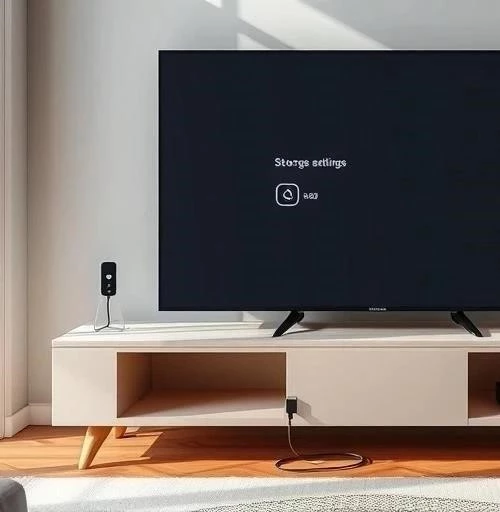
Most Chinese-market Xiaomi Mi TVs have fixed internal storage: it is built into the TV and cannot be upgraded like a computer’s memory․ A USB drive can add space for files and, on some software versions, apps, but it does not physically enlarge the built-in storage․ The options depend on your exact model and firmware․
Connect a USB drive
Choose a reliable USB flash drive or portable hard disk with enough capacity, then connect it to the TV’s USB port․ If using a hard disk, check its power requirements; some drives need an external power supply․ Open the TV’s storage or file-manager app and see whether the drive is recognised․ If prompted to format it, remember that formatting erases its contents․ Back up files first․
A USB drive is a dependable way to keep films, photos and music without filling the TV’s internal space․ However, it may only work as removable media․ Do not assume that an app can be installed or moved to it: this depends on the TV’s operating system and firmware․
Check whether apps can be moved
Open Settings and look for Storage, Device Preferences or an equivalent menu․ Select an installed app to check for options such as Move or Change storage location․ Menu names differ across models, and Chinese firmware may use different labels; If no such option appears, the TV likely does not support moving that app to USB through its standard settings․
Some Android devices offer “adoptable storage,” which formats a drive for use as internal storage․ Use this only if the TV itself explicitly offers the feature and explains the consequences․ The drive may then be encrypted, tied to that TV, and unavailable for ordinary file storage․ Avoid unofficial instructions that require hidden menus or system modifications․
Free up built-in space
- Uninstall apps you no longer use․
- Clear app caches or downloaded files in Settings, where available․
- Remove offline videos and other large files․
- Restart the TV after cleanup and check available space again․
Clearing an app’s data is different from clearing its cache: it can remove accounts, settings and saved information․ Confirm before selecting it․ Never delete system files or install unfamiliar “memory cleaner” apps; these can cause errors and rarely add usable storage․
Before you start
Check the full model number and firmware version, since features vary between Chinese and international Mi TVs․ Safely eject USB storage when the option is available, and keep important files backed up․ If the TV cannot install apps to external storage, a supported streaming box with more built-in storage may be a better solution than attempting risky firmware changes․

9 Comments. Оставить новый
This is a balanced overview: it explains what a USB drive can do, what it probably cannot do, and how to check before relying on it. The cleanup steps are a sensible fallback when app movement is unavailable.
The explanation of adoptable storage is helpful because it points out the trade-offs, including encryption and the drive being tied to one TV. The caution against unofficial system modifications is also well judged.
A clear and useful guide for anyone running low on space. The suggestions to remove unused apps, clear caches and delete offline downloads offer safe ways to free up storage without changing the TV’s system.
This article sets sensible expectations rather than promising that every Xiaomi TV can move apps to external storage. Checking the app’s settings for a move option is a straightforward first step.
I like that the article distinguishes between using USB for personal files and using it as app storage. That distinction can prevent confusion when a drive appears in the file manager but does not offer app installation options.
The advice to back up files before formatting a USB drive is important and easy to overlook. I also appreciate the warning that a drive recognised for media playback may not be suitable for installing apps.
The article could be even more convenient with model-specific menu examples, but it appropriately notes that menu labels differ. Its core advice—to check the TV’s own settings rather than assume USB app support—is sound.
The practical note about portable hard drives needing extra power is useful, as drive compatibility is not only a question of storage capacity. Overall, this is a cautious guide that avoids overstating what external storage can do.
This is a practical explanation of the difference between adding removable storage and increasing a TV’s built-in capacity. The reminder to check the model and firmware is especially useful, since storage options can vary.