
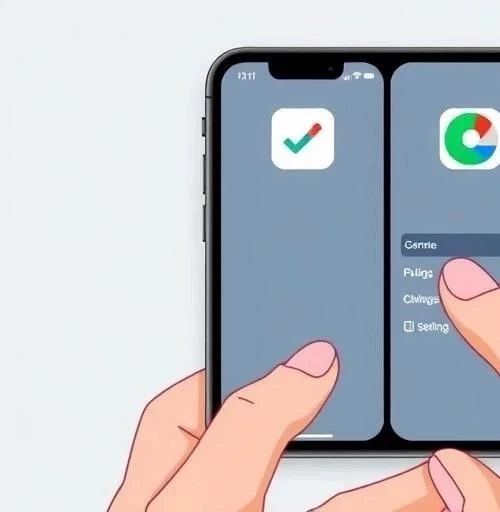
Cloning an app on a Huawei phone usually means creating a second‚ separate instance of a supported app. The two instances can be used with different accounts‚ such as two messaging or social-media profiles‚ while remaining on the same device. Huawei provides a built-in feature commonly called App Twin on supported models. Its availability and the names of settings can vary with the phone model‚ software version‚ region‚ and installed apps.
This is different from transferring or “cloning” a phone’s data to another phone. App Twin creates another app icon on one device; it does not copy the entire phone‚ duplicate every app‚ or automatically transfer messages and settings from an existing account.
Before you start
- Check whether the feature is available. App Twin is not present on every Huawei phone or software version. Some devices may support only selected applications.
- Install the app you want to use. The original app generally needs to be installed and set up before its twin can be enabled.
- Decide which account to use. The second instance may ask you to sign in or verify a separate account. You may need another phone number for a messaging service.
- Keep the software current. Menu labels and supported apps can change after updates. Use the device’s built-in update settings and follow the instructions for your model.
Method 1: Use Huawei App Twin
- Open Settings on the phone.
- Look for Apps‚ then open App Twin. Depending on the software‚ the feature may appear under a slightly different menu name or location.
- Review the list of applications shown on the App Twin screen. The list contains apps that the phone permits you to duplicate; it does not necessarily include every app installed on the device.
- Switch on the option beside the app you want to clone. If a confirmation message appears‚ read it and proceed only if you agree.
- Return to the home screen or app drawer. A second icon should appear. It may have a small badge or other visual marker to distinguish it from the original.
- Open the new icon and sign in with the second account. Complete any verification steps required by the app itself.
The original app and its twin normally keep separate sign-in sessions and app data. For example‚ signing out of one instance may not sign you out of the other. However‚ separation is not a guarantee that every app function will work independently: an app’s own rules‚ notifications‚ account limits‚ or security checks can affect how multiple instances behave.
If App Twin is missing or the app is not listed
First‚ use the search field in Settings and search for App Twin or Twin. If no matching setting appears‚ check the phone’s model and software documentation. The feature may not be supported on that device‚ or the software version may use a different arrangement. The absence of an app from the list usually means that Huawei’s built-in cloning feature does not offer a twin for it on that phone.
Installing an update may change available functions‚ but an update cannot be assumed to add App Twin to every model. Avoid changing system settings or installing unofficial firmware in an attempt to force the feature on. Such changes can affect security‚ stability‚ warranty coverage‚ or access to updates.
Other options for using two accounts
Before downloading a cloning utility‚ check whether the app itself supports multiple accounts or an account switcher. Some services let users add another profile within the same app. This can be simpler than maintaining two installations‚ although the exact process depends on the service.
Some Huawei phones or software environments may offer other ways to separate apps or users‚ but those options are not identical to App Twin and are not available on every model. A work profile or a separate user space‚ where supported‚ may keep certain data apart‚ but setup and notifications can differ. Follow instructions written for the exact device rather than assuming that a feature found on another Huawei phone will also be available on yours.
Third-party app cloners are another possible route‚ but they require caution. A cloning tool may request access to notifications‚ files‚ contacts‚ or other sensitive information. It may also fail after an app update‚ display extra advertising‚ or conflict with security checks. If considering one‚ review its publisher‚ permissions‚ privacy information‚ and reputation. Do not enter account passwords into an unfamiliar tool‚ and avoid downloading installation files from untrusted websites.
How to remove an app twin
Open Settings > Apps > App Twin‚ then switch off the twin for the relevant app. The exact wording may differ. Read any warning before confirming: removing a twin can delete its local data or sign it out. If the account contains information that is not backed up or synchronised‚ check the app’s own backup options first. Removing the twin should not normally remove the original app‚ but confirm which icon or setting you are changing.
Common issues and practical checks
The second icon does not appear
Check that the switch is enabled‚ then look in the full app list as well as on the home screen. A launcher may place the new icon in a different location. Restarting the phone can help refresh the display‚ but it does not add support for an incompatible app.
The app will not accept the second account
Confirm that the service allows multiple accounts and that the second account meets its verification requirements. Some services restrict duplicate sessions or require a separate number‚ email address‚ or device check. These restrictions are controlled by the app provider rather than by Huawei’s cloning setting.
Notifications or storage behave differently
Review notification permissions and battery settings for each instance. The twin may have separate permissions‚ and power-management settings can delay alerts. Also check available storage: a second instance may use additional space for its own cache‚ downloads‚ and account data.
Security and privacy considerations
Use the built-in feature when it is available‚ protect the phone with a screen lock‚ and secure each account with its own strong password and available two-step verification. Be aware that a second app instance can make private messages or account activity visible to anyone who can unlock the phone. Review lock-screen notification previews if the device is shared. Keep the app and phone software updated‚ and sign out of accounts you no longer use.
In short‚ the usual process is to open Settings‚ find App Twin‚ enable a supported app‚ and sign in through the new icon. If the option or app is missing‚ check documentation for the precise Huawei model and software version‚ or use the app’s own account-switching function. Feature availability is model-dependent‚ so the settings shown on one Huawei phone may not match another.
7 Comments. Оставить новый
The preparation section gives readers useful points to check before trying to enable a cloned app.
The article uses a neutral tone and avoids suggesting that every Huawei phone can duplicate every application.
The guidance to review confirmation messages and follow device-specific instructions is a sensible precaution.
The distinction between creating a second app instance and transferring data to another phone is clearly explained.
The step-by-step instructions are easy to follow, and the explanation of the supported-app list helps set expectations.
The reminder that a second account may require separate sign-in or verification is practical and relevant.
The article appropriately notes that App Twin availability and menu names can differ across Huawei models and software versions.