
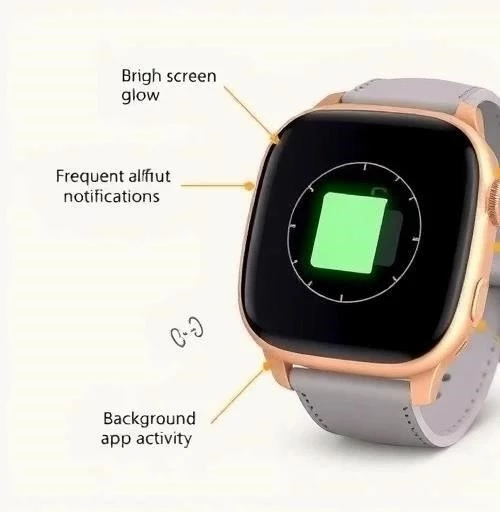
An Apple Watch is a tiny stage manager: it tracks your heartbeat, lights up for messages, checks your location, and keeps a little window open to your iPhone. When the battery suddenly races toward zero, it can feel as if one of the backstage crew has left every spotlight on. The cause is usually less mysterious—and often fixable—than it seems.
First, decide whether the drain is actually unusual
Battery life depends on the model, its age, settings, signal conditions, and what you ask it to do. A day packed with GPS workouts, calls, music, and frequent screen checks will use more power than a quiet day at a desk. Compare the watch with its own recent routine, rather than with someone else’s model or a single advertised estimate.
If the watch used to finish the day comfortably and now needs a midday rescue, look for a recent change: a software update, a new app, a different watch face, more notifications, or a stretch of poor cellular reception. A sharp, persistent change matters more than a busy afternoon.
The little power-hungry suspects
- Display habits. An Always-On display, high brightness, frequent wrist raises, and long wake duration can keep the screen working harder. Animated or information-dense faces may also refresh complications more often.
- Constant connections. Cellular use, weak Bluetooth or Wi-Fi, and poor mobile coverage can make the watch work harder to stay connected. Streaming music or taking calls away from the iPhone adds another load.
- GPS and workouts. Outdoor exercise tracking uses location services; heart-rate readings and workout features add to the demand; A long run with GPS is not a fair comparison with a day spent mostly indoors.
- Notifications and apps. Every buzz or screen wake costs a little. An app that refreshes in the background, gets stuck syncing, or repeatedly requests location can cost a lot more.
- New software settling in. After an update, the watch and iPhone may temporarily sync, index, or reorganize data. Some extra drain for a while can happen; it should not remain severe indefinitely.
- An aging battery. Rechargeable batteries gradually lose capacity. A watch with reduced maximum capacity may run down quickly even when its settings and daily routine have not changed.
A calm, practical troubleshooting route
- Check the evidence. On the watch, open Settings > Battery to review the charge level and recent trend. In Settings > Battery > Battery Health, check maximum capacity if that option is available on your model and software version. A sudden drop in capacity or a service message is more useful than guessing.
- Restart both devices. Restart the Apple Watch and its paired iPhone. This simple reset can clear a temporary process that has become stuck. If the problem began just after an update, give syncing some time, then check whether the drain settles.
- Reduce unnecessary screen activity. Try a simpler watch face, lower brightness, and fewer complications. If your model offers Always On, test turning it off. You can also shorten wake duration or disable wake-on-wrist-raise if you rarely need it.
- Prune interruptions. In the Watch app on iPhone, review notifications and allow only the alerts worth a tap on the wrist. Remove apps you do not use and consider disabling background refresh for apps that do not need to update constantly.
- Match connectivity to the moment. Keep the iPhone nearby when convenient, and avoid streaming or cellular use when you do not need it. If coverage is poor, repeated attempts to connect may be a clue—not a reason to blame the battery immediately.
- Use Low Power Mode selectively. It can extend a long day by limiting some background activity and features. Treat it as an emergency reserve, not a cure for a watch that drains abnormally every day.
Charge wisely; do not chase battery folklore
Optimized Battery Charging is designed to reduce battery aging by adjusting charging behavior. It may help preserve long-term capacity, but it does not repair a worn battery or directly explain sudden daytime drain. You do not need to deliberately run the watch to zero; use the charging routine that suits you and keep the watch and charger in good condition.
After changing settings, test one or two at a time over a normal day. If you change everything at once, you may save power without discovering the culprit. Also compare similar days: a GPS hike and a quiet workday are different experiments.
When settings are not enough
If the battery still collapses after a restart, a reasonable settling period after updates, and a few days of sensible testing, update watchOS and iOS to compatible current versions. If the problem began with one particular app, update or remove it. As a later step, unpairing and pairing the watch again may resolve persistent software trouble; make sure the iPhone has a recent backup first.
Contact Apple Support or an authorized service provider if Battery Health reports significantly reduced capacity, a service alert appears, the watch shuts down unexpectedly, or the drain remains dramatic after troubleshooting. A swollen, unusually hot, or physically damaged device needs prompt professional attention—do not try to open it yourself.
The useful takeaway
Fast drain is a clue, not a diagnosis. Start with the recent change, check battery health, and investigate screen time, connections, workouts, notifications, and background activity. Often the fix is one hungry setting; sometimes the battery has simply aged. Either way, a short, methodical check is better than turning every feature off and making a smart watch behave like a very expensive clock.


6 Comments. Оставить новый
This gave me a better way to think about battery life: not one dramatic culprit, but lots of little taps on the shoulder—notifications, screen wakes, background refreshes. Clear, relatable, and nicely paced.
The comparison between a GPS-heavy workout and an ordinary day is spot on. It’s a simple point, but it could save people from treating perfectly normal battery use like a hardware emergency.
Useful advice wrapped in a lively voice. I especially appreciate the suggestion to look for recent changes—new apps, faces, updates, or coverage—because troubleshooting works best when you follow the clues instead of resetting everything.
The “backstage crew” image makes the opening memorable without getting in the way of the advice. I’d never thought of weak reception as a tiny power-hungry treadmill, but now I’ll check signal conditions before blaming the battery.
A refreshingly practical guide: it separates normal heavy use from a real change in battery behavior. The list of suspects feels like a checklist you can actually use, not a lecture from the settings menu.
I like how this turns battery drain from a spooky mystery into a bit of detective work. The reminder to compare the watch with its own normal routine is especially useful—my marathon day shouldn’t be judged by my couch-potato Tuesday.