
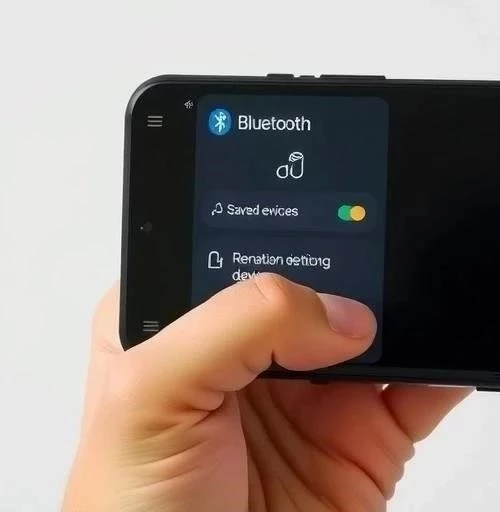
Removing a Bluetooth device from a Xiaomi phone is usually quick: open the Bluetooth settings, select the saved accessory, and choose the option to unpair or forget it․ The exact labels and menu layout can vary between MIUI and HyperOS versions, so the steps below cover the common routes․ Forgetting a device removes its saved connection details from the phone; it does not necessarily reset the accessory itself․
What “forget” means
When you pair headphones, a car, a speaker, a watch, or another accessory with a phone, both devices store information that helps them reconnect․ On Xiaomi phones, choosing Forget, Unpair, or a similarly named option deletes the phone’s saved pairing with that accessory․ The device should then stop connecting automatically․
Forgetting is useful if an accessory connects to the wrong phone, repeatedly fails to connect, appears more than once in the list, or needs to be paired again after a problem․ It is different from turning Bluetooth off: disabling Bluetooth temporarily leaves saved pairings in place․ It is also different from resetting the accessory, which may require its own button or manufacturer-specific procedure․
Method 1: Forget a device in Settings
- Unlock your Xiaomi phone and open Settings․
- Tap Bluetooth․ Depending on the software version, you may need to open Connection & sharing first, then select Bluetooth․
- Turn Bluetooth on if it is currently off․ The phone may need it enabled to show the full list of paired devices․
- Find the accessory under Paired devices, Saved devices, or a similar heading․
- Tap the device name, its information icon, or the arrow beside it․ On some versions, touching and holding the name opens its options․
- Select Unpair, Forget, or Unpair device, then confirm if prompted․
Afterwards, the accessory may disappear from the paired-device list․ If it remains visible under available devices, this does not necessarily mean it is still paired․ The phone may simply be detecting it nearby; To connect again, select it from the available-device list and complete pairing․
Method 2: Use the Bluetooth settings shortcut
On many Xiaomi models, you can reach Bluetooth controls without navigating through the full Settings menu․ Swipe down from the top of the screen to open Control Center or the notification shade․ Press and hold the Bluetooth tile to open its settings page․ Locate the accessory, open its details, and choose the unpair or forget option․
A single tap on the Bluetooth tile generally switches Bluetooth on or off; it does not remove a saved device․ If pressing and holding the tile does not open the settings page, use the Settings method instead․ The available shortcut can differ by phone model, region, and system version․
If you cannot find the forget option
First, open the device’s details rather than tapping its name once․ The action may be inside a menu represented by three dots, a gear, an arrow, or an information symbol․ On some versions, you need to tap the device name and then choose Unpair near the bottom of its details screen․
If the accessory is not listed among paired devices, it may already have been forgotten, may be out of range, or may be showing only as a nearby device․ Check that Bluetooth is enabled and that the accessory is switched on․ Avoid selecting a new, unpaired entry if your goal is only to remove an older saved pairing․
Menu names may differ slightly across MIUI and HyperOS releases․ Search within Settings for Bluetooth if you cannot locate the section․ You can also use the Settings search field for terms such as paired devices, unpair, or connection․
What to do if the device keeps reconnecting
- Confirm that it was unpaired․ Return to Bluetooth settings and check that the accessory is no longer in the paired list․ If it is still there, open its details and repeat the action․
- Check other phones and tablets․ The accessory may be paired with another nearby device and reconnecting to it․ Turn Bluetooth off temporarily on that device or forget the accessory there too․
- Switch off or disconnect the accessory․ Forgetting it on the Xiaomi phone does not power it down or erase pairings stored by the accessory․
- Restart both devices․ Restart the phone and, if appropriate, power the accessory off and on․ Then check the Bluetooth list again․
- Pair again only if needed․ Put the accessory into pairing mode and select it from the phone’s available-device list․ Follow any pairing prompt shown on screen․
Some accessories support connections to multiple devices or automatically switch between them․ In that situation, forgetting the pairing on the Xiaomi phone may not prevent reconnection through another phone, computer, or tablet․ Remove the pairing on each device that should no longer connect․
Forgetting Bluetooth earbuds
For earbuds, remove the saved connection from the Xiaomi phone using the steps above․ If the earbuds still connect to the phone after you try to pair them again, or if they do not enter pairing mode, consult the instructions for that specific model․ Many earbuds have a separate reset procedure, but the button combination and timing vary․ Do not assume that every Xiaomi or Redmi earbud model resets in the same way․
A reset of the earbuds can erase their remembered pairings or settings, while forgetting them on the phone only removes the phone’s copy of the connection․ Use the reset procedure only when necessary, and follow the accessory’s manual․ Keep the earbuds charged and close to the phone during pairing․
When Bluetooth is not working properly
If the phone cannot remove a pairing, or Bluetooth continues to behave unexpectedly, try these steps in order:
- Turn Bluetooth off, wait a few seconds, and turn it on again․
- Restart the Xiaomi phone and check for a system update in Settings․
- Move the accessory close to the phone and make sure it has enough battery power․
- Temporarily disconnect other accessories to check whether the issue is limited to one device․
- Open the paired device’s details and confirm that the phone is not merely showing a nearby, unpaired accessory․
Some Xiaomi versions provide a network reset option under Connection & sharing or a similarly named section․ A network reset may remove saved Wi-Fi networks and other connection settings as well as Bluetooth pairings․ Read the confirmation screen carefully before proceeding, and use this step only if simpler fixes have failed․ It is usually unnecessary to perform a factory reset just to forget one Bluetooth device․
Does forgetting a device delete data?
Unpairing normally removes the Bluetooth relationship saved on the phone․ It does not delete photos, contacts, messages, or files stored on the phone․ It also does not necessarily erase the accessory’s settings, account information, or pairing records for other devices․ If an accessory has its own memory or companion app, manage those settings separately․
Quick checklist
- Open Settings > Bluetooth, or press and hold the Bluetooth tile․
- Open the saved accessory’s details․
- Choose Forget or Unpair and confirm․
- Check other nearby devices if the accessory reconnects elsewhere․
- Reset the accessory only when needed and according to its own instructions․
In most cases, selecting Forget or Unpair in the Xiaomi phone’s Bluetooth settings is all that is required․ If menu wording differs, look for the accessory’s details page and its removal option․ If the problem concerns the accessory itself, use its model-specific instructions rather than assuming that removing it from the phone resets it․


8 Comments. Оставить новый
The comparison between forgetting a pairing and resetting an accessory is a useful distinction for troubleshooting.
The article presents the procedure in a straightforward order, from opening settings through confirming removal.
Including options such as tapping an information icon or holding the device name makes the instructions more adaptable.
The note that an accessory can remain visible among available devices clarifies a potentially confusing result.
The examples of accessories make the guidance relevant to a range of common Bluetooth devices.
The article clearly distinguishes removing a saved pairing from turning Bluetooth off or resetting the accessory.
The steps cover common Xiaomi settings paths while noting that menu names can differ between software versions.
The explanation of what forgetting a device does helps set clear expectations before following the steps.