
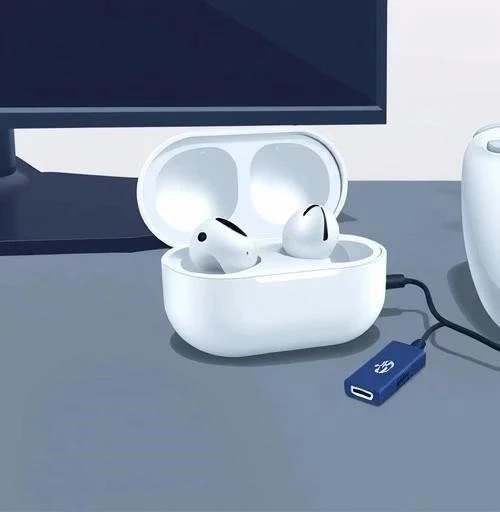
AirPods are convenient wireless headphones‚ but connecting them to a PlayStation is not as simple as pairing them with an iPhone. The PS5 and PS4 generally do not support ordinary Bluetooth headphones for game audio. You may see AirPods in a Bluetooth search on another device‚ but the console usually will not pair with them directly. The good news is that you can still use AirPods with a PlayStation by connecting a compatible Bluetooth audio transmitter‚ or by routing sound through a TV or another device.
This guide explains the practical options for PS5 and PS4‚ how to put different AirPods models into pairing mode‚ and what to expect from sound quality‚ latency‚ and microphone support.
Quick answer: use a Bluetooth transmitter
The most reliable way to hear PlayStation game audio through AirPods is to use a Bluetooth transmitter that is compatible with your console. A small USB transmitter plugs into a USB-A or USB-C port on the PlayStation. Some models instead connect to the controller’s 3.5 mm headphone socket. The transmitter handles the Bluetooth connection; the console itself is not pairing with AirPods as a normal headset.
Before buying one‚ check the product listing for explicit PS5 or PS4 support‚ the correct connector‚ and compatibility with Bluetooth headphones. A transmitter designed only for keyboards or controllers will not necessarily send audio. If you want to chat as well as listen‚ check microphone support separately: many transmitters provide game audio but do not pass the AirPods microphone back to the console.
Option 1: Connect AirPods with a USB Bluetooth adapter
- Choose a compatible audio transmitter. Pick a model that supports the PlayStation you own and Bluetooth audio output. Confirm whether it uses USB-A or USB-C and whether your console has an available port. Some adapters include a USB-A-to-USB-C converter; others do not.
- Charge your AirPods. Place them in their case and make sure the case and earbuds have enough battery for setup and play.
- Put the AirPods into pairing mode. For many AirPods and AirPods Pro cases‚ open the lid with the earbuds inside and press and hold the setup button on the case until the status light flashes white. On some newer models without a rear setup button‚ use the model’s front-of-case pairing gesture described in Apple’s instructions. For AirPods Max‚ press and hold the noise control button until the status light flashes white.
- Start pairing on the transmitter. Plug it into the PlayStation‚ then press or hold its pairing button as its instructions specify. Keep the AirPods close to the adapter while they connect. A steady light‚ a tone‚ or another indicator usually confirms pairing.
- Select the audio output on the console. If the PlayStation does not switch automatically‚ open its sound settings and choose the USB device or transmitter as the output. If the adapter is not listed‚ unplug it‚ restart pairing‚ and try another supported USB port.
Once paired‚ the AirPods should receive sound from games‚ menus‚ and other console audio. The precise setup can vary by adapter: some pair automatically after the first connection‚ while others need to be paired again after being used with a phone or computer.
PS5 audio settings
On PS5‚ open Settings > Sound > Audio Output. Under Output Device‚ select the connected USB transmitter if it is not already selected. If you want all console sound in your AirPods‚ set Output to Headphones to All Audio‚ when that option is available. You can also adjust the volume in the sound menu or through the adapter’s controls.
If your transmitter is connected to the DualSense controller’s headphone socket rather than USB‚ the console may identify the connection as a headset plugged into the controller. Select that device as the output and check the headphone output setting. A controller-connected transmitter can be convenient‚ but it may add weight or be more exposed to bumps while you play.
PS4 audio settings
On PS4‚ open Settings > Devices > Audio Devices. Choose the transmitter under Output Device‚ then set Output to Headphones to All Audio if you want game and menu sound in the AirPods. The USB adapter may also appear under the console’s Bluetooth devices‚ but follow the transmitter’s pairing process rather than assuming the PS4 can pair directly with AirPods.
Option 2: Use a transmitter connected to the controller
A Bluetooth transmitter with a 3.5 mm plug can connect to the headphone jack on a DualSense or DualShock 4 controller. Put the transmitter into pairing mode and pair the AirPods using the steps above. This can work when a USB adapter is unavailable or when you want the audio connection close to the controller.
Check that the transmitter is made for sending audio from a headphone jack to Bluetooth headphones. Not every Bluetooth adapter works in this direction. Also note that the controller’s battery may run down faster when a plugged-in accessory is attached‚ and a bulky transmitter can make the controller awkward to hold.
Option 3: Connect AirPods to your TV
If your television supports Bluetooth headphones‚ you can pair the AirPods with the TV instead of the PlayStation. Open the TV’s Bluetooth or sound-output settings‚ put the AirPods in pairing mode‚ and select them from the available devices. The PlayStation sends its audio to the TV over HDMI‚ and the TV forwards it to the AirPods.
This method avoids buying a console adapter‚ but it has limitations. TV menus differ‚ and some televisions do not support Bluetooth audio output. There may also be noticeable sound delay‚ especially if the TV does not offer a low-latency mode. Pairing the AirPods with the TV does not make their microphone available to PlayStation party chat.
Can you pair AirPods directly from PlayStation settings?
Usually‚ no. The PS5 and PS4 restrict standard Bluetooth audio devices‚ so AirPods commonly fail to connect through the console’s ordinary Bluetooth accessory menu. You may see a message that the Bluetooth device is unsupported‚ or the AirPods may not appear at all. This is a console compatibility limitation‚ not necessarily a problem with your earbuds.
Do not confuse Bluetooth audio adapters with Bluetooth controllers or keyboards. The adapter needs to transmit sound from the PlayStation to headphones. A device that only adds Bluetooth input‚ or that is intended for a phone‚ may not provide the connection you need.
Will the AirPods microphone work for party chat?
Often‚ not through a basic Bluetooth transmitter. Many transmitters are designed for listening and do not carry microphone audio back to the console. Bluetooth headsets may also use different audio modes for calls and game sound‚ and a simple adapter may not support both at once. As a result‚ you could hear your game but be unable to speak to other players through the AirPods;
For voice chat‚ check the transmitter’s specifications for bidirectional audio and PlayStation microphone support before purchasing. If it does not support a microphone‚ use a separate compatible microphone or the microphone built into your controller‚ if available and enabled. On PS5‚ check Settings > Sound > Microphone and select the intended input device. On PS4‚ check Settings > Devices > Audio Devices for the input device and microphone level.
Sound delay‚ quality‚ and battery life
Wireless audio can have more latency than a wired gaming headset. The amount depends on the transmitter‚ the Bluetooth codec supported by both devices‚ and the game. A small delay may be acceptable for slower games‚ films‚ or casual play‚ but it can be distracting in rhythm games or competitive titles. Look for a transmitter that advertises low-latency audio‚ while remembering that the AirPods and transmitter must use a compatible mode for any benefit.
AirPods can also run out of charge during a long session. Check the battery level before playing‚ keep the case nearby‚ and lower the volume if you need to extend listening time. If the audio cuts out‚ move closer to the console or transmitter and reduce obstacles between the adapter and earbuds.
Troubleshooting connection problems
- The AirPods do not appear or pair. Confirm that the AirPods are flashing white and the transmitter is in pairing mode. Move them close together‚ then repeat the process. Disconnect the AirPods from a nearby phone or computer if that device keeps reconnecting to them.
- The console does not recognize the adapter. Check that it is a PlayStation-compatible audio transmitter‚ not a data-only Bluetooth dongle. Try another USB port‚ reconnect it firmly‚ and consult the adapter’s instructions for supported console settings.
- The AirPods connect but there is no sound. Select the transmitter as the output device in the PlayStation sound menu. Check the output-to-headphones setting‚ the console volume‚ and any volume controls on the adapter.
- There is sound‚ but chat does not work. This commonly means the transmitter does not support microphone input. Select a separate microphone in the console settings or use a transmitter specifically verified for voice chat.
- The sound stutters or arrives late. Charge the AirPods‚ reduce distance and interference‚ and try a different supported transmitter or connection method. If the delay remains distracting‚ use wired headphones or a PlayStation-compatible wireless headset.
Which method should you choose?
For most players‚ a USB Bluetooth audio transmitter that explicitly supports their PlayStation is the simplest solution. A controller-mounted transmitter is a useful alternative‚ while pairing to a Bluetooth-capable TV can work if a little latency is acceptable. Direct pairing from the console’s Bluetooth menu is generally not a dependable option.
In short: put your AirPods into pairing mode‚ pair them with a PlayStation-compatible audio transmitter‚ and select that transmitter as the console’s output device. Check microphone support before buying if you need party chat. With the right adapter and settings‚ AirPods can provide convenient wireless game audio even though PlayStation does not normally connect to them as standard Bluetooth headphones.


2 Comments. Оставить новый
This guide clearly explains why AirPods do not pair directly with most PlayStation consoles and offers practical alternatives. The reminder to check microphone support before buying a transmitter is especially helpful.
A useful, easy-to-follow introduction for anyone hoping to use AirPods with a PS5 or PS4. I appreciate the distinction between listening to game audio and using the AirPods microphone for chat.